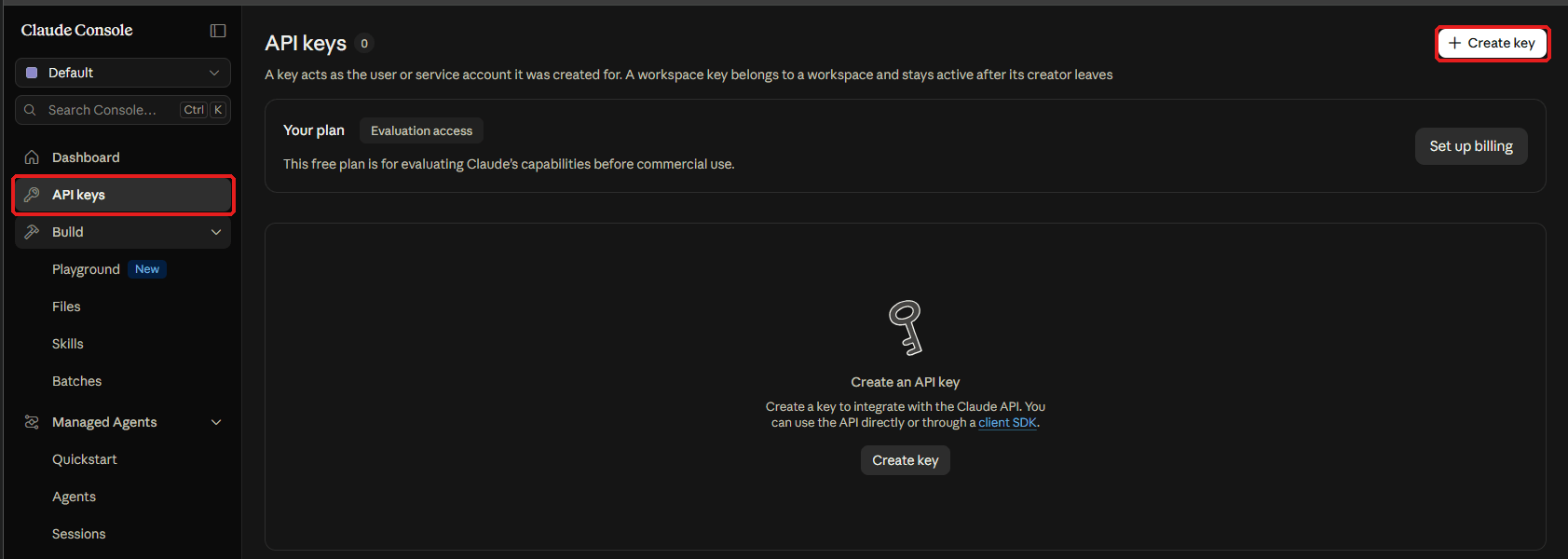
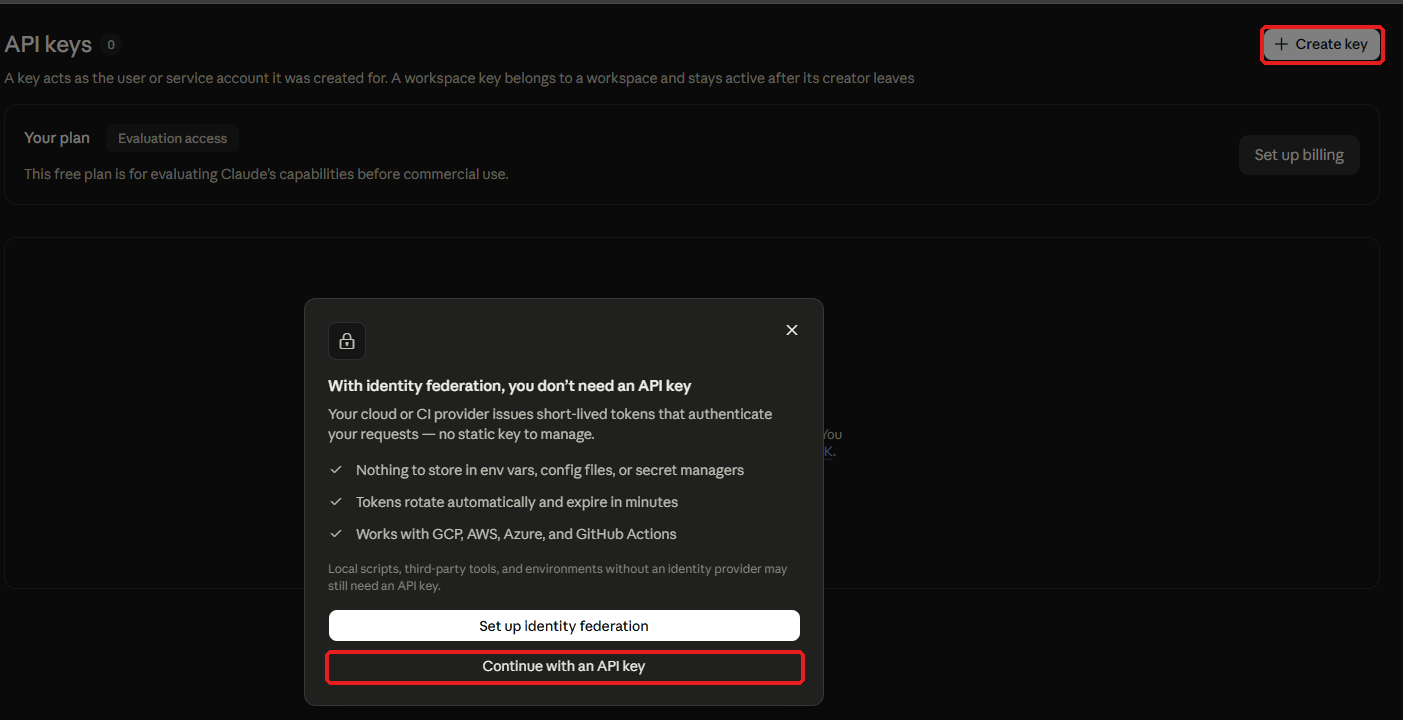
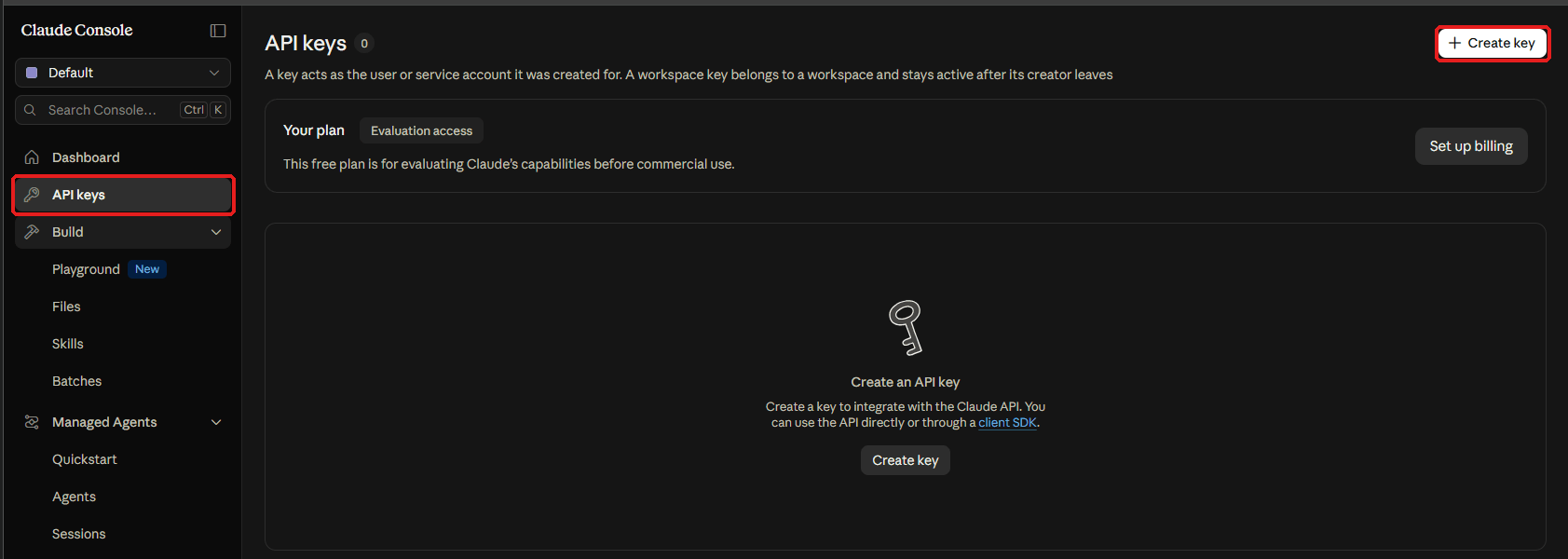
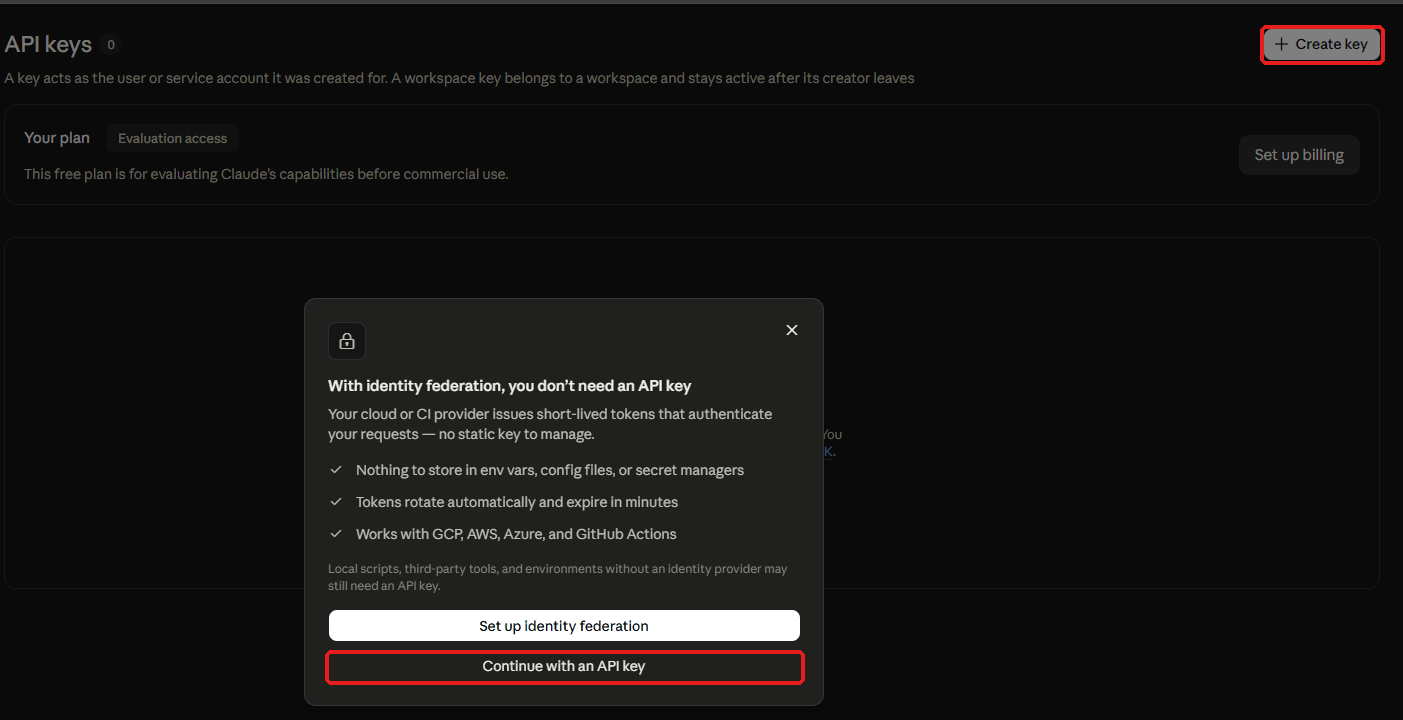
跳出「With identity federation…」的說明時,按 「Continue with an API key」(identity federation 是給雲端、CI 用的,STOCKings 要的是 API 金鑰)。 取個名字(例如 STOCKings),複製開頭是 sk-ant- 的金鑰。它只顯示這一次。
You can keep complete records without any key. The items below are optional extras that make some features better; they all go in Settings → Data sources. The Google link for cloud backup needs no key of your own: the installed version has it built in (chapter 21).
Item
Used for
Apply?
Cost
Who
Tiingo key
US quotes, daily candles, dividends and splits (steadier than Yahoo, also works in commercial mode)
Free sign-up
Free plan is enough
Each account
AI summary key
AI summaries written as a paragraph (chapter 18)
Pick one of three; local models need none
Pay as you go
Each account
SEC contact email
US P/E, yield and price-to-book
No, use your own email
Free
Each account
Open Exchange Rates app_id
Hourly “today’s rate” in commercial mode
Free sign-up
Free plan is enough
Owner only
Tiingo (US market data)
With it, US quotes, daily candles, dividends and splits come from Tiingo first; without it, Yahoo Finance is used as before.
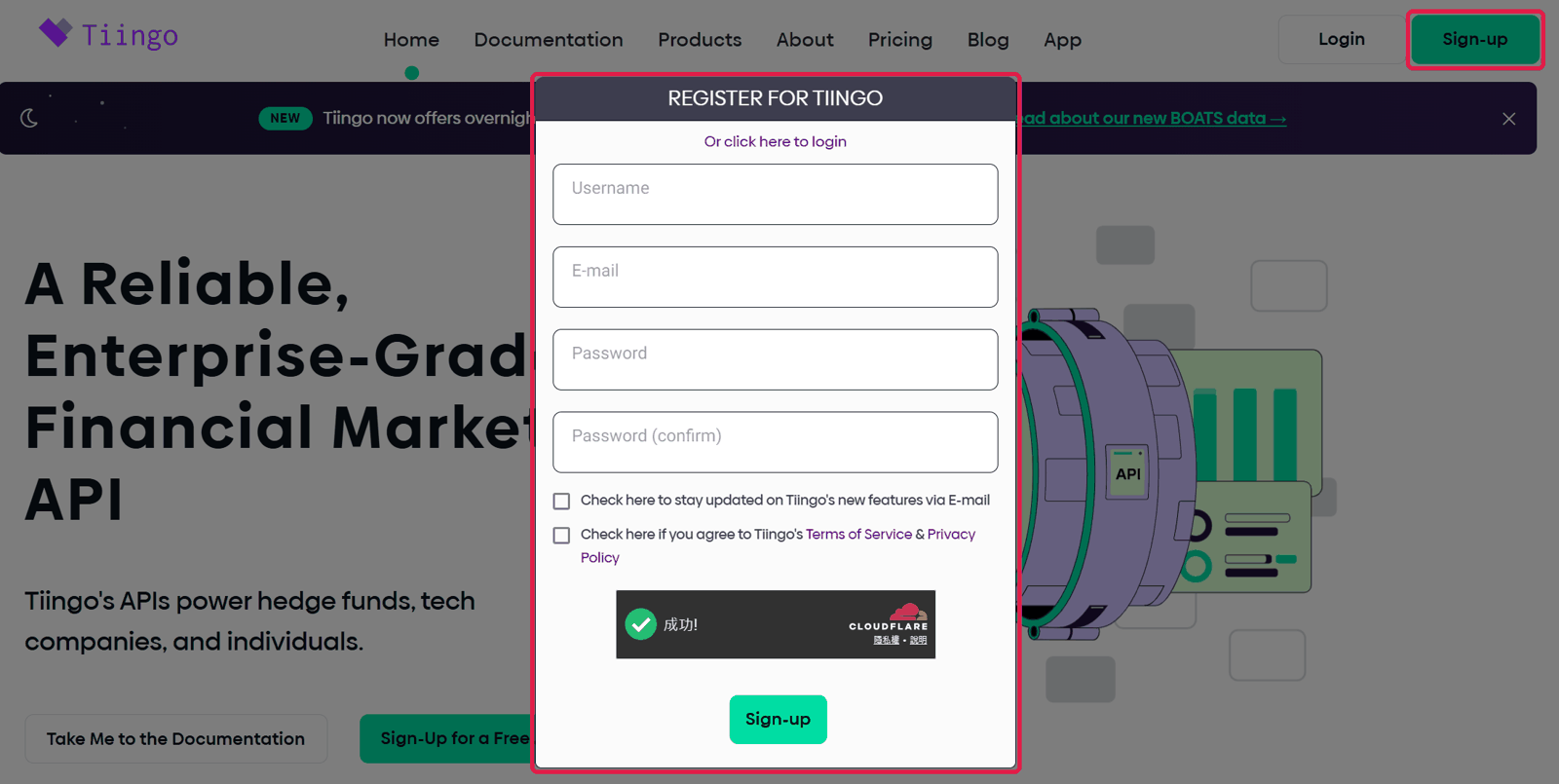
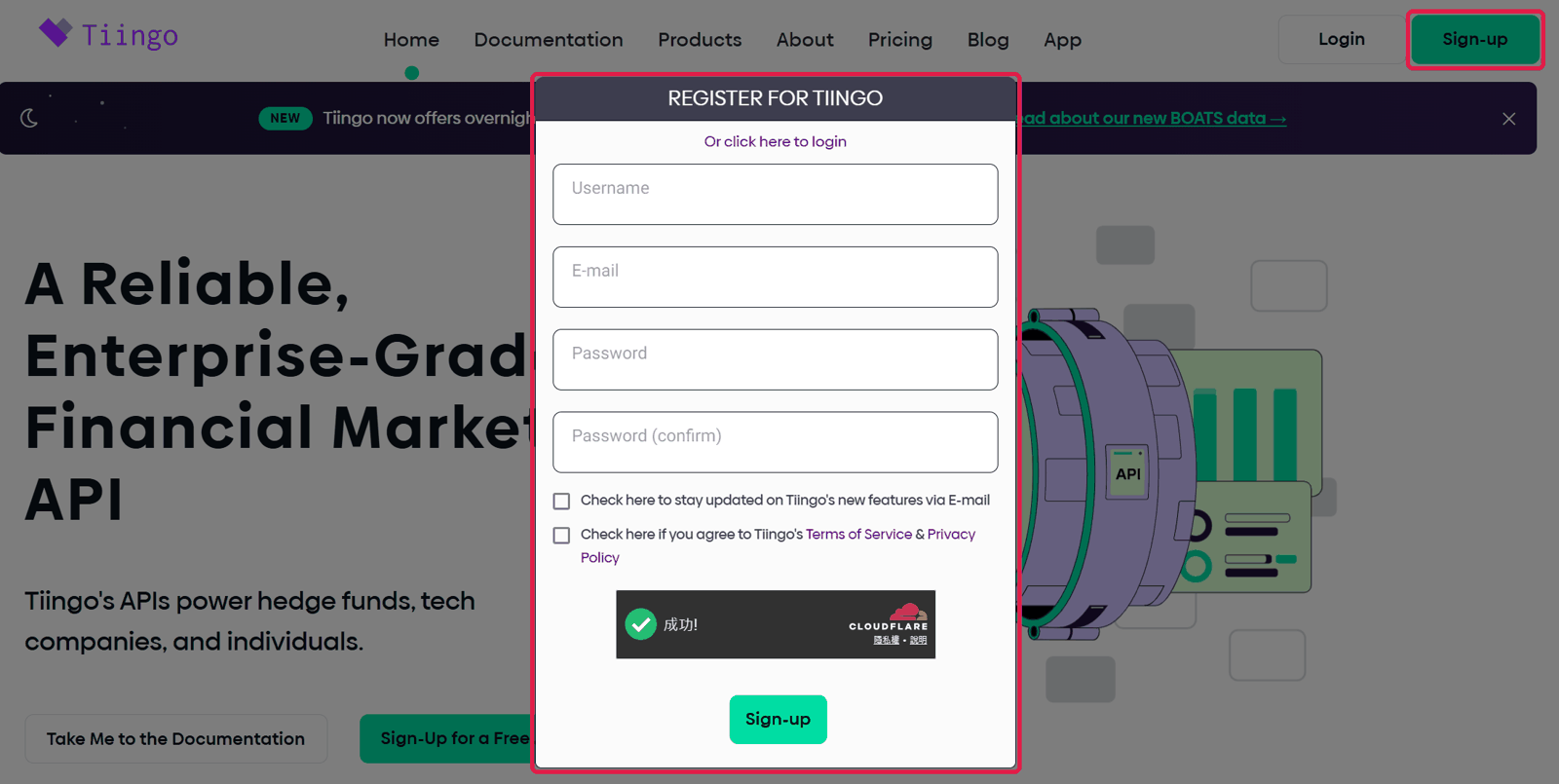
Go to https://www.tiingo.com, click “Sign Up” at the top right, enter an email, username and password, and follow the steps (no credit card for the free plan).
Tiingo sign-up
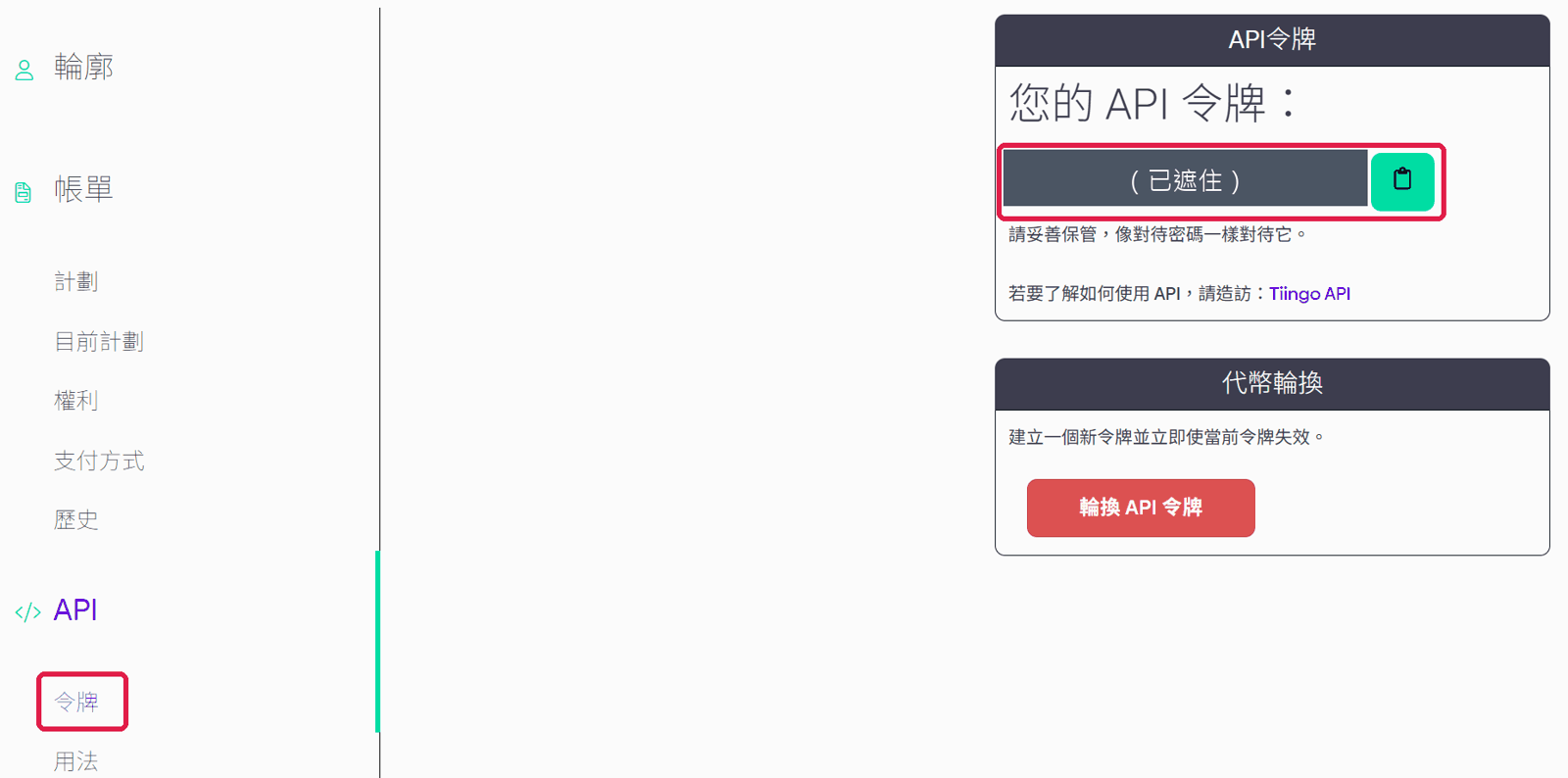
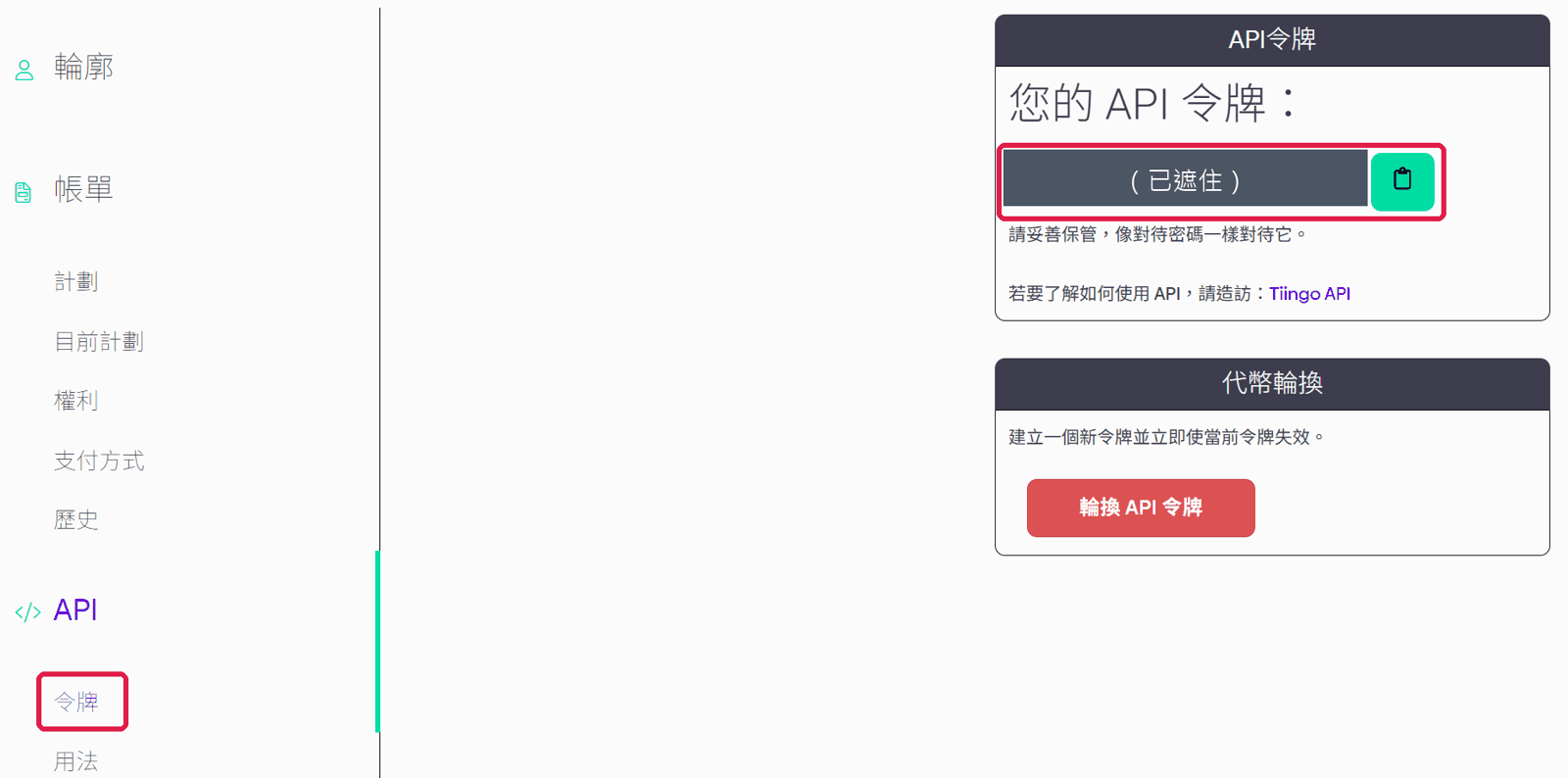
After signing in, open https://www.tiingo.com/account/api/token (API → Token in the left menu) and click the copy button next to the token to copy the 40 letters and digits. If it ever leaks, click “Rotate API Token” on the same page for a new one; the old one stops working at once.
Tiingo API Token page
Back in STOCKings, open Settings → Data sources, paste it into “Tiingo key” and click “Save changes”.
Paste it into “Tiingo key”
Once saved, the field shows “Set (…last four)”, and after you expand “Where each kind of data comes from” below, “Live quotes (US)” and “Daily candles (US)” now come from Tiingo.
Saved; only the last four characters are shownUS data now comes from Tiingo
AI summaries: Anthropic Claude, OpenAI, Google Gemini
One provider is enough. ChatGPT, Claude and Gemini subscriptions don’t include API credit; create an API key on the sites below. Anthropic and OpenAI are pay as you go (before you add credit, Anthropic gives a limited trial plan called Evaluation access); Google Gemini has a free tier. STOCKings sends only public market data, never your holdings or trades.
Anthropic Claude
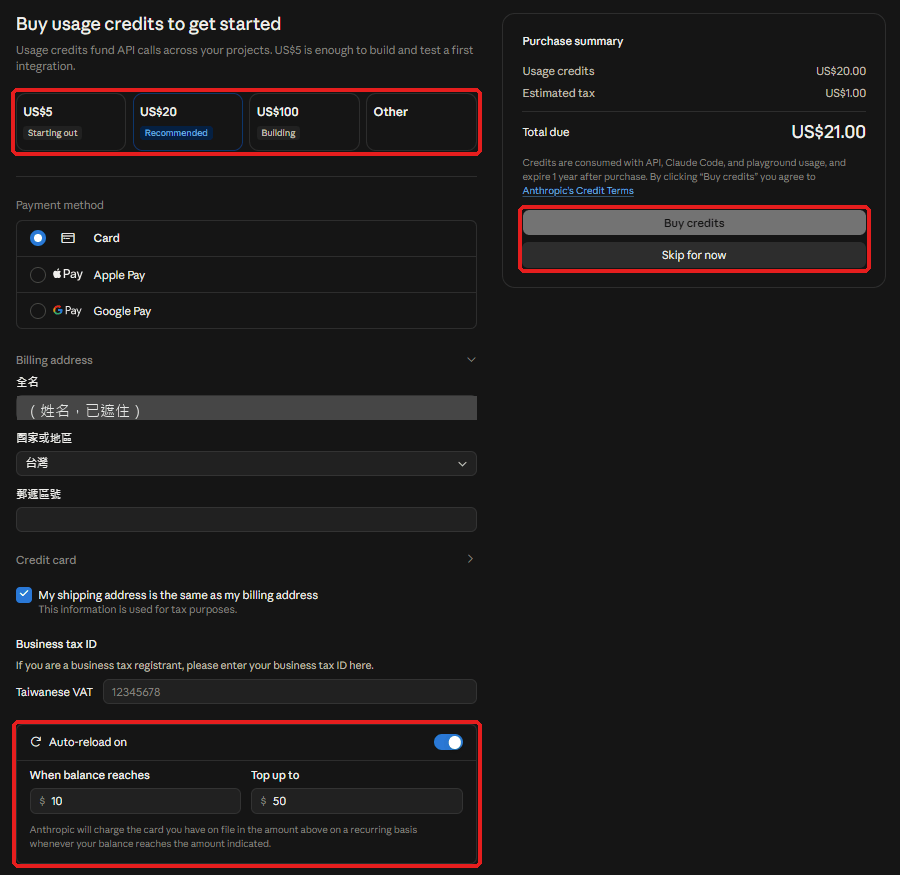
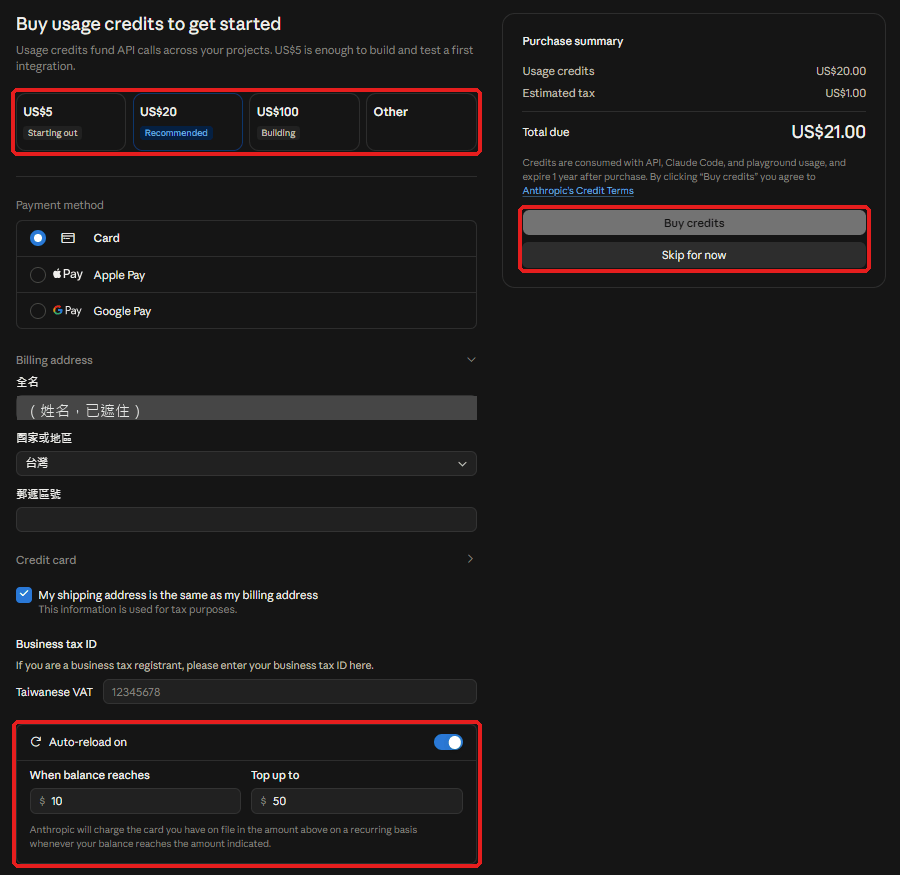
Sign up and sign in at https://platform.claude.com. This is the Claude Console; its account and billing are separate from claude.ai (Claude Pro and Max subscriptions don’t include API credit). The first time you see “Buy usage credits”: pick an amount (US$5 is enough to try it) and click “Buy credits”, or click “Skip for now” and add credit later under “Billing”. “Auto-reload” below is on by default and charges your card whenever the balance drops below the amount set; turn it off if you don’t want automatic charges.
Buying credits in the Claude Console (name covered)
When the “With identity federation…” box appears, click “Continue with an API key” (identity federation is for cloud and CI setups; STOCKings needs an API key). Give the key a name (for example STOCKings) and copy the key starting with sk-ant-. It is shown only once.
Choosing Continue with an API key
OpenAI
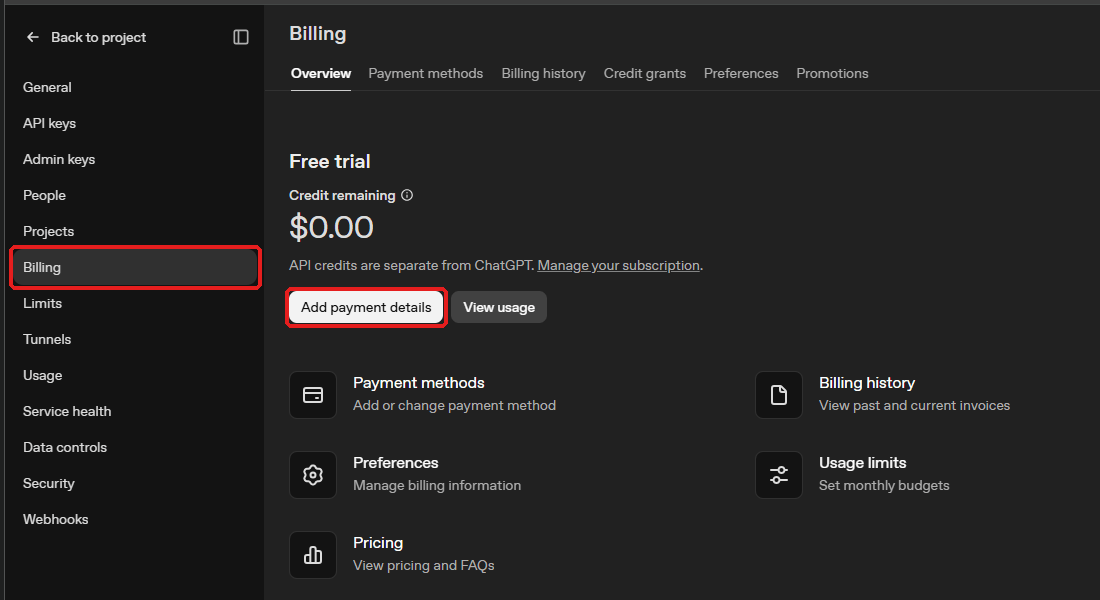
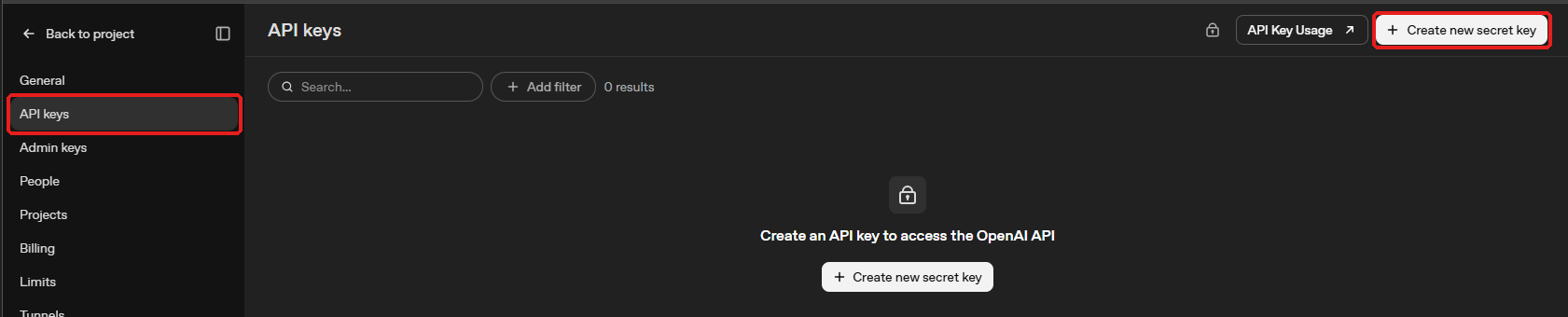
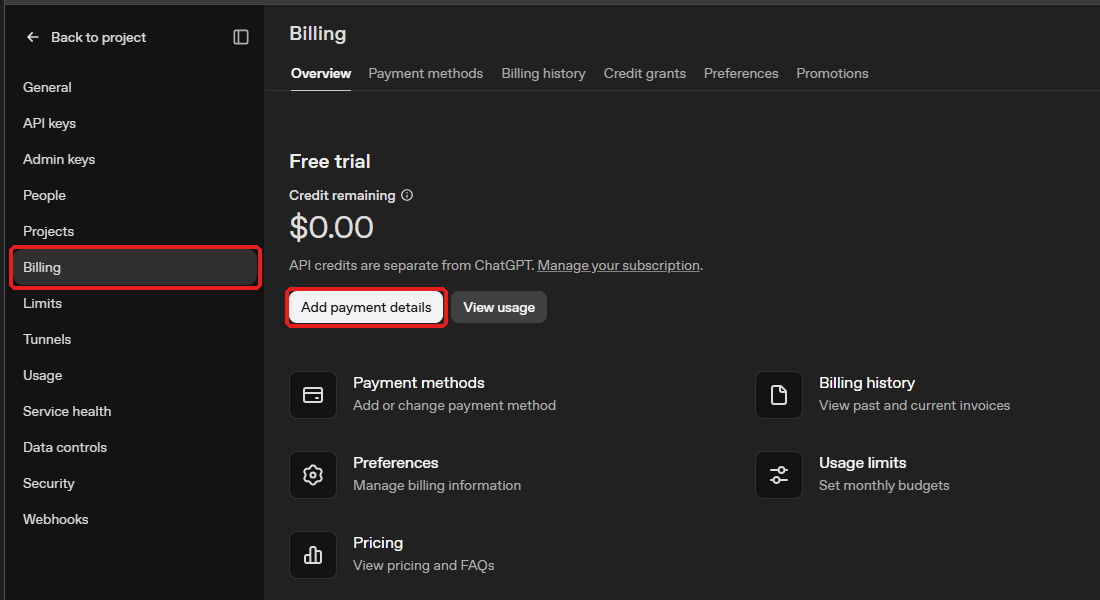
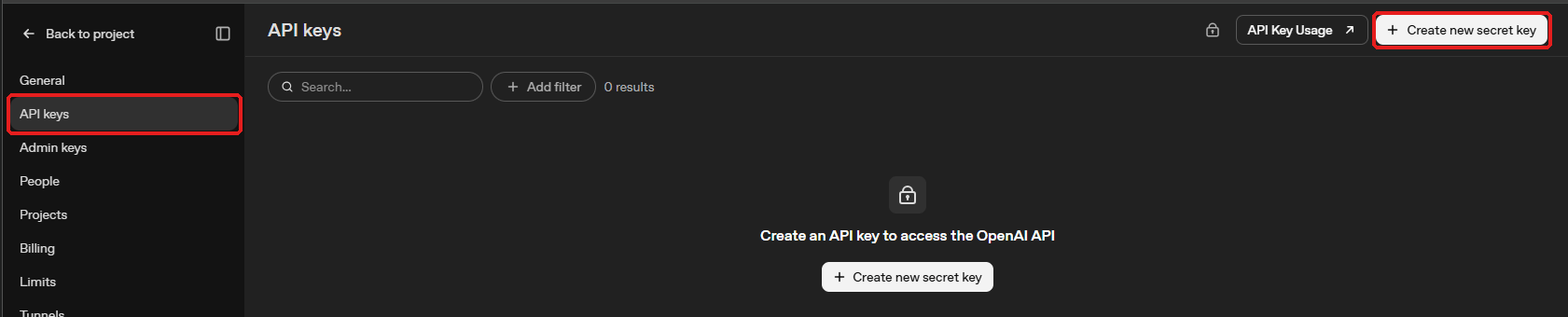
Sign in at https://platform.openai.com (API credit is separate from a ChatGPT subscription). Click “Billing” in the left menu, then “Add payment details” to add a card and credit.
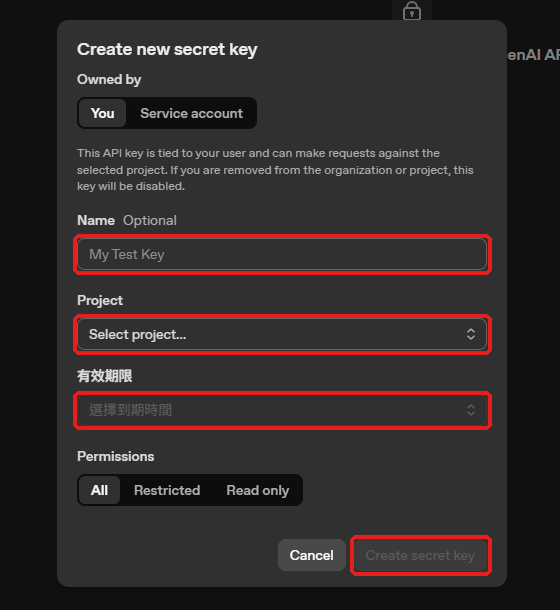
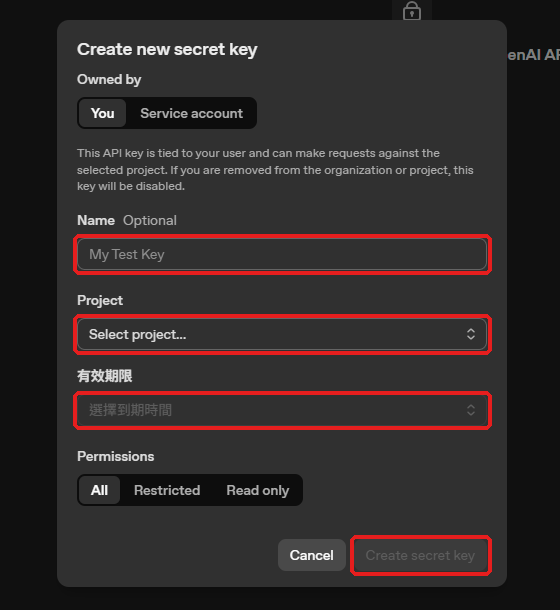
Give it a name (for example STOCKings), pick your “Project” (usually Default project), and choose when it expires under “Expiration”: after that, AI summaries go back to bullet points until you create a new key and paste it into STOCKings. Leave the rest as is and click “Create secret key”.
Creating the key: name, project, expiration
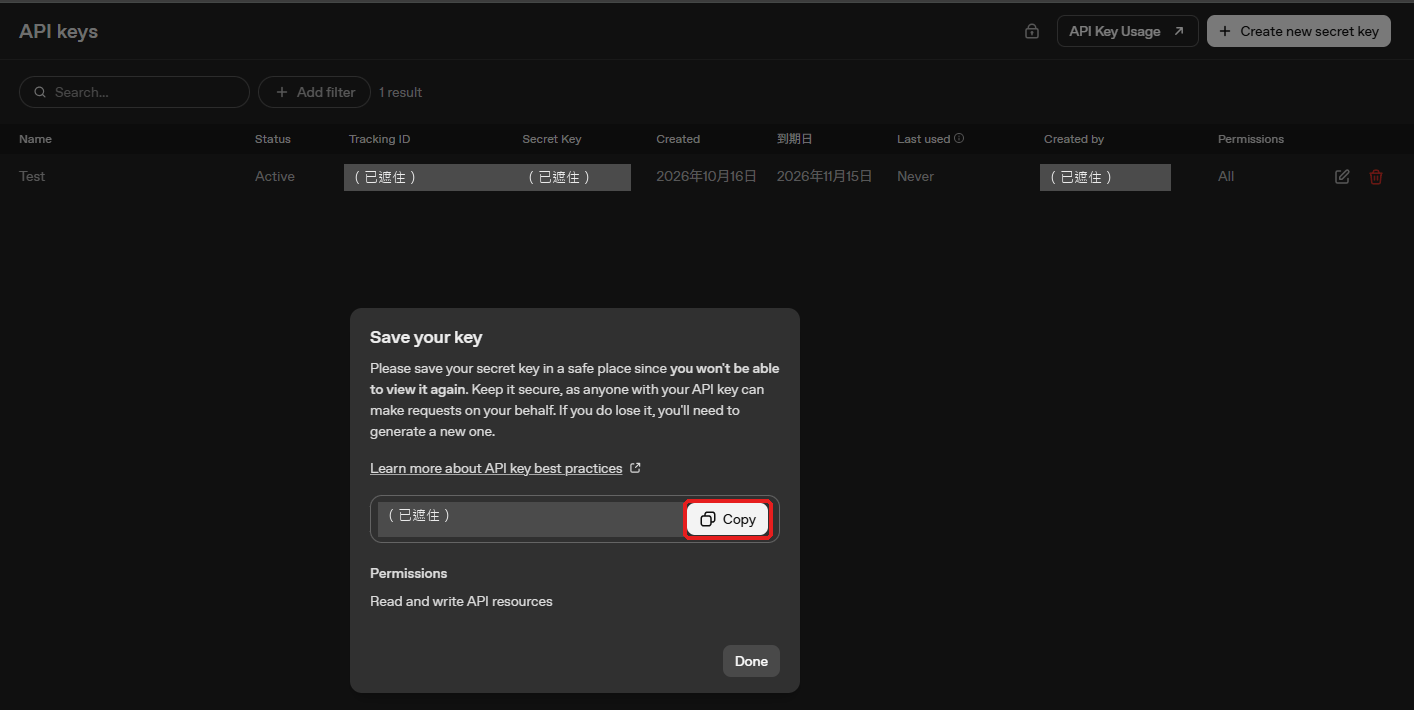
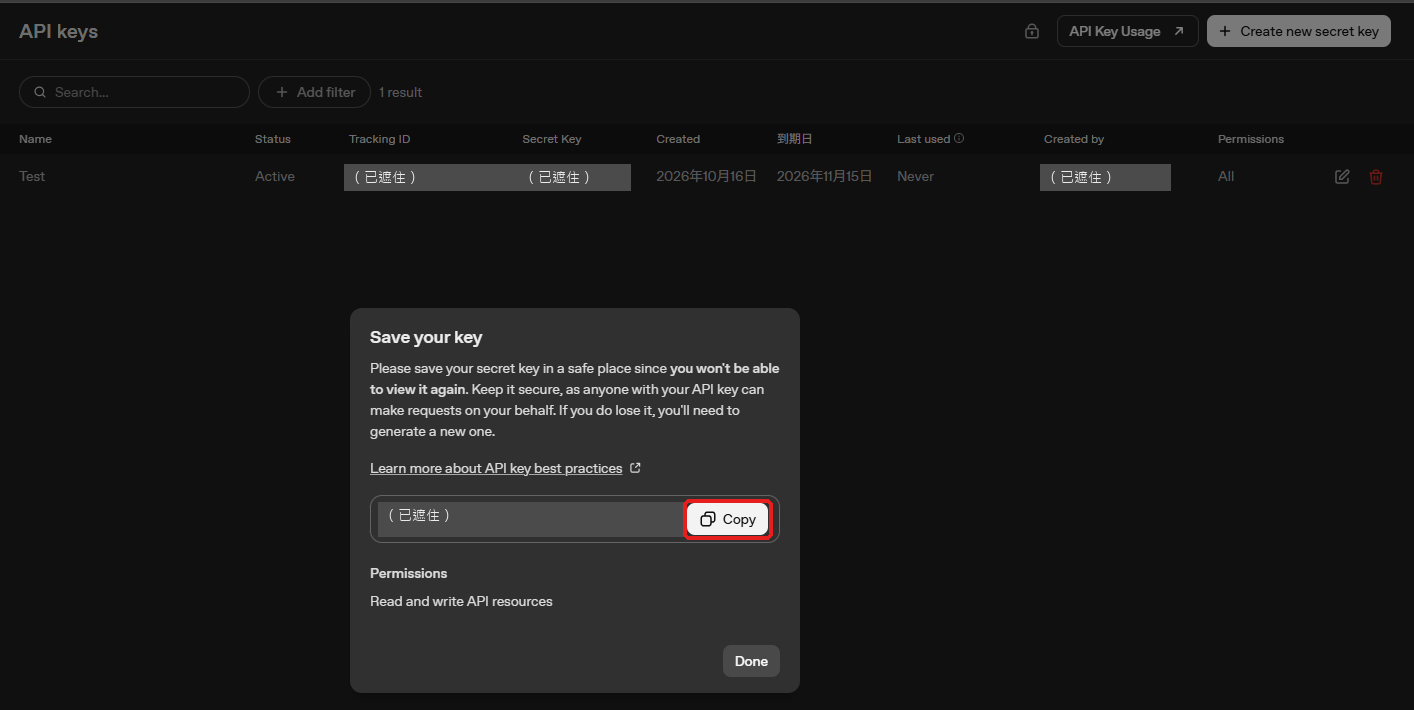
Click “Copy” to copy the key starting with sk- (usually sk-proj- now). It is shown only once. Then click “Done”.
Copying the key (key and account covered)
Google Gemini
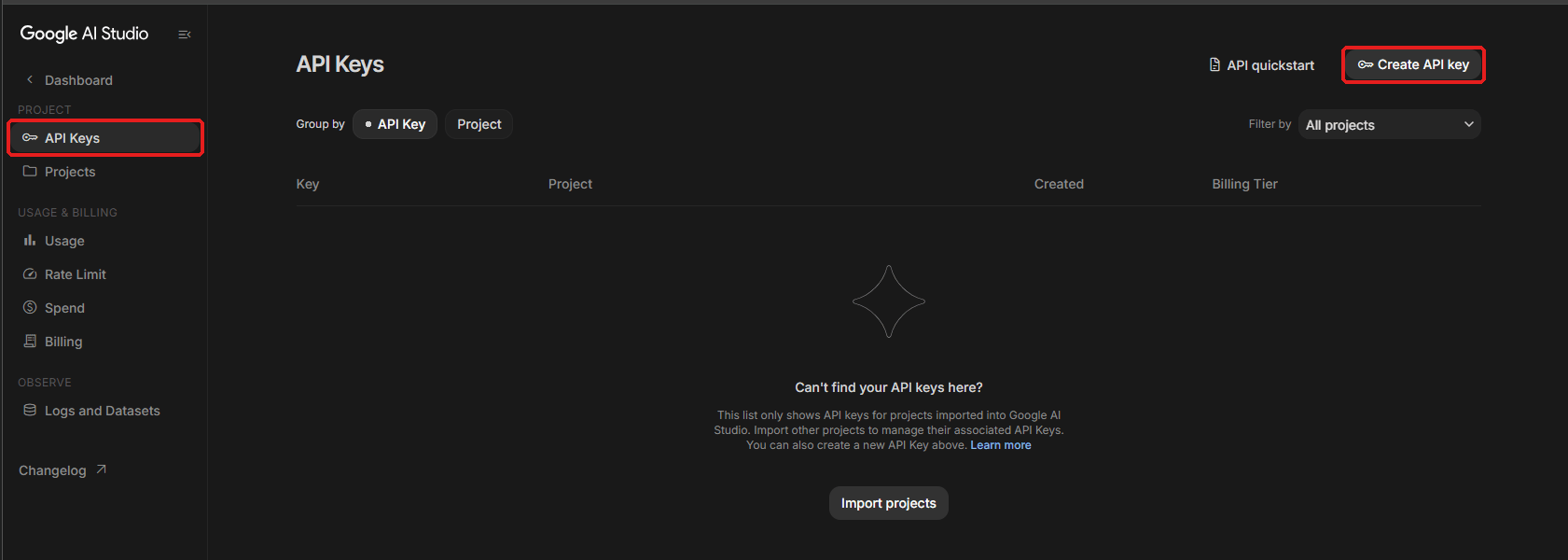
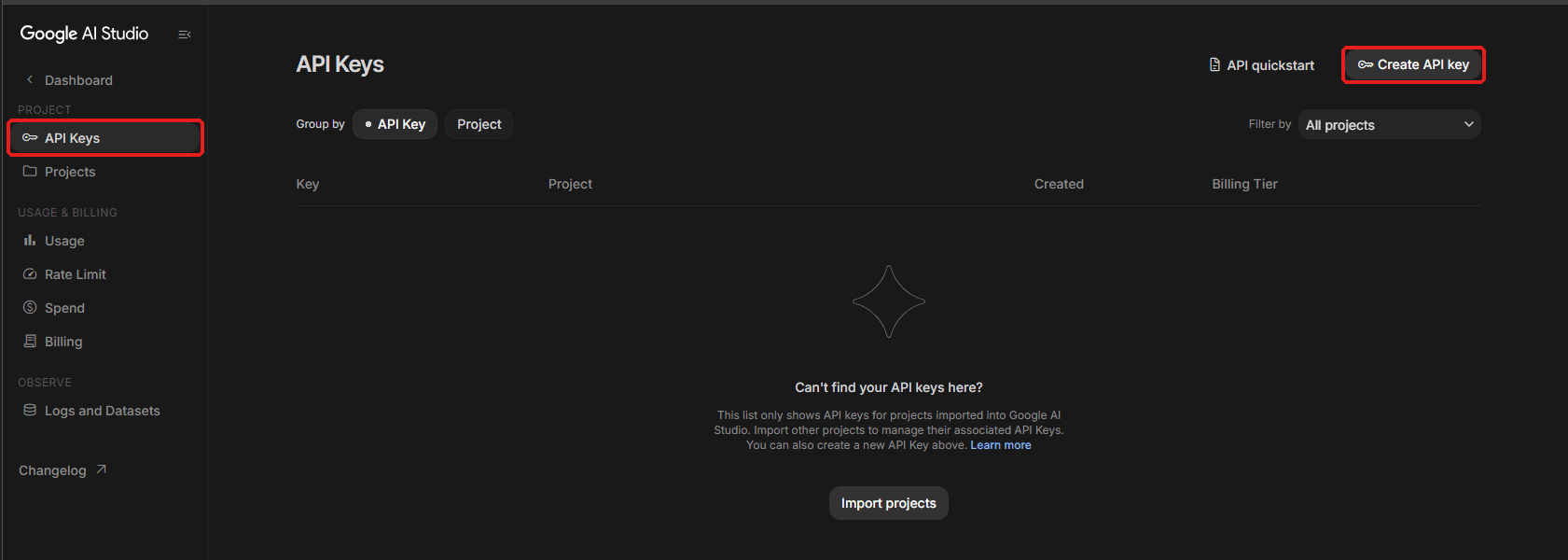
Open https://aistudio.google.com/apikey, sign in with a Google account and accept the terms. With “API Keys” selected in the left menu, click “Create API key” at the top right. On the free tier, what you send may be used to improve Google’s products (STOCKings sends only public market data).
The API Keys page in Google AI Studio
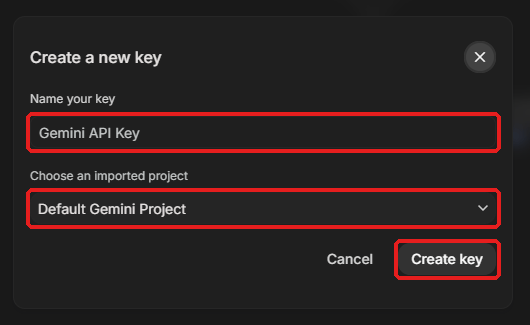
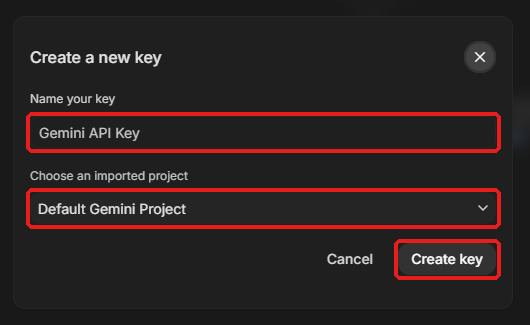
You can rename the key to STOCKings; the default project “Default Gemini Project” is fine. Click “Create key”.
Creating the key: name and project
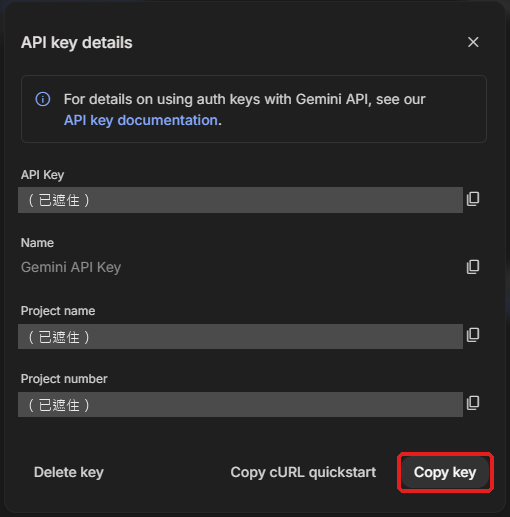
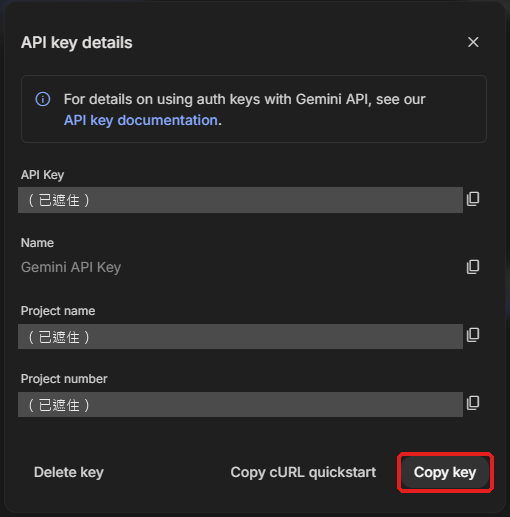
In “API key details”, click “Copy key” (the key may start with AQ. or AIza). Unlike Anthropic and OpenAI, a Gemini key stays visible on the API Keys page; if it leaks, click “Delete key” there and create a new one.
Copying the key (key and project number covered)
Entering it in STOCKings
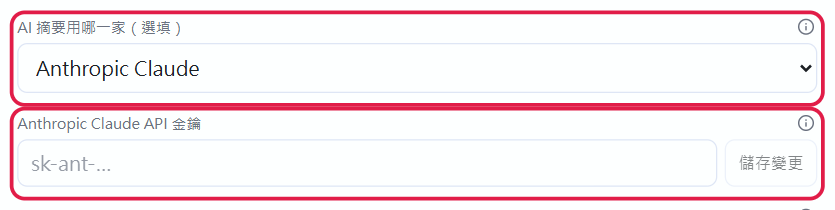
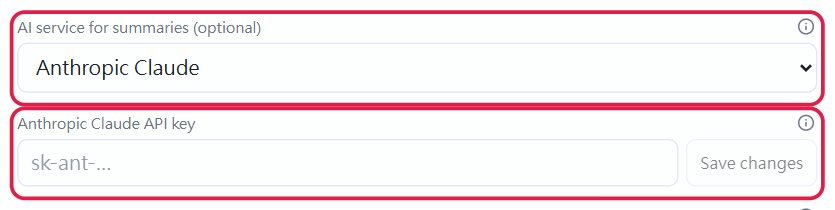
In Settings → Data sources, choose your provider under “AI service for summaries”, paste the key into the API key field below and click “Save changes”.
Choose the service and paste the API key
Leave the model blank (the default) or click “List available models” to pick one. Then open any stock’s “Company info → AI summary”.
Local models (Ollama, LM Studio) need no key: choose “Local model / OpenAI-compatible”, enter http://localhost:11434/v1 (Ollama) or http://localhost:1234/v1 (LM Studio) as the address, then click “List available models” and pick one. Free, and the data stays on your computer, but it needs a capable machine.
SEC contact email (US P/E)
Nothing to apply for. The US SEC requires an email address with requests for filings data; STOCKings puts it only in requests sent to the SEC.
In Settings → Data sources, enter your own email under “SEC contact email” and click “Save changes”.
Enter your own email
The “Fundamentals” sub-chart in US stock analysis then shows P/E, yield and price-to-book.
Open Exchange Rates (commercial mode, owner only)
Not needed for normal use. It matters only in commercial mode (set up by whoever deploys the app): with it, “today’s rate” updates hourly; without it, the daily official sources are used. Exchange rates are the same for everyone, so there is one per computer and only the owner can enter it.
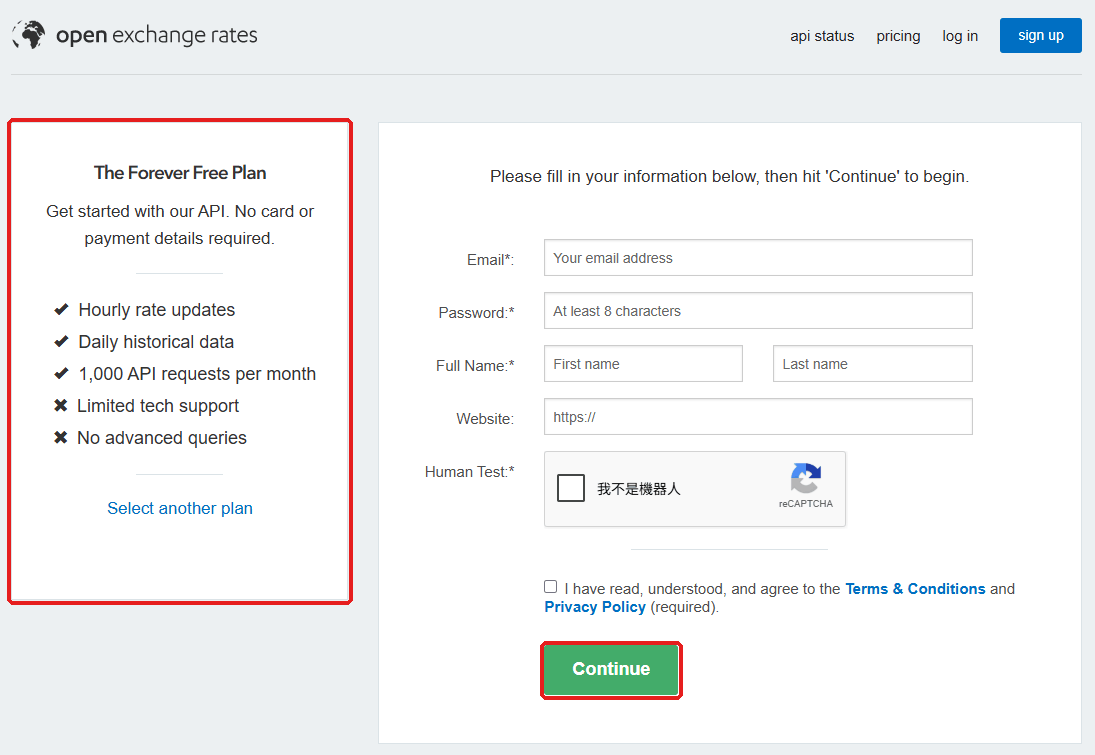
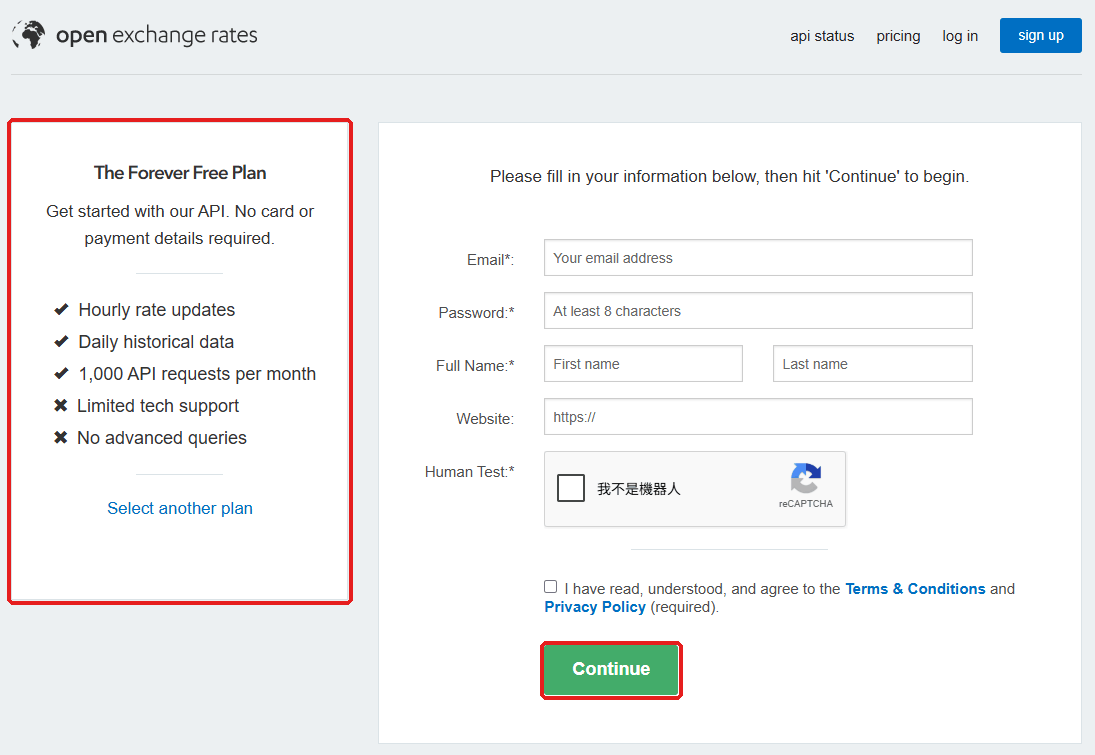
Go to https://openexchangerates.org/signup/free; the left side should say The Forever Free Plan (no card, 1,000 requests a month). Enter an email, password and name (Website can stay empty), tick the reCAPTCHA and the terms, and click “Continue”.
Open Exchange Rates free plan sign-up
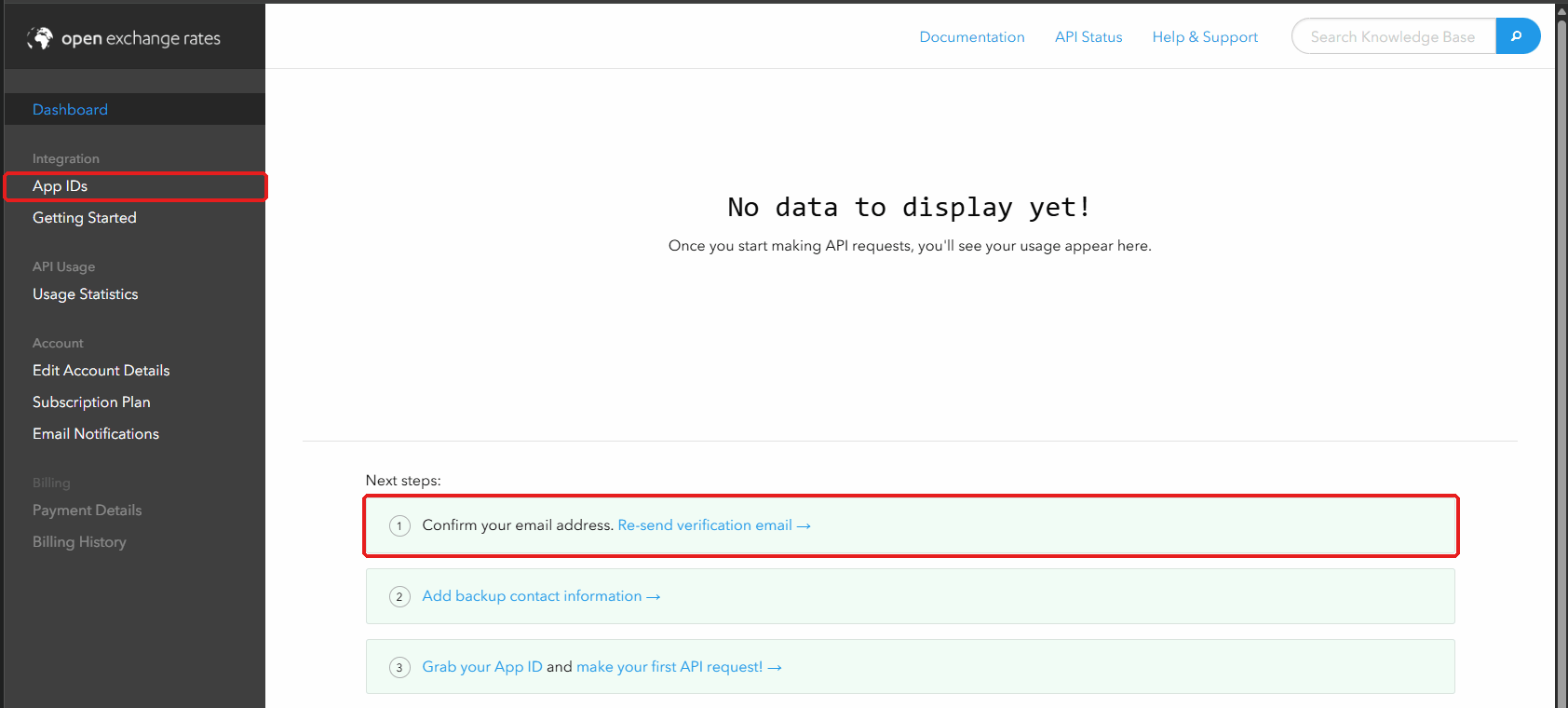
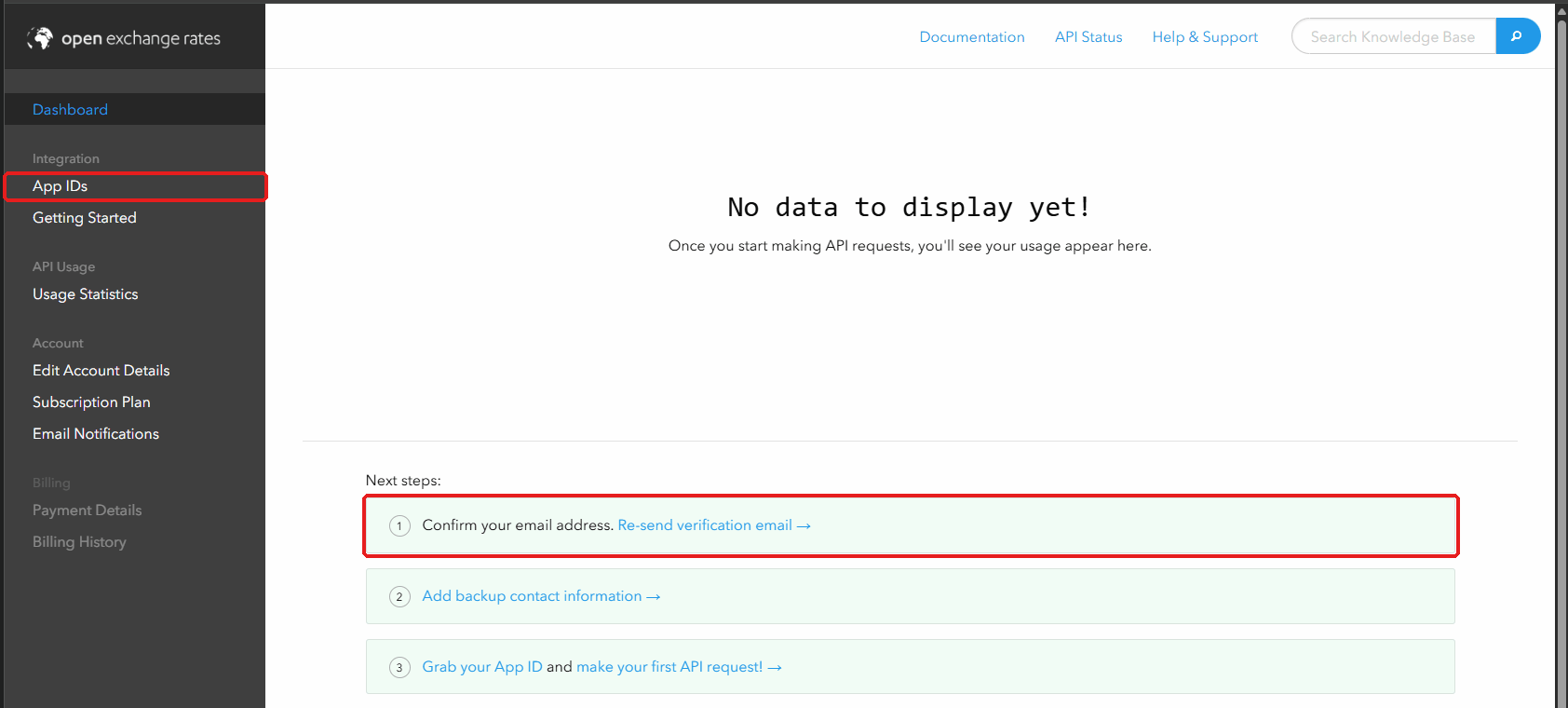
Open the confirmation email and click its link (step 1 of Next steps on the Dashboard; “Re-send verification email” if it didn’t arrive).
The Dashboard after signing up
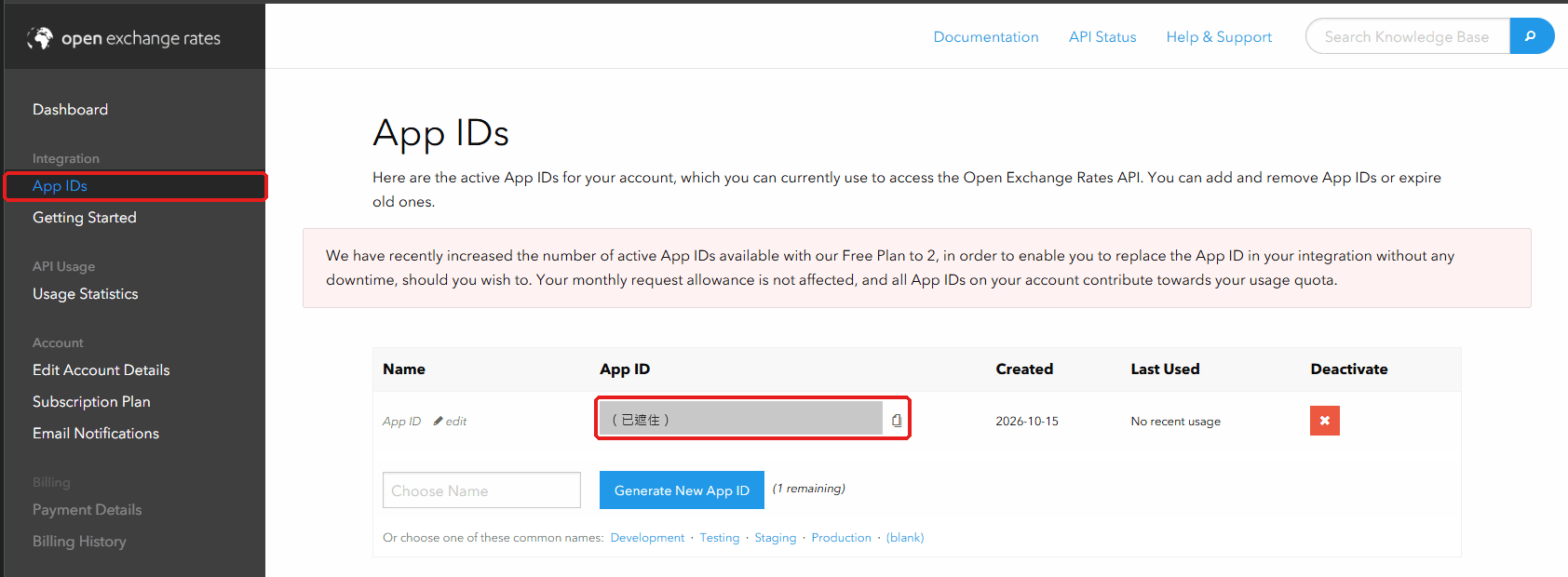
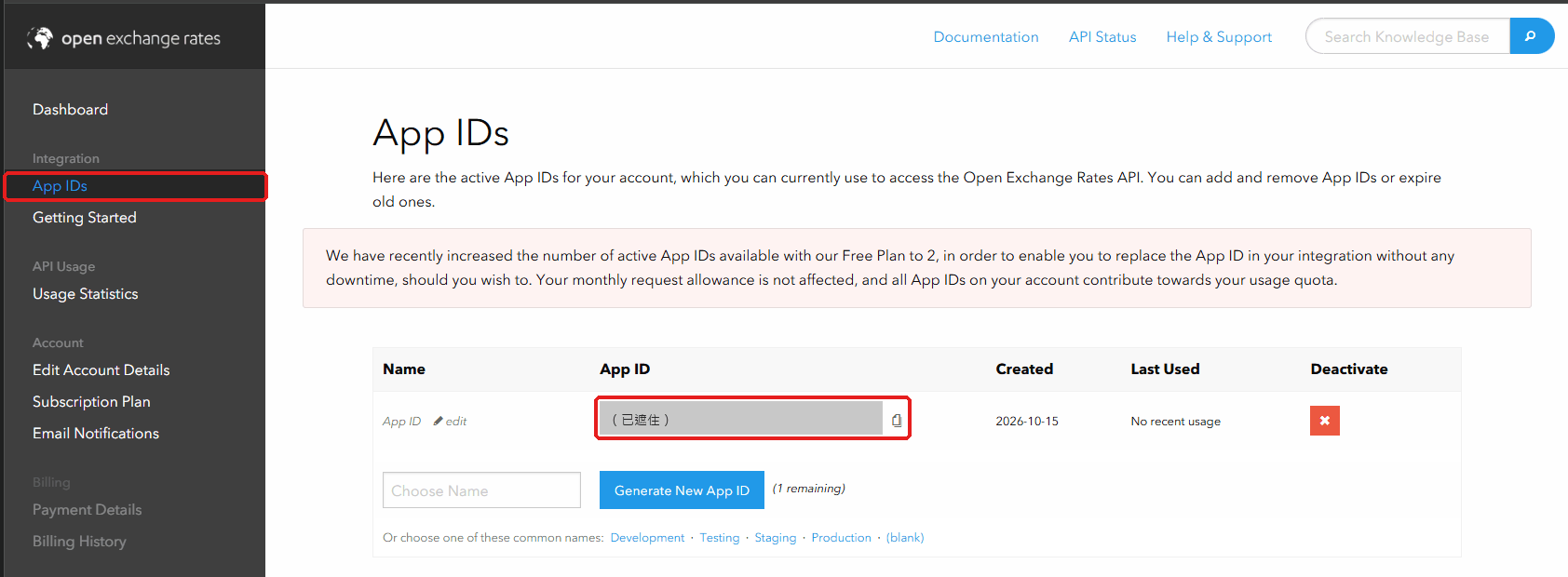
Click “App IDs” in the left menu (or open https://openexchangerates.org/account/app-ids) and click the copy icon next to the App ID. If it leaks, click “Generate New App ID”, then the red cross on the old row to deactivate it.
Open Exchange Rates App IDs page (App ID covered)
The owner pastes it into “Open Exchange Rates app_id” in Settings → Data sources and clicks “Save changes”. STOCKings checks at most once an hour.
 STOCKings