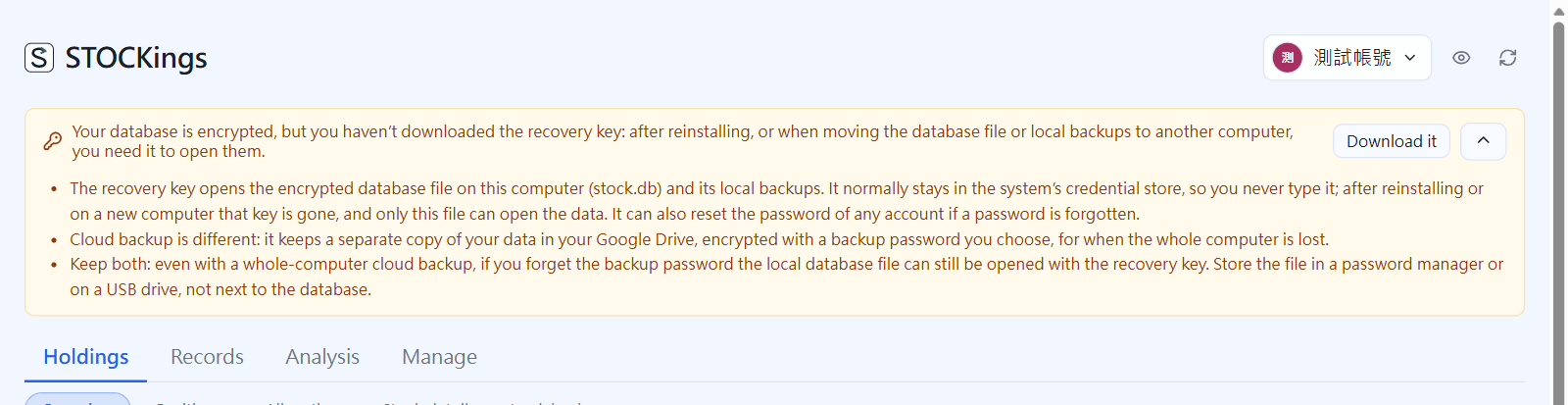
資料庫是加密的,金鑰存在這台電腦的系統憑證管理員。換電腦、重灌系統時,沒有復原金鑰就打不開資料。還沒下載時,畫面最上方會一直提醒,平常只有一行,按最右邊的展開符號會展開完整說明(再按一次收回),講它和雲端備份的差別:復原金鑰是打開本機資料庫檔與本機備份的鑰匙,雲端備份是另外存一份到 Google 雲端硬碟,兩個都建議要有。
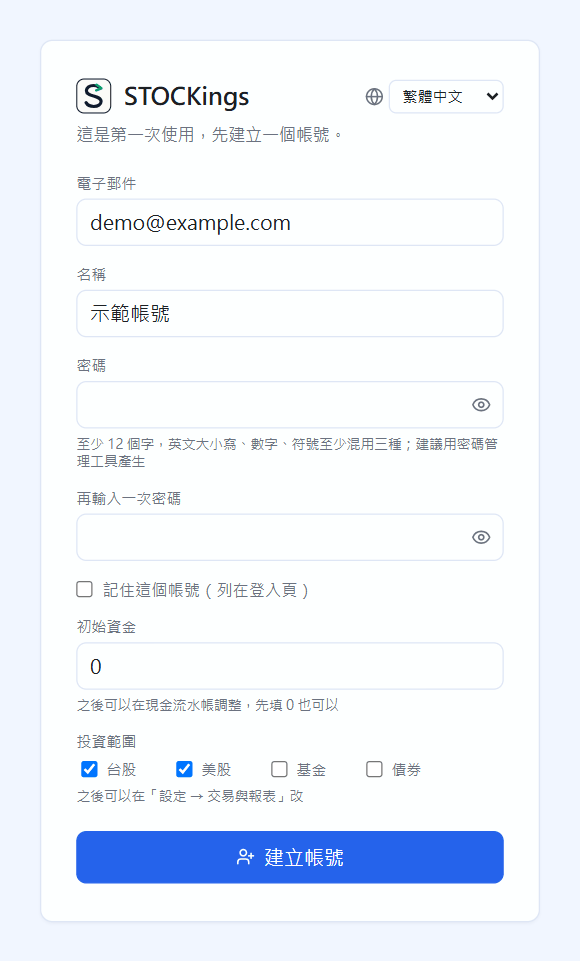
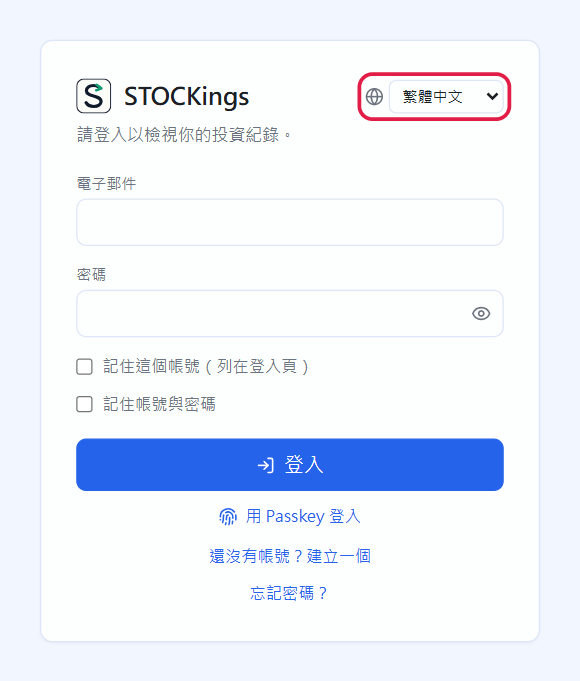
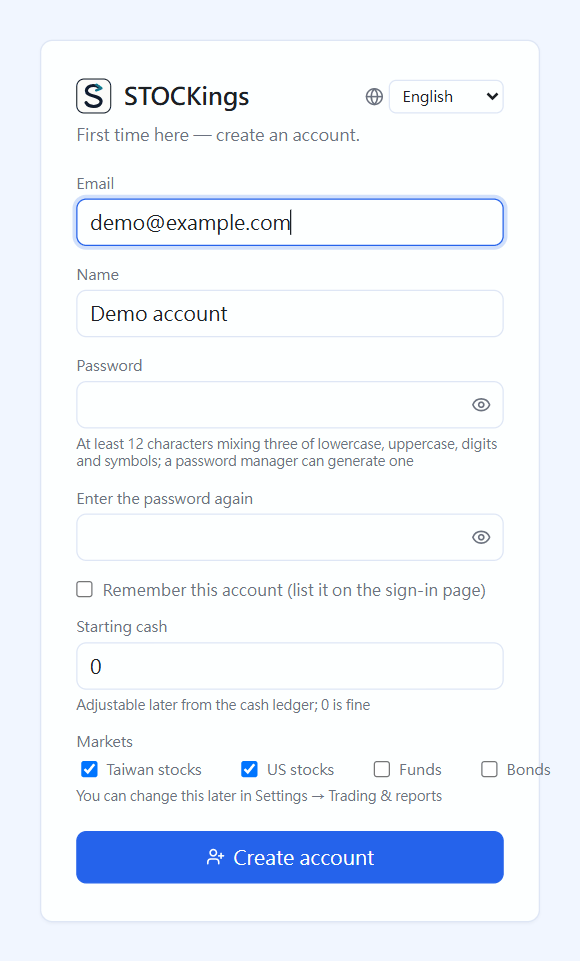
The first time you open STOCKings, you land on the “Create account” screen. The globe menu at the top right lets you change the interface language first (Traditional Chinese, English, Japanese, French, German, Spanish, Portuguese, Russian, Korean).
Fill in Email, Name and Password. The password needs at least 12 characters and at least three of: upper case, lower case, digits, symbols. The checklist below ticks off as you type.
Starting cash can be 0 for now (add it later in the cash ledger). Under Markets, tick the markets you trade (Taiwan stocks, US stocks, funds, bonds; you can change this in Settings later).
Click “Create account”. The first account is this computer's owner (chapter 23).
First launch: create an account. The account exists only on this computer
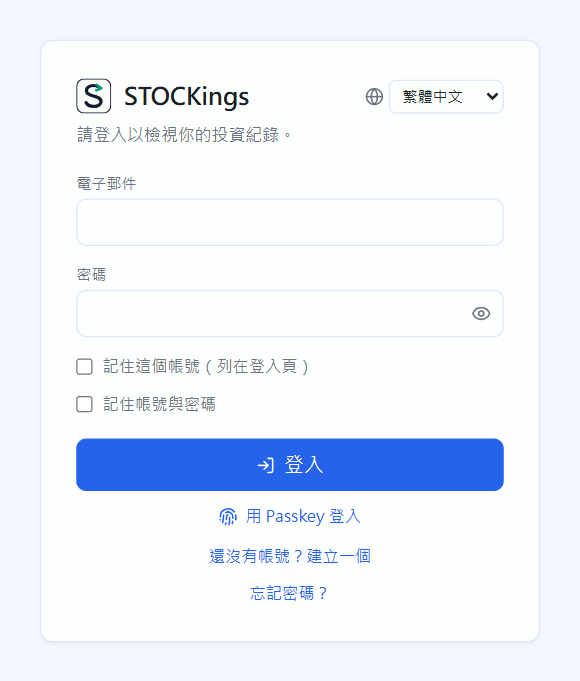
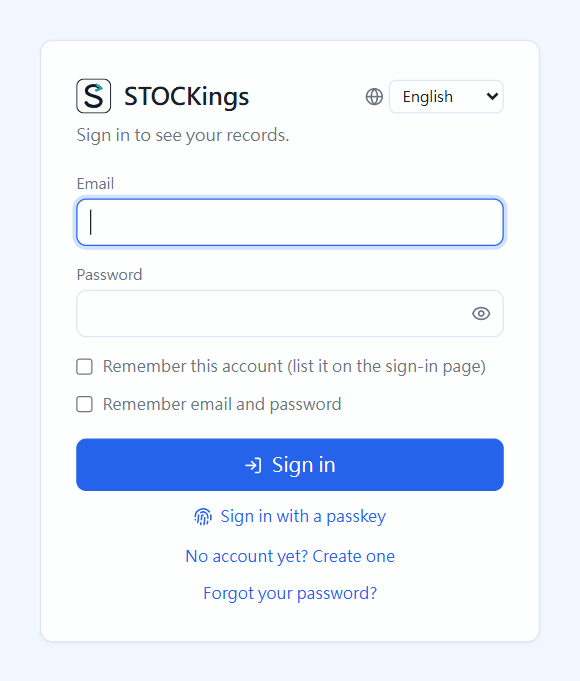
Next time: sign in
Closing the app signs you out, so you sign in again each time you open it.
Tick “Remember this account (list it on the sign-in page)” and the sign-in page lists it; one click fills in the email.
Tick “Remember email and password” and you just click the account and then “Sign in” (only tick this on your own computer).
If you set up a passkey, click “Sign in with a passkey” (chapter 23). Forgot your password? Click “Forgot your password?” (chapter 25).
After five wrong passwords in a row, wait five minutes before trying again.
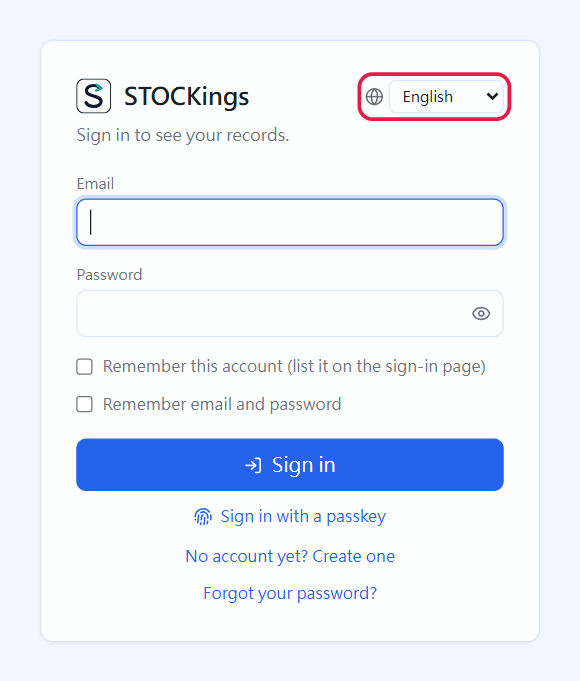
The sign-in screenChange the interface language at the top right; the account uses that language after you sign in
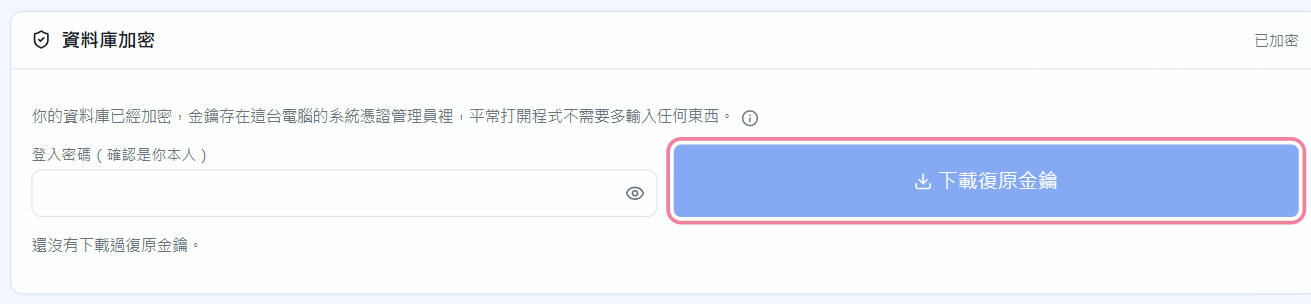
Download the recovery key (the owner must do this)
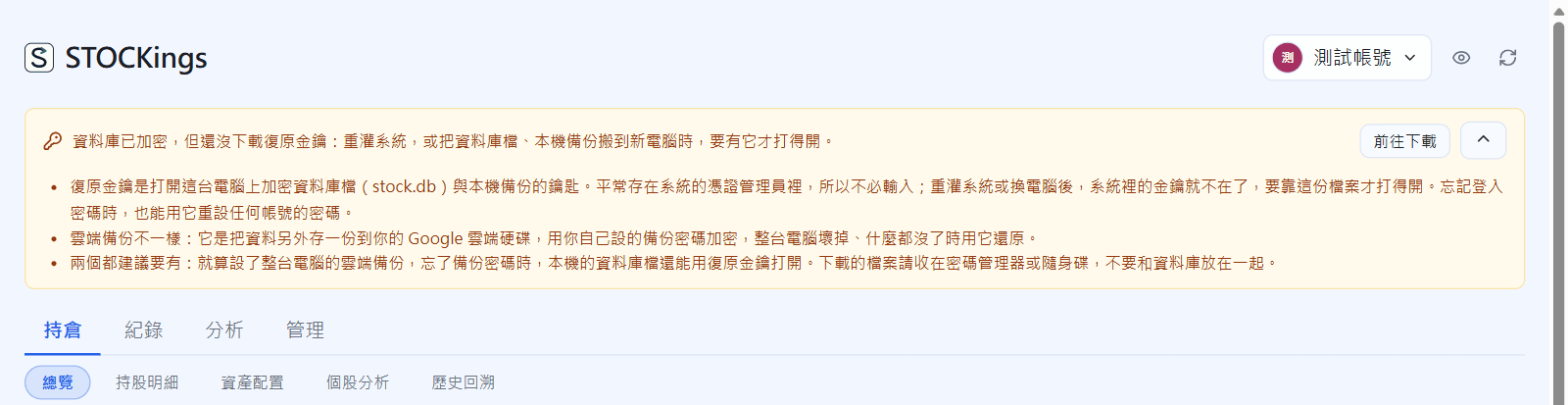
The database is encrypted, and its key is stored in this computer's system credential manager. If you move to a new computer or reinstall the system, you cannot open your data without the recovery key. Until you download it, a reminder stays at the top of the screen; it is a single line by default, and the arrow at the far right expands the full explanation (click again to collapse) of how it differs from cloud backup: the recovery key opens the local database file and local backups, while cloud backup keeps a separate copy in Google Drive. Keeping both is recommended.
Until the owner downloads the recovery key, this reminder appears at the top of every page, a single line by defaultThe arrow at the far right expands why it is needed and how it differs from cloud backup; click again to collapse
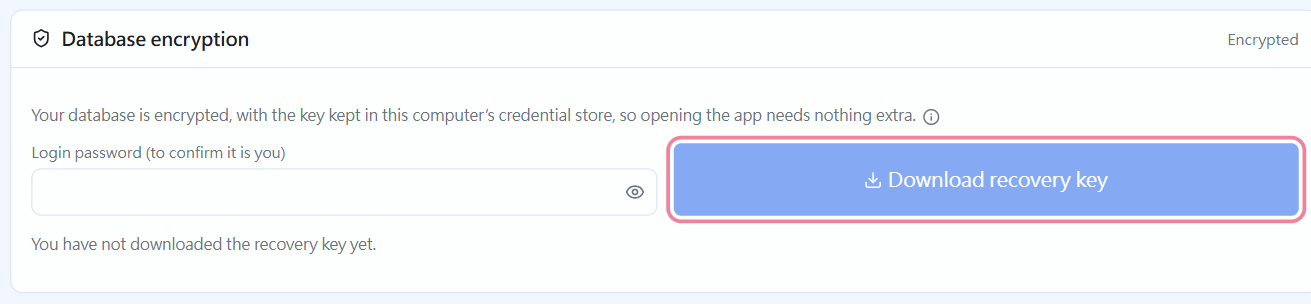
Go to Manage → Settings → Database encryption and enter your sign-in password.
Click “Download recovery key” to get “STOCKings recovery key.txt”.
Keep it somewhere safe (a password manager, a USB stick), not in the same place as the database. If the app ever shows “Database locked”, choose this file (or paste the line inside it) to unlock. It also lets you reset a forgotten sign-in password.
Manage → Settings → Database encryption: only the owner sees the download button
 STOCKings