Don't skip this step: an instrument must exist before you can pick it when recording a trade. Go to Manage → Instruments.
Add stocks, ETFs and US stocks
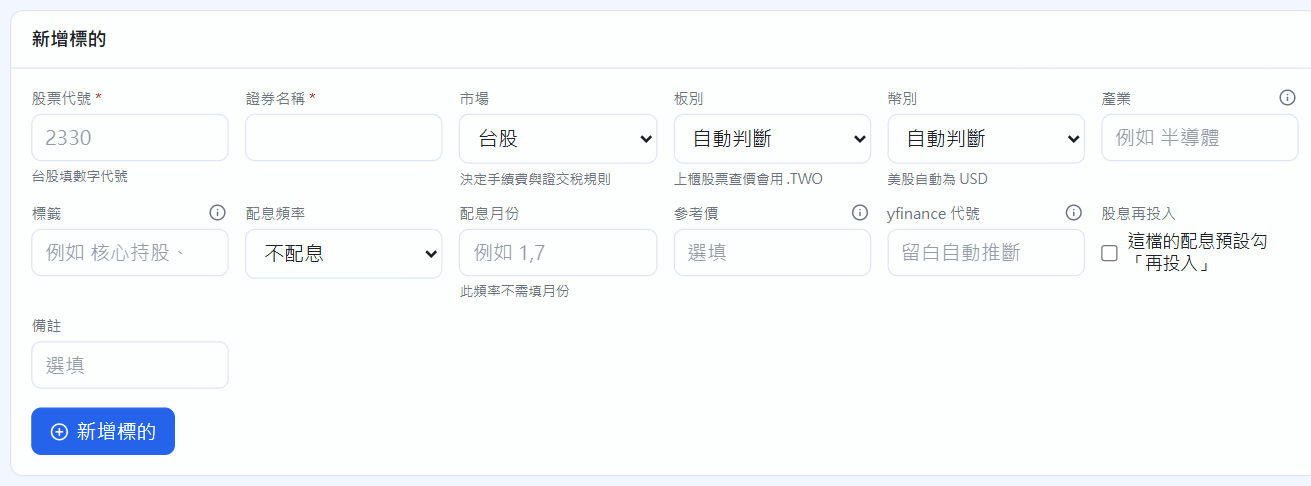
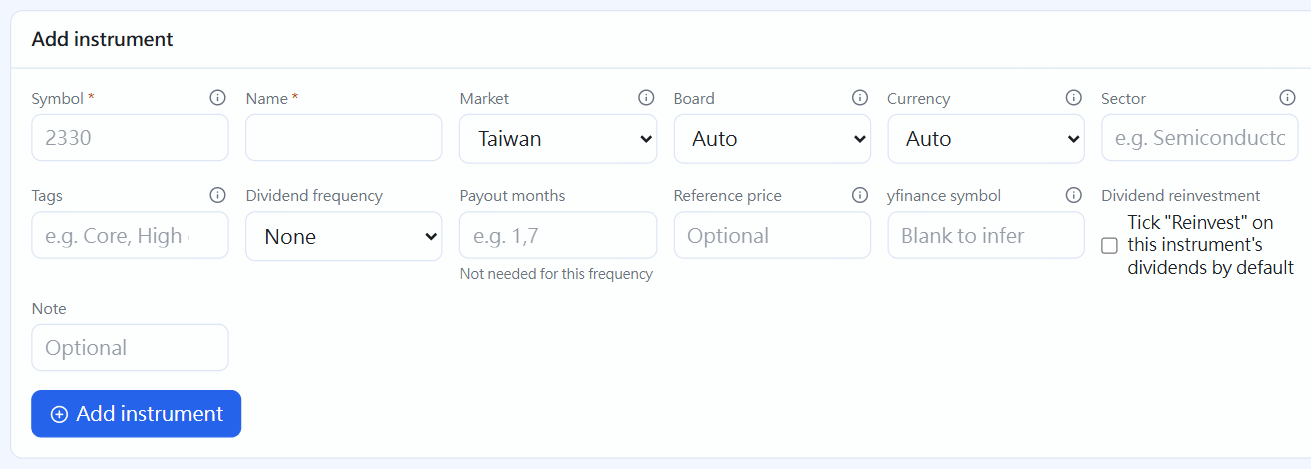
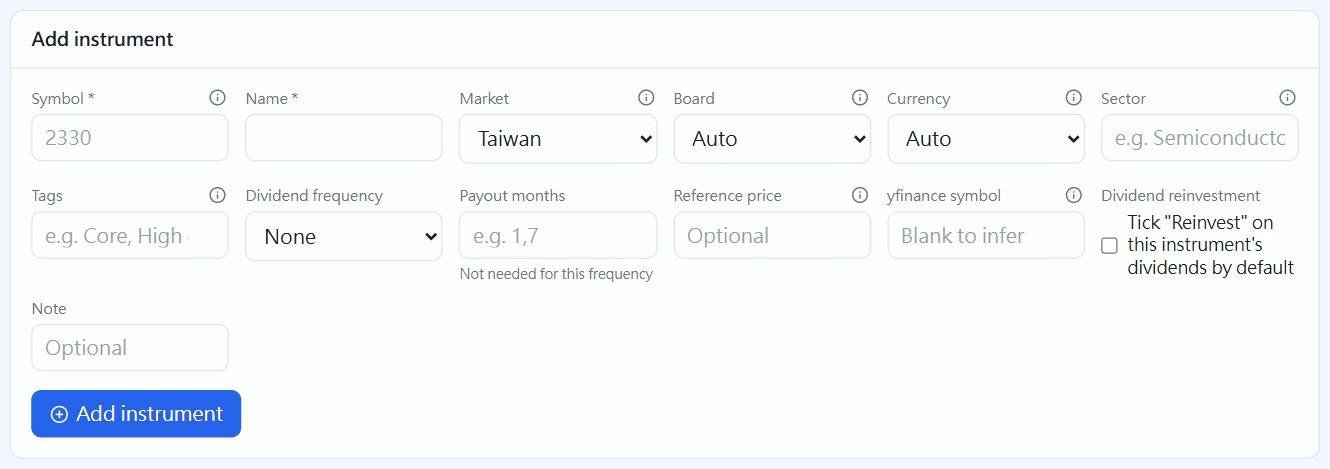
Fill in the Symbol (numbers for Taiwan stocks, for example 2330) and the Name.
Choose the Market: Taiwan stock, ETF or US stock (this decides how fees and transaction tax are calculated). If you are unsure about the Board, leave it on “Auto” (OTC price symbols end in .TWO).
Optional: industry (used to filter and group in Positions and Allocation), Tags (press Enter after each one; an instrument can have several), and dividend frequency and months (used only by the dividend calendar).
A Reference price is only needed when no quote can be found (emerging board, unlisted). Tick “Use this price instead of the quote” to override the automatic quote.
Tick “Tick `Reinvest' on this instrument's dividends by default” and future dividends will queue a reinvestment automatically (chapter 8). Click “Add instrument”.
Add instrument
Funds
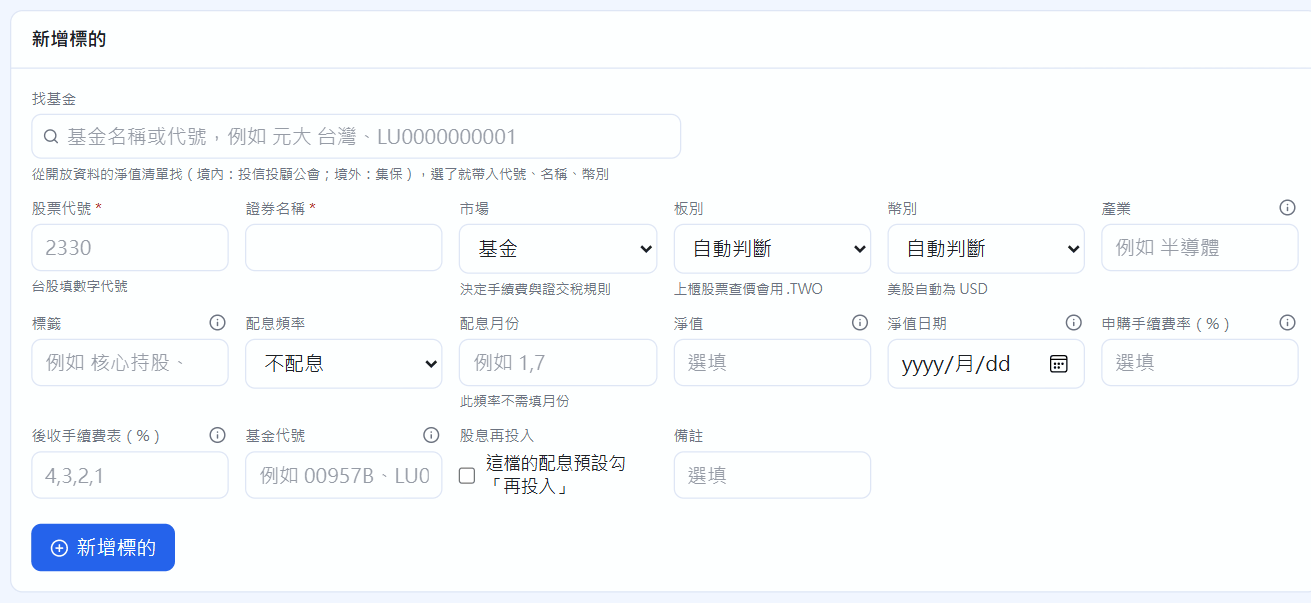
First tick Funds under Settings → Trading & reports → Markets. When the market is “Fund”, a search box appears at the top: type a fund name or code and pick one to fill in the code, name and currency.
For the subscription fee rate, enter the discounted rate you actually pay. For back-end load (class B) funds, enter each year's rate under “Deferred sales charge (%)” (for example 4,3,2,1).
If open data exists for the fund's NAV, the latest day is filled in automatically (SITCA, TDCC). Otherwise, enter the NAV and date from your statement.
Record subscriptions and redemptions in Trades like ordinary buys and sells; units can have decimals. A fund switch is one redemption plus one subscription.
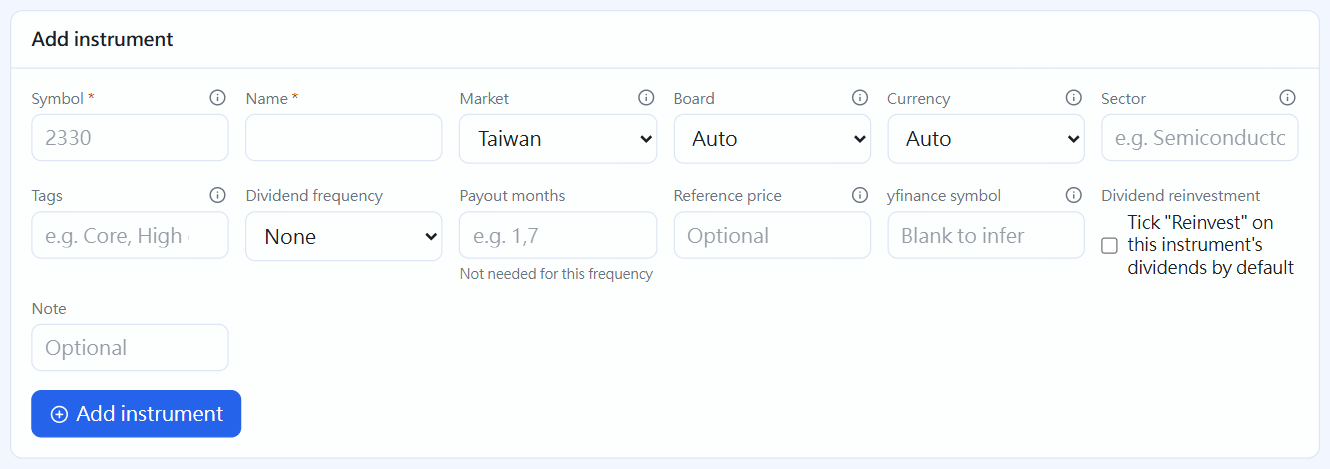
Market set to “Fund”: fund search and fee rates appear
Bonds
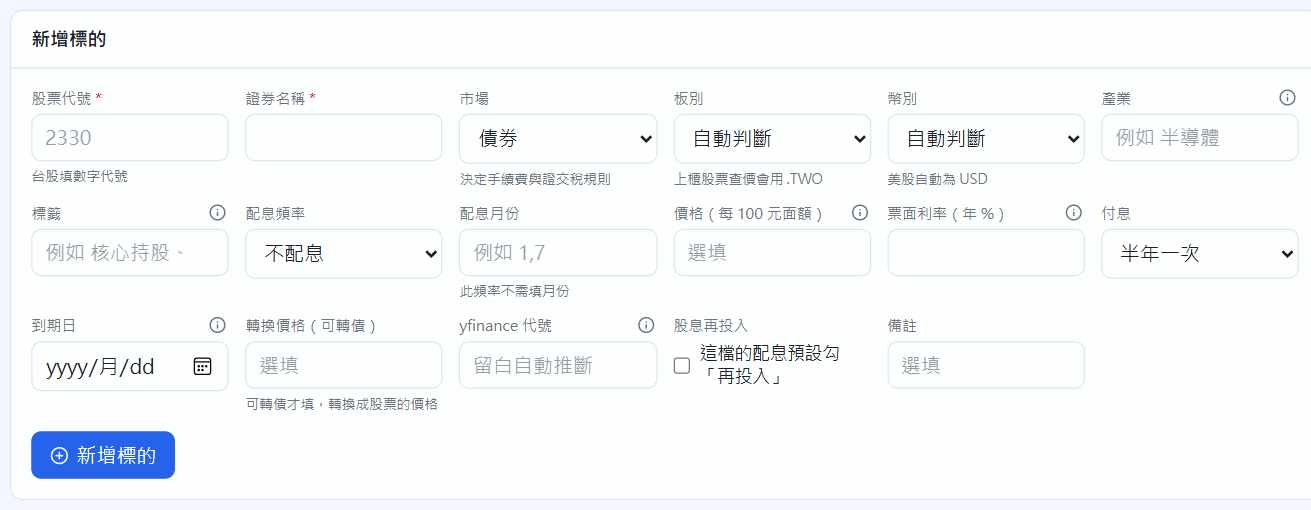
Again, first tick Bonds under Markets. In the instrument details, enter the coupon rate, payments per year and maturity date; for convertible bonds, also the conversion price. When trading, the quantity is the face value, and the price is quoted per 100 of face value. Accrued interest is entered separately (the form can work out a reference value). On each coupon date, Regular investing's entries to confirm prefill a “Bond coupon”; after the maturity date they prefill “Maturity”. Convertible bond conversions are under “Convertible bond conversion” further down Instruments.
Market set to “Bond”: coupon rate, payments per year, maturity date
Instrument list and tags
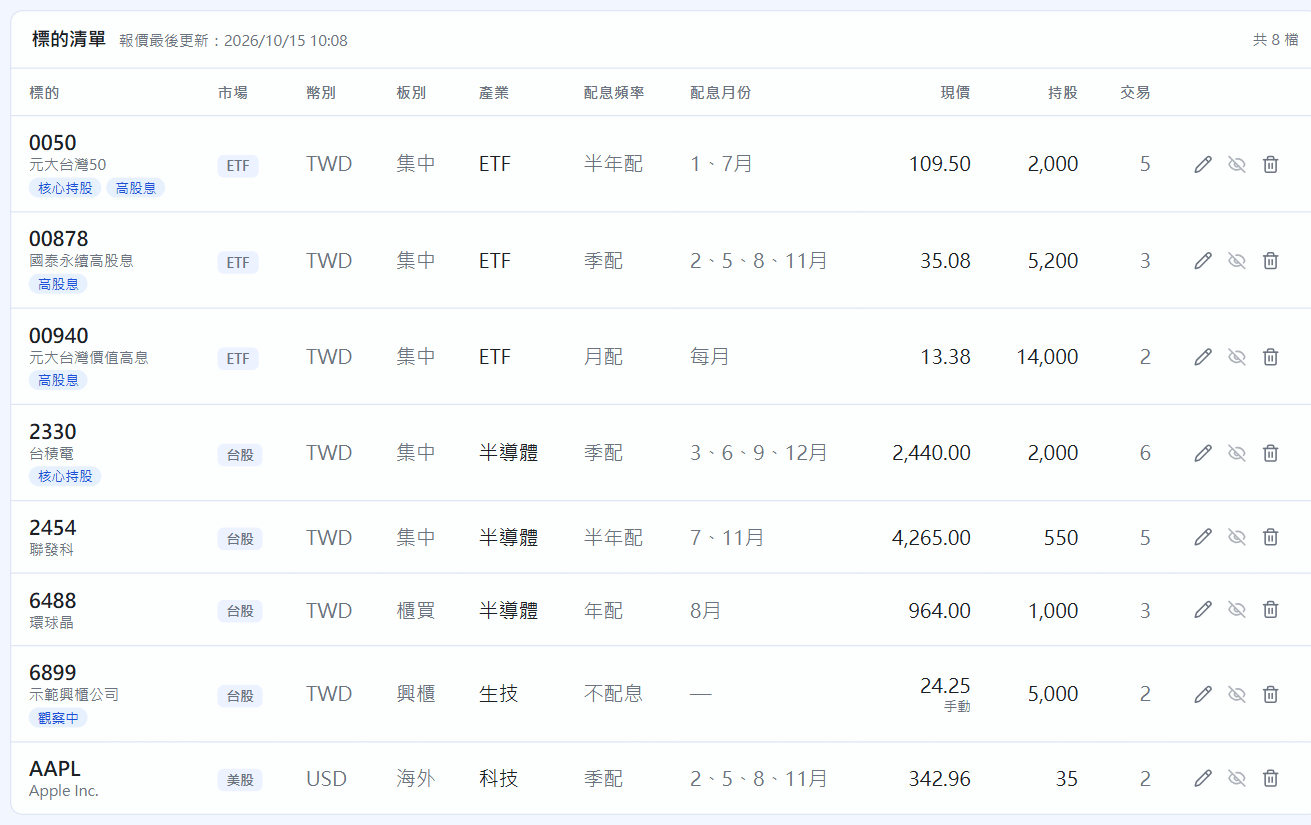
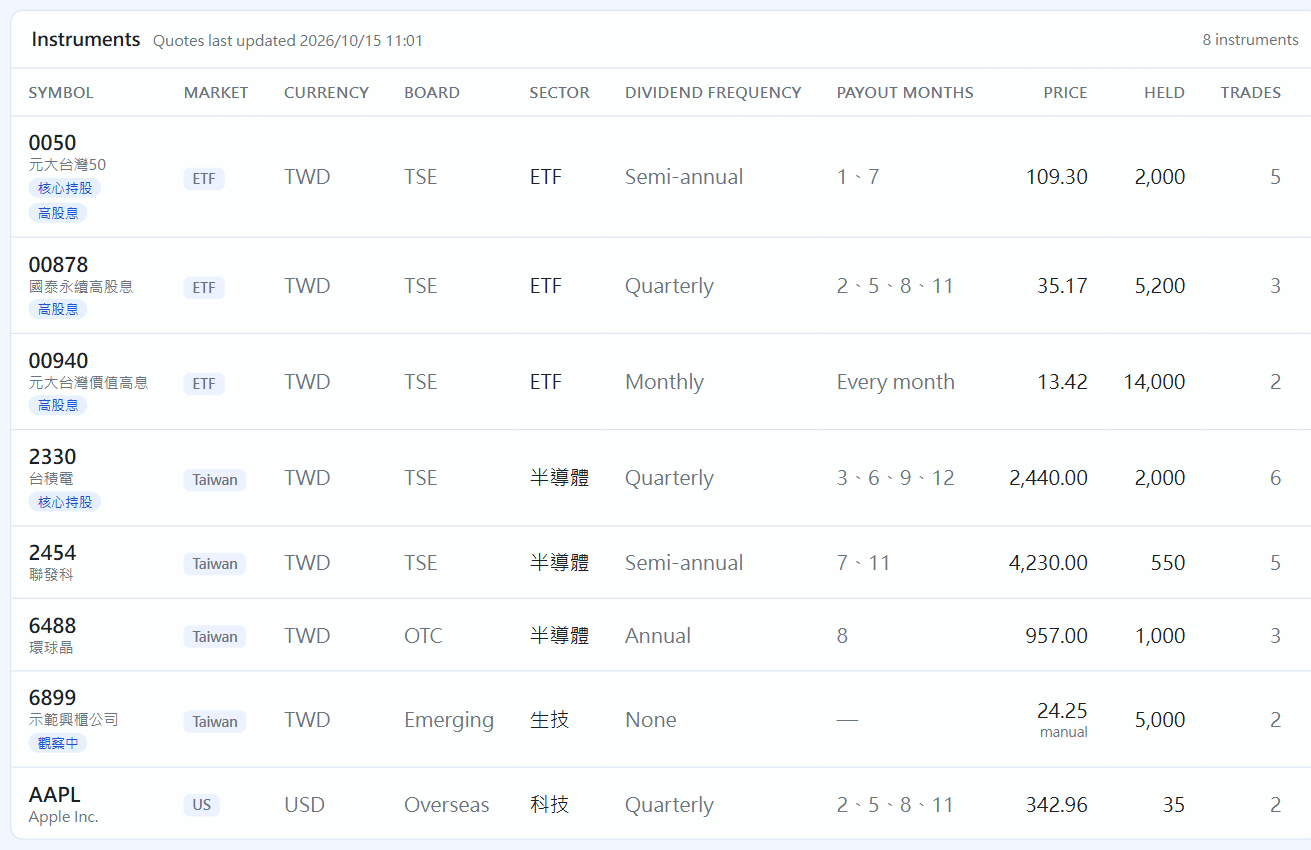
The instruments you create are listed under Instruments: current price, shares held, number of trades. ✎ edits, the eye hides, the bin deletes. An instrument with records cannot be deleted. If you have sold it all and don't want to see it, hide it (past records and P&L stay the same; click “Show hidden” to bring it back).
The instrument list
In the Tags section at the bottom you can rename or delete tags. A tag no instrument uses disappears on its own.
Tags
Stock splits
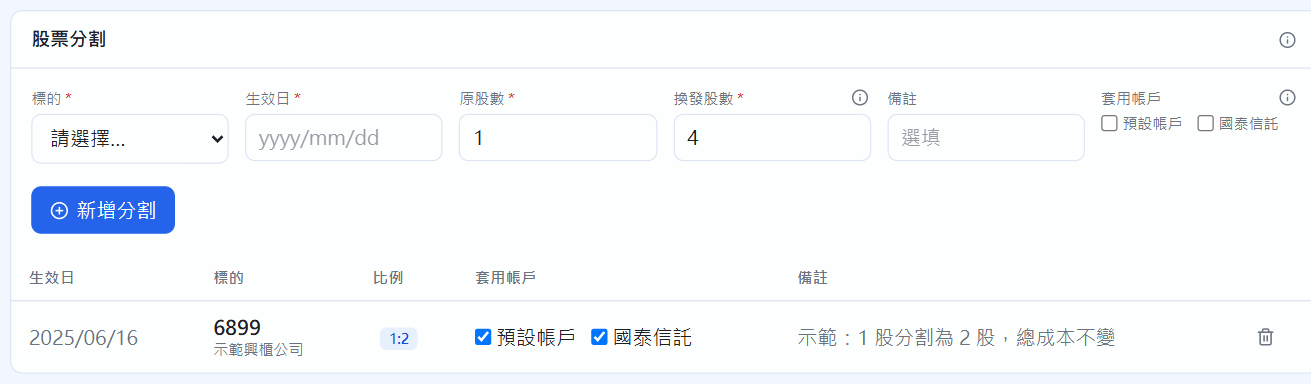
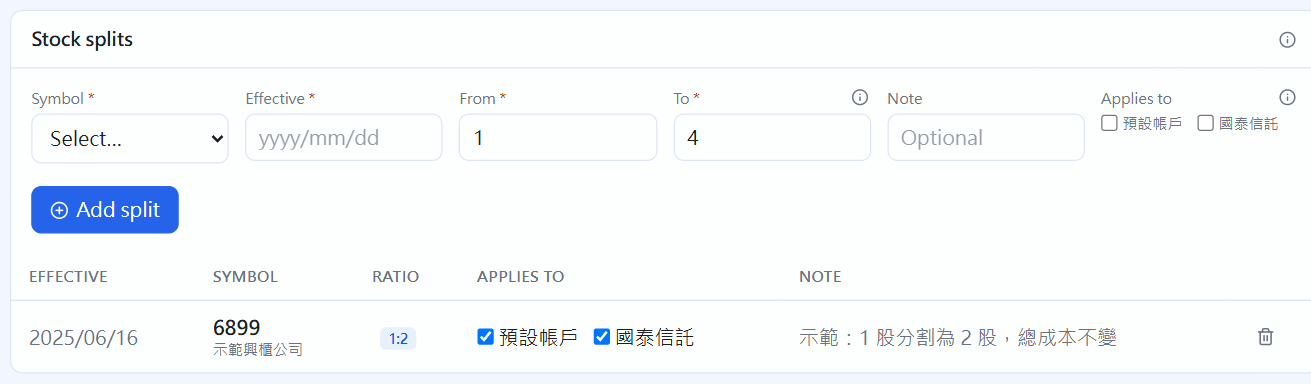
If a stock you hold splits (for example 1 share into 4): pick the instrument, enter the effective date, old shares 1 and new shares 4, then click “Add split”. Holdings before the effective date are converted to the new share count automatically; cost per share shrinks while total cost stays the same, and past trades need no changes. Use Applies to to limit it to certain securities accounts (none ticked means all).
Stock splits
Mergers, spin-offs and tender offers
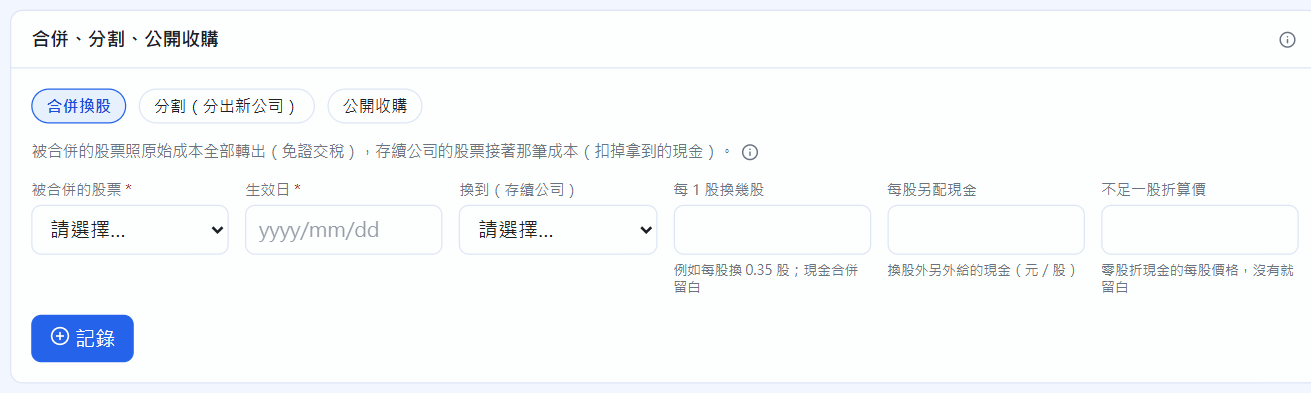
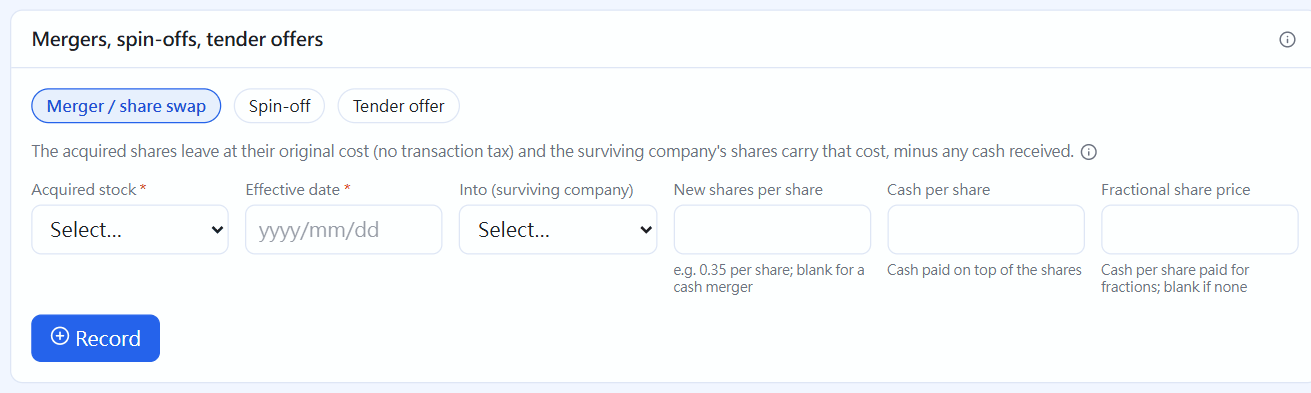
Add the new company's stock first. Choose the type, then fill in the merged (original) stock, effective date, the stock you receive, how many shares per 1 share, and any cash per share, then click “Record”. The old shares move out at their original cost (no transaction tax) and the new shares carry that cost on, so no gain or loss is created. Leave the ratio blank for an all-cash merger. A tender offer is recorded as a sale.
Mergers, spin-offs, tender offers
Dividend calendar
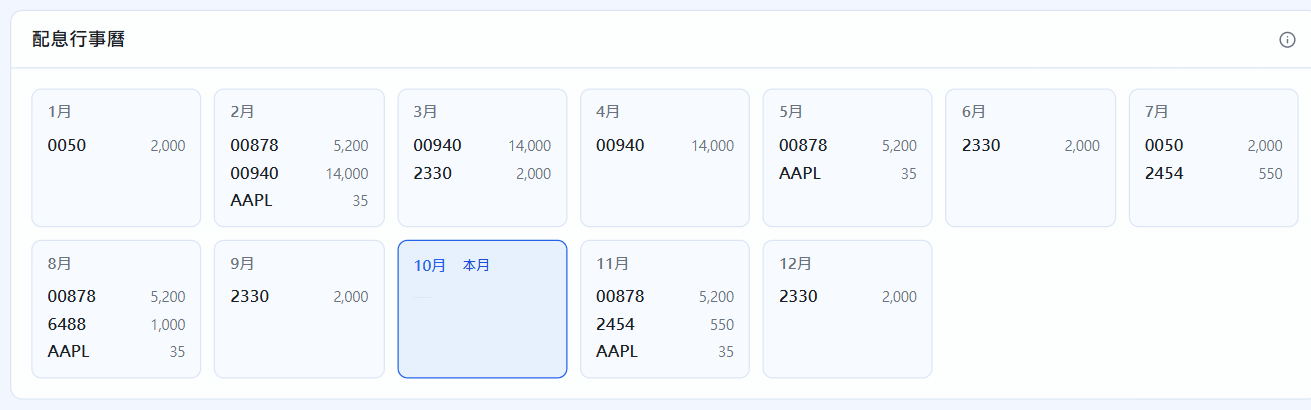
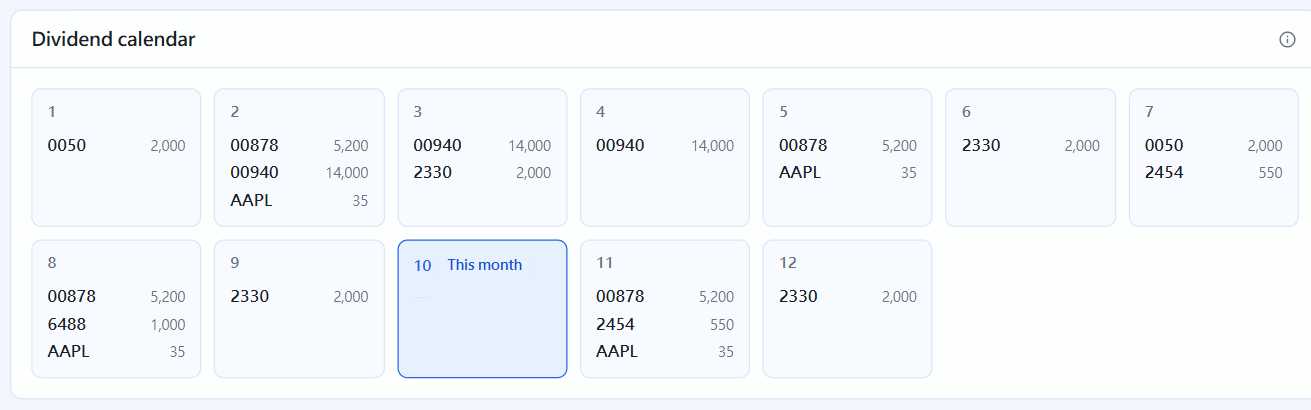
Twelve months, showing which holdings pay dividends in each month (using the months set on the instrument; if none are set, the months you actually received dividends in the past two years). The current month is outlined.
 STOCKings