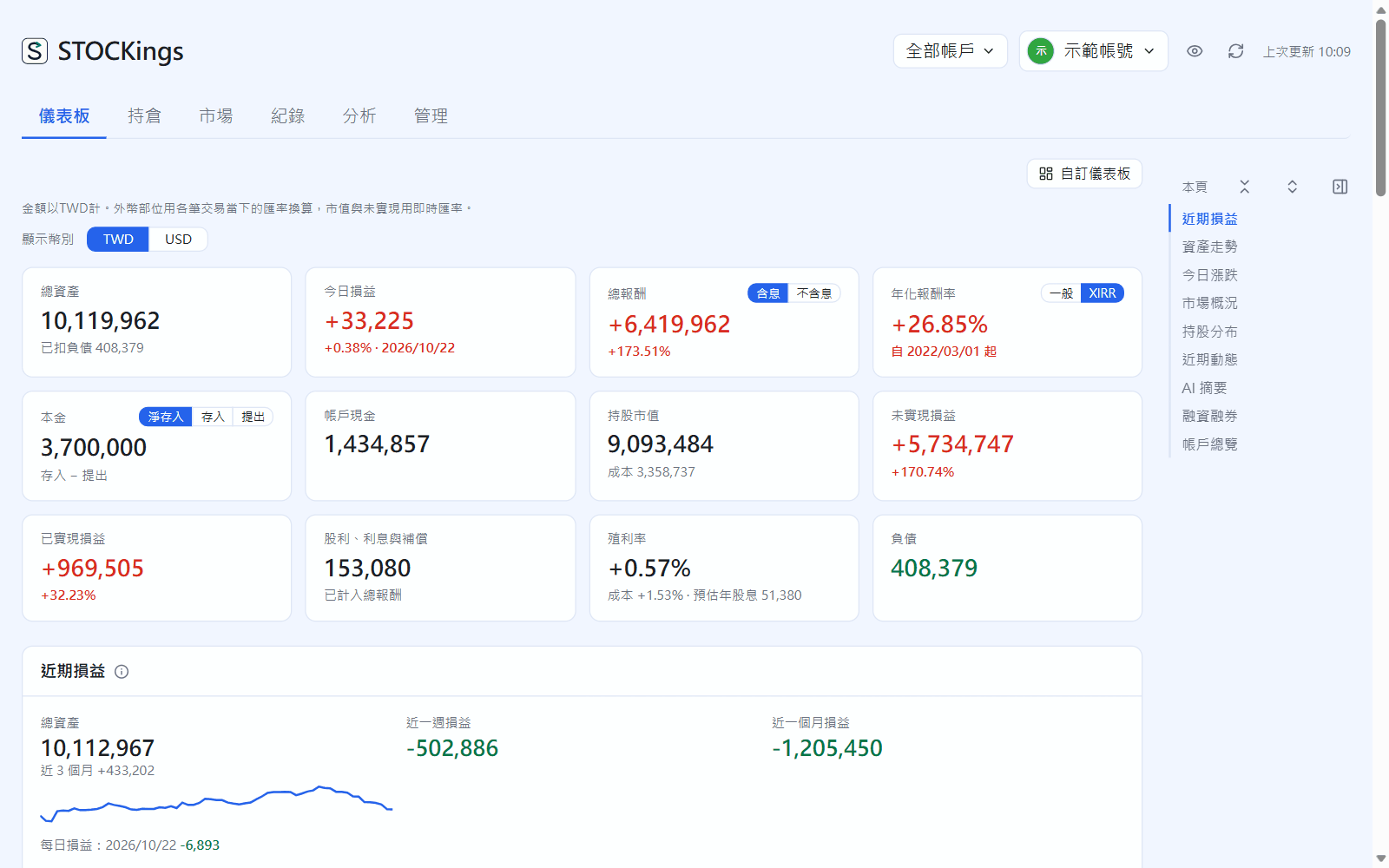
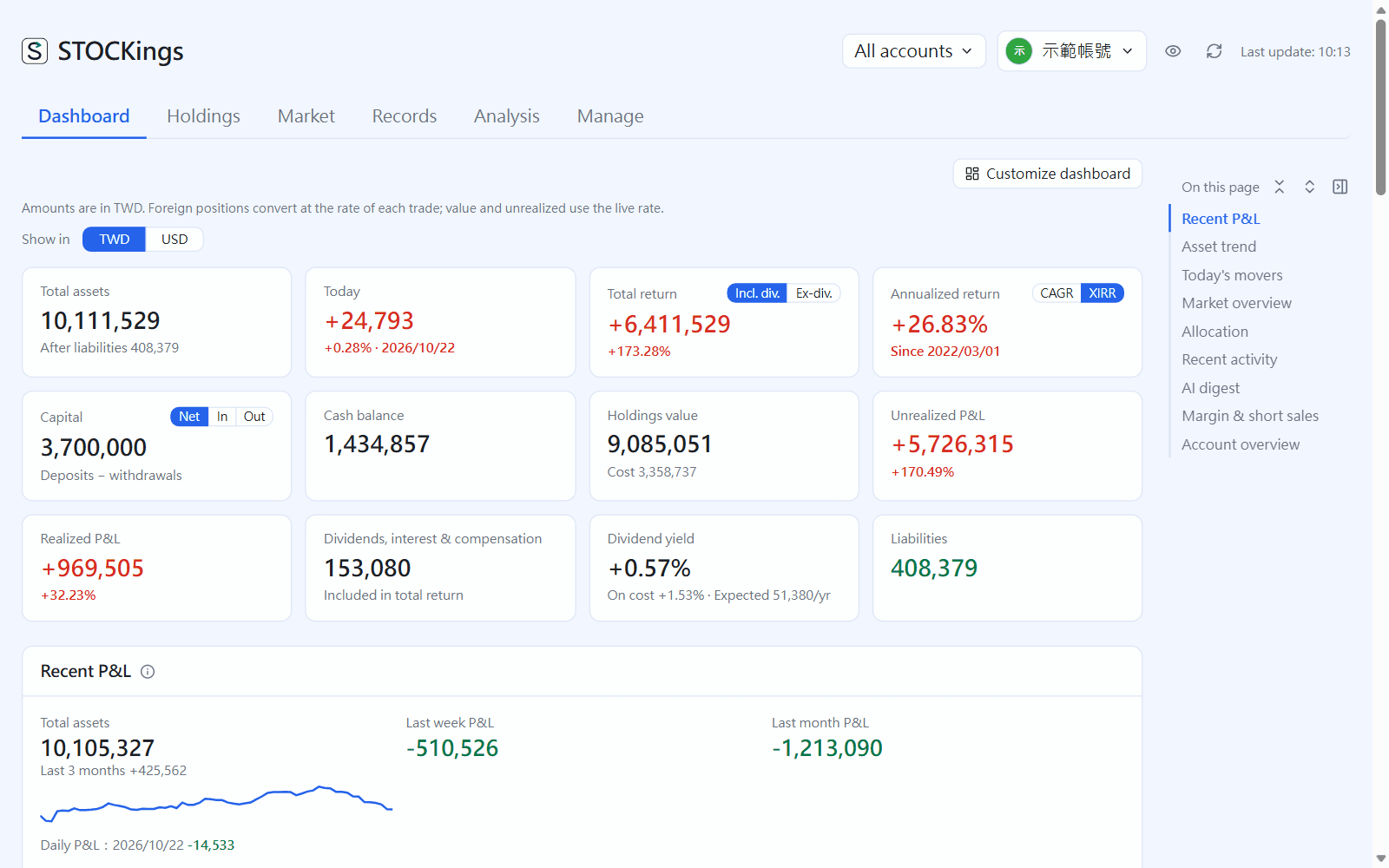
儀表板 是首頁,一塊塊排好最常看的東西;右上角自訂儀表板可以關掉區塊、調順序。除了摘要卡、帳戶總覽、資產走勢,還有近期損益(每天的損益長條)、今日漲跌、市場概況(指數與漲跌家數)、即將除權息、持股分布、近期動態與 AI 摘要。摘要卡:總資產、今日損益、總報酬(可以切含息/不含息)、年化報酬率(一般/XIRR)、本金(淨存入/存入/提出)、帳戶現金、持股市值、未實現與已實現損益、股利、殖利率、負債。滑鼠移到卡片上有說明。
Dashboard is the home page, laying out what you look at most section by section; Customize dashboard at the top right turns sections off and reorders them. Besides the summary cards, account overview and asset trend there are recent P&L (daily P&L bars), today's movers, a market overview (index and advancers/decliners), upcoming ex-dividend, holdings split, recent activity and an AI digest. The summary cards show: total assets, today's P&L, total return (with or without dividends), annualized return (CAGR / XIRR), capital (net / deposits / withdrawals), cash balance, holdings value, unrealized and realized P&L, dividends, dividend yield and liabilities. Hover over a card for an explanation.
Dashboard
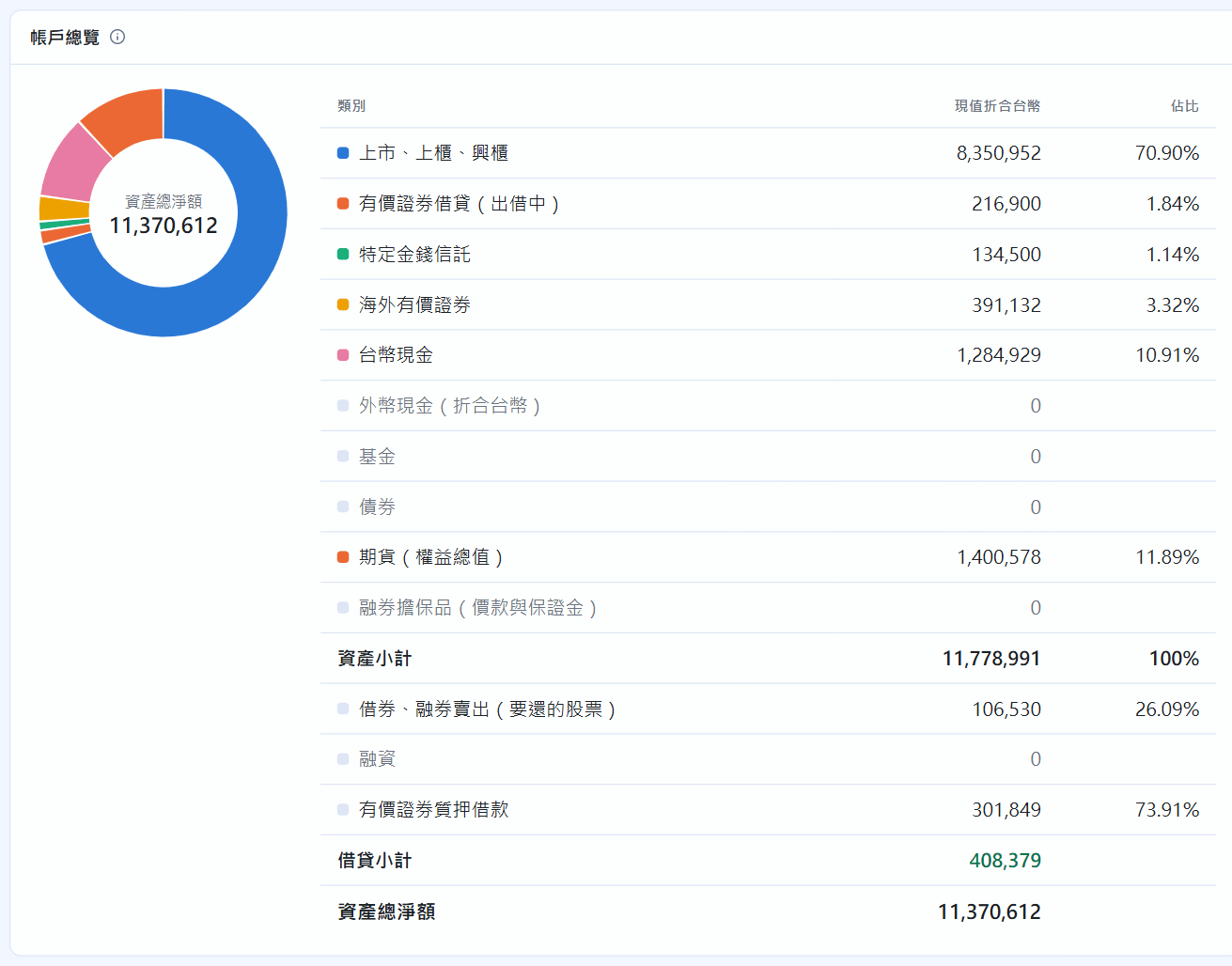
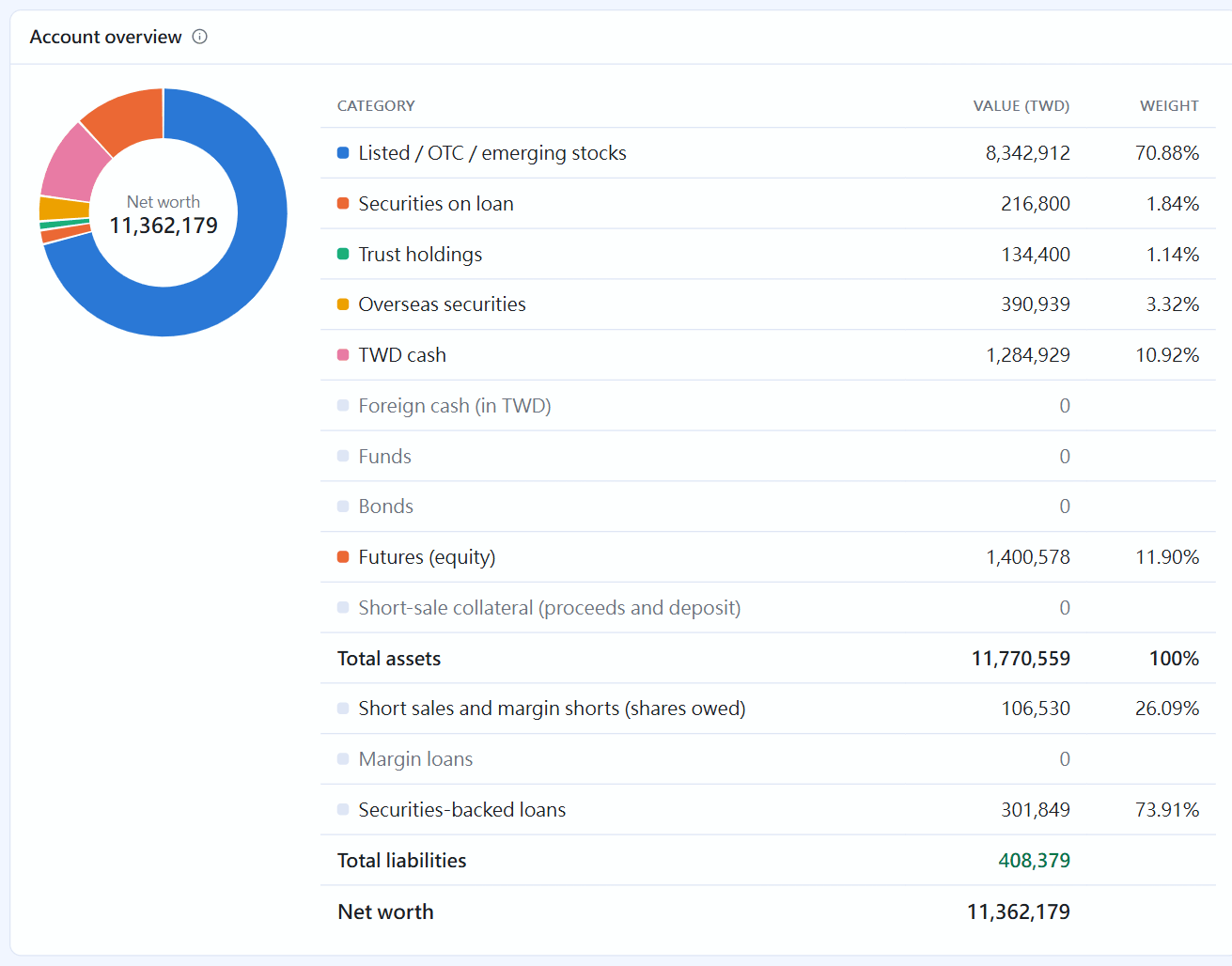
The account overview groups everything the way broker apps do: listed / OTC stocks, securities on loan, trust, overseas, cash, funds, bonds and futures, plus liabilities and net assets:
Account overview
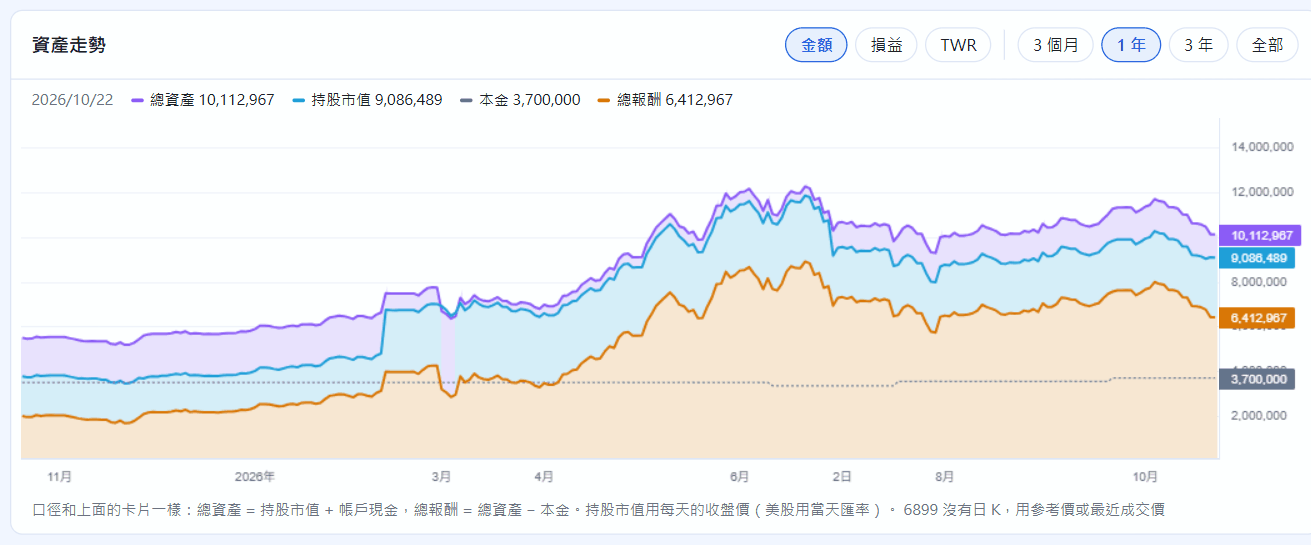
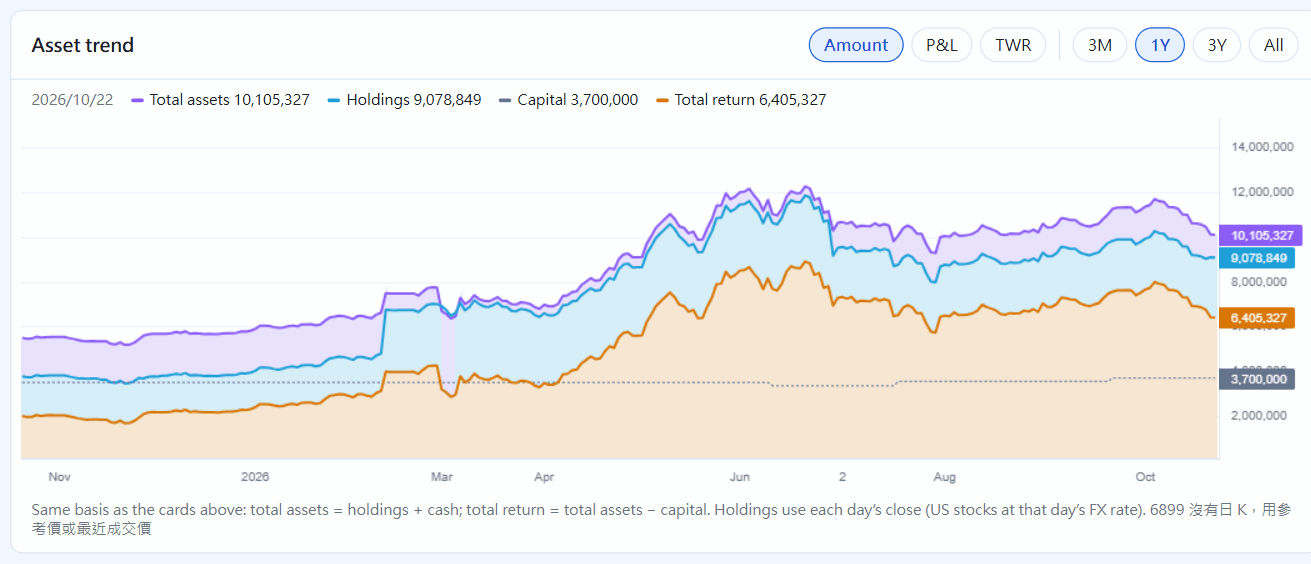
The asset trend plots total assets, holdings value, capital and total return day by day; switch between 3 months / 1 year / 3 years / All at the top right. Switch to TWR for the time-weighted return with deposits and withdrawals taken out.
Asset trend
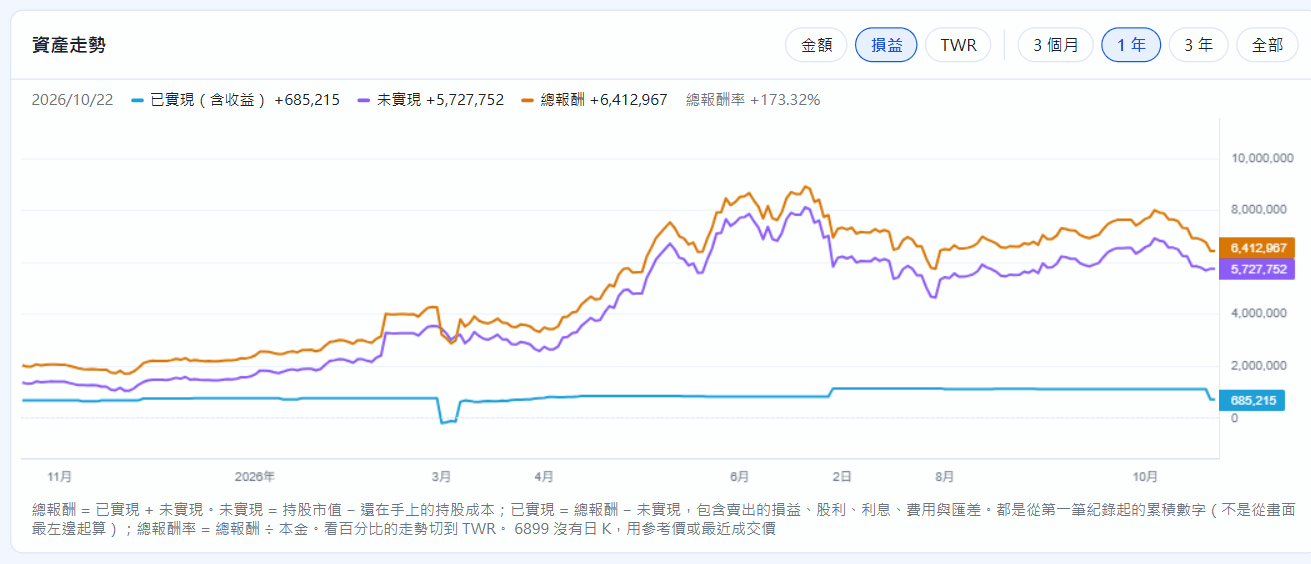
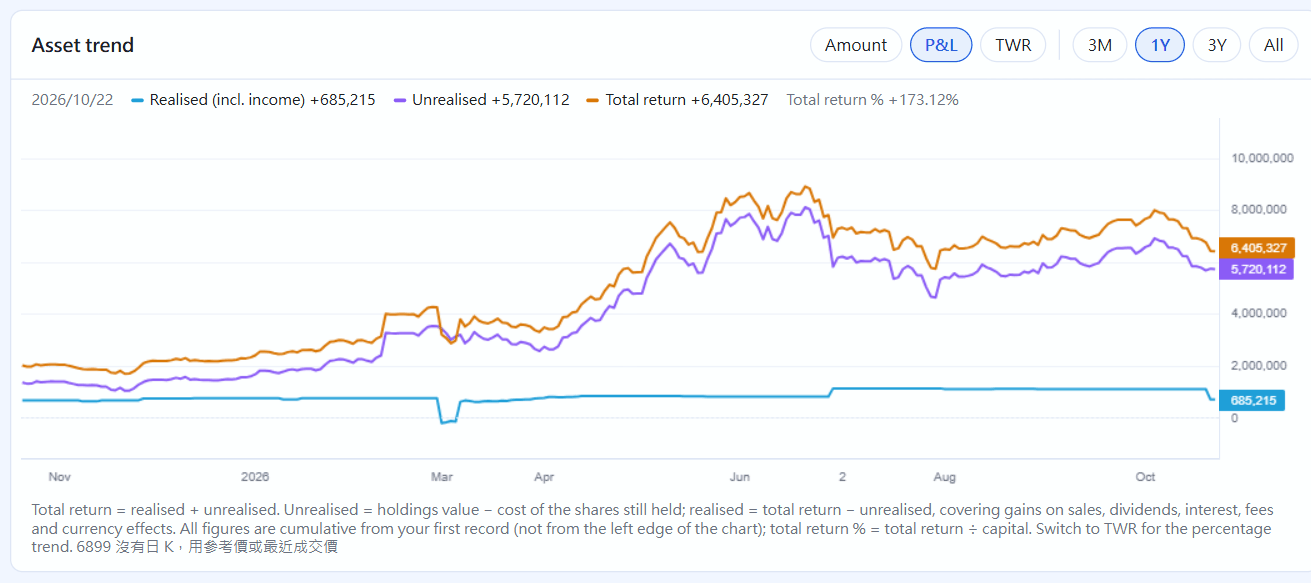
Switch to P&L to see realized (incl. income), unrealized and total return accumulated since your first record (total return = realized + unrealized):
The asset trend's “P&L” mode
Positions
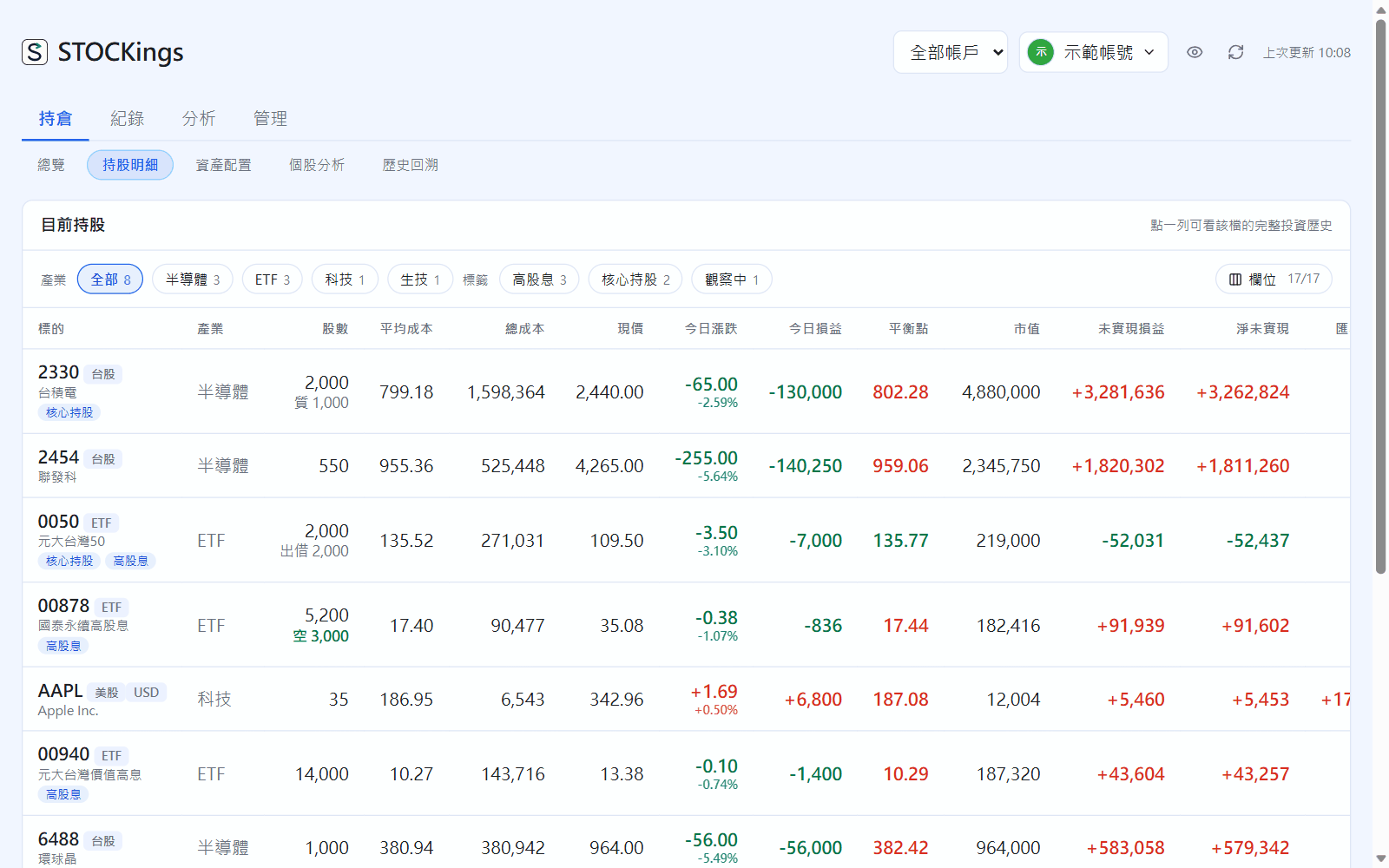
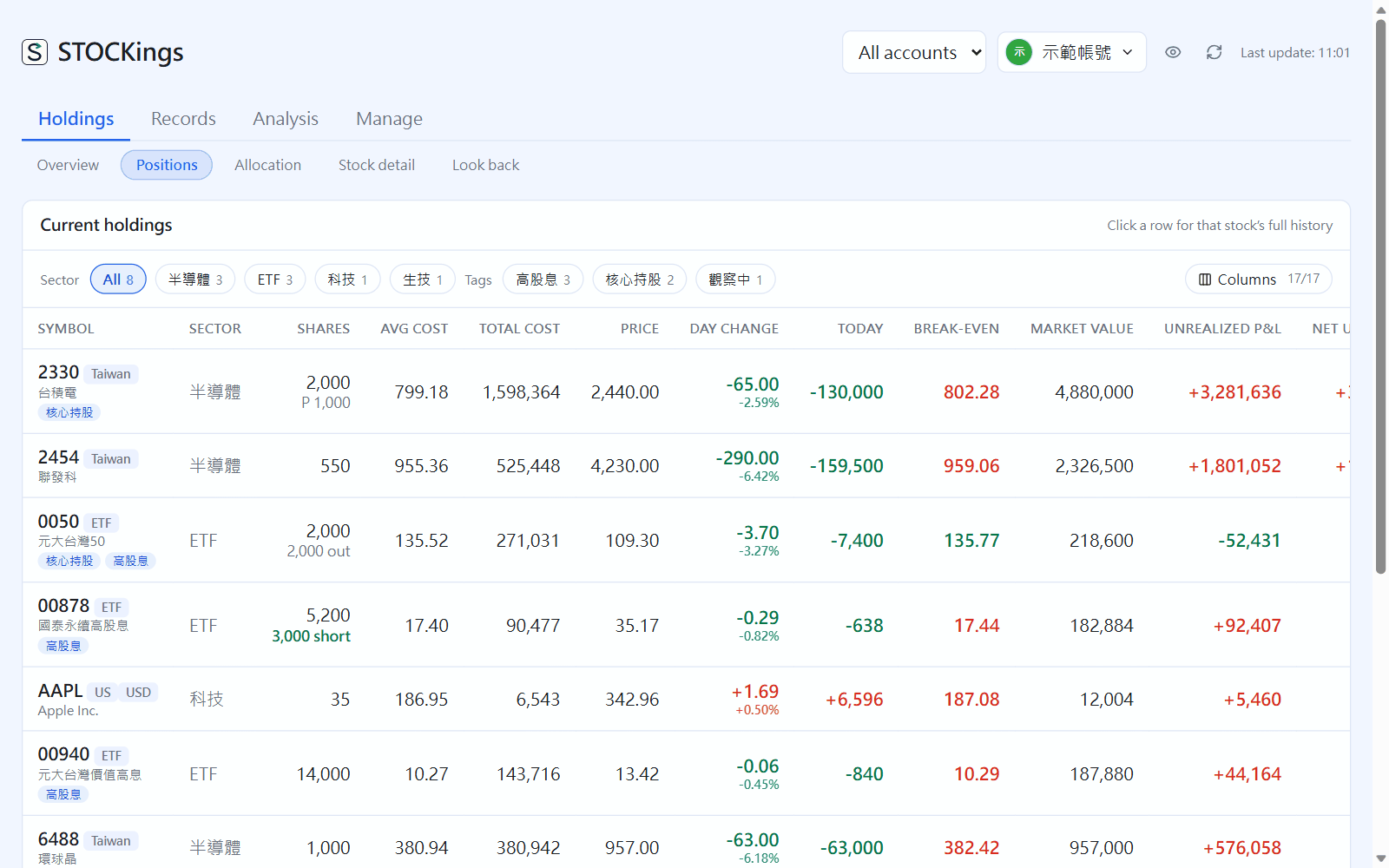
Holdings → Positions: for each holding, the shares, average cost, current price, today's change, unrealized P&L, yield and weight, with a TWD total at the bottom. Use the industry and tag chips at the top to filter; click a row to see that holding's full history.
Current positions; “Closed positions” are listed separately below
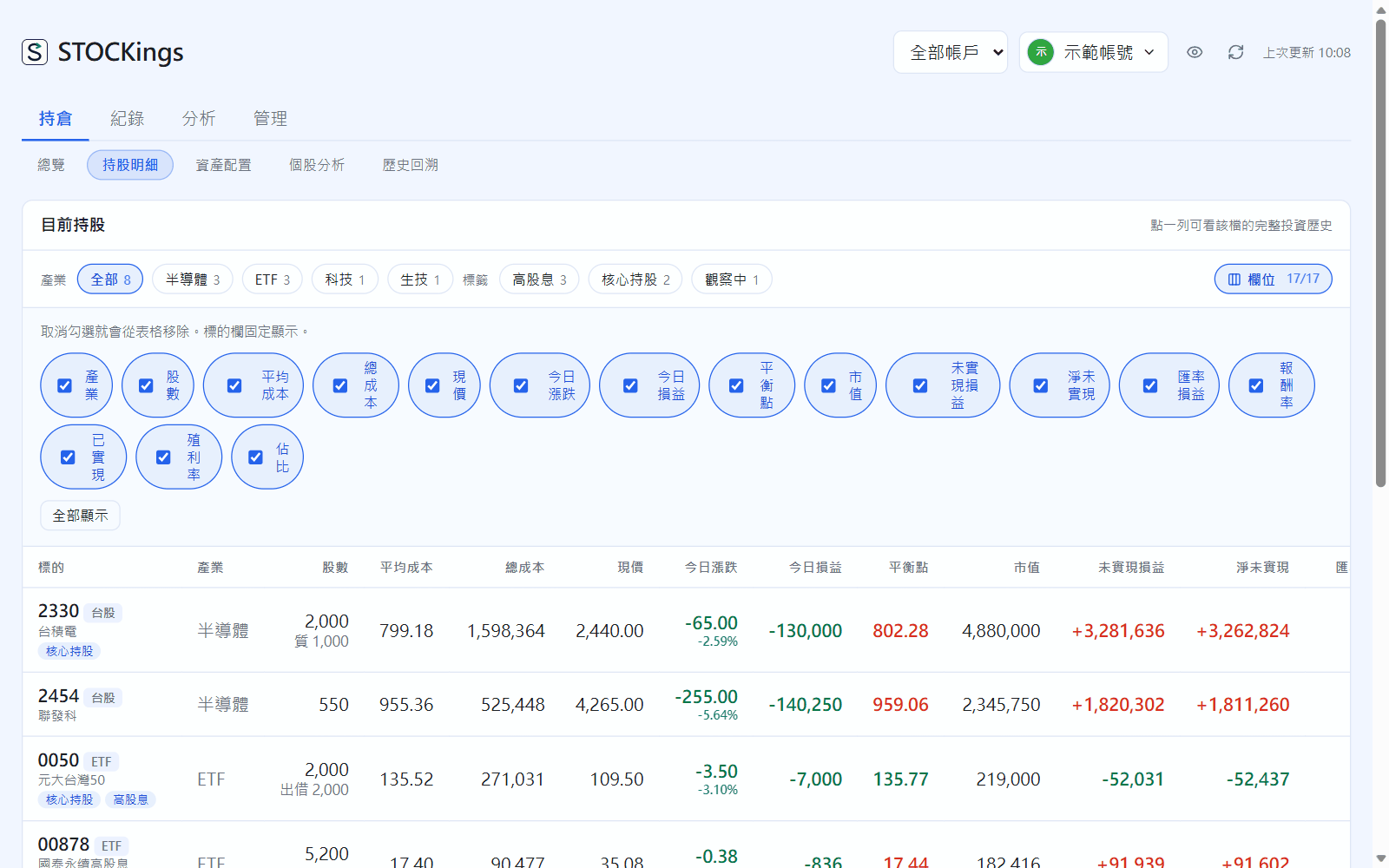
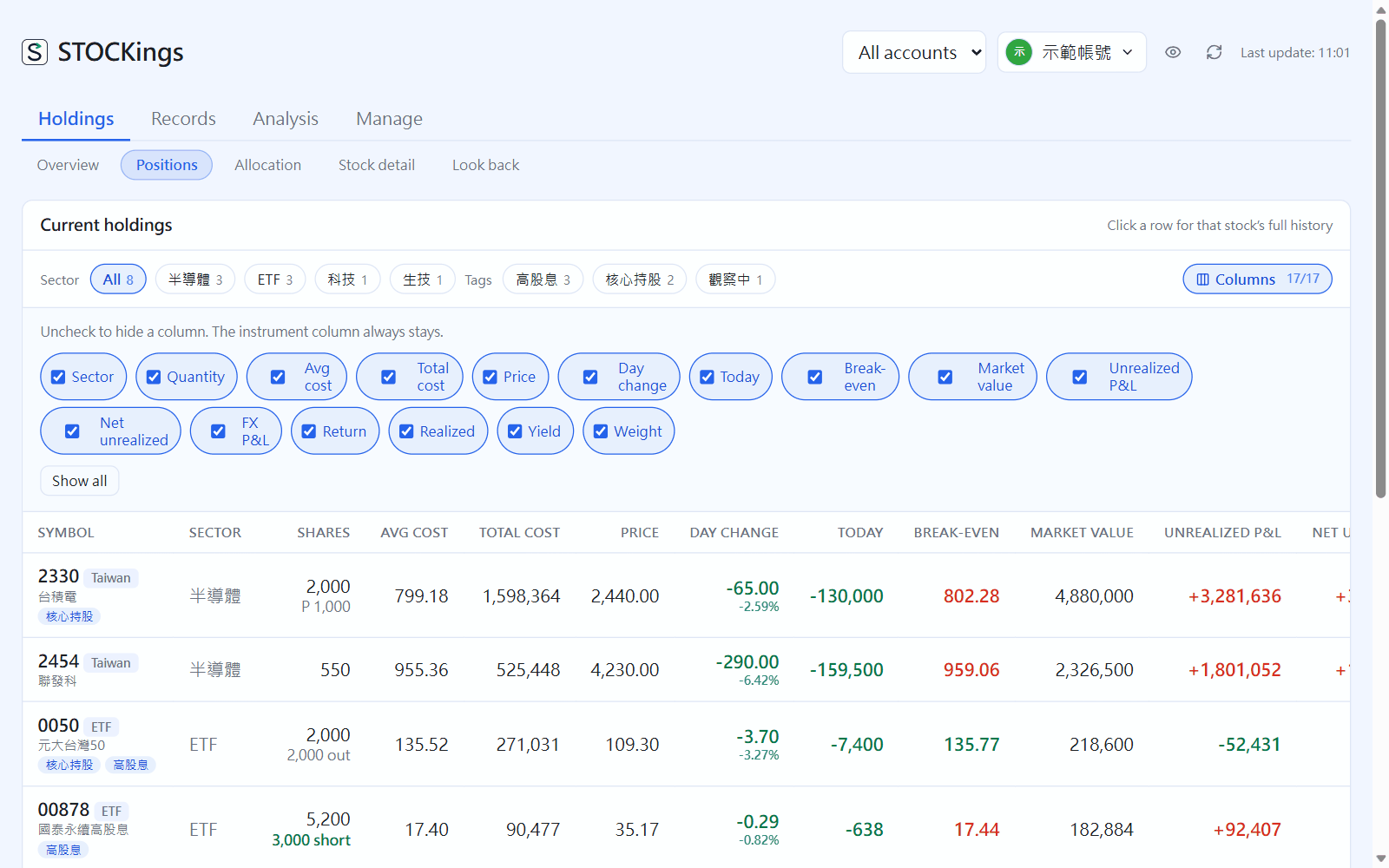
Click “Columns” to untick columns you don't need; your choice is remembered on this computer. Click a column header to sort.
Choose your own columns
Allocation
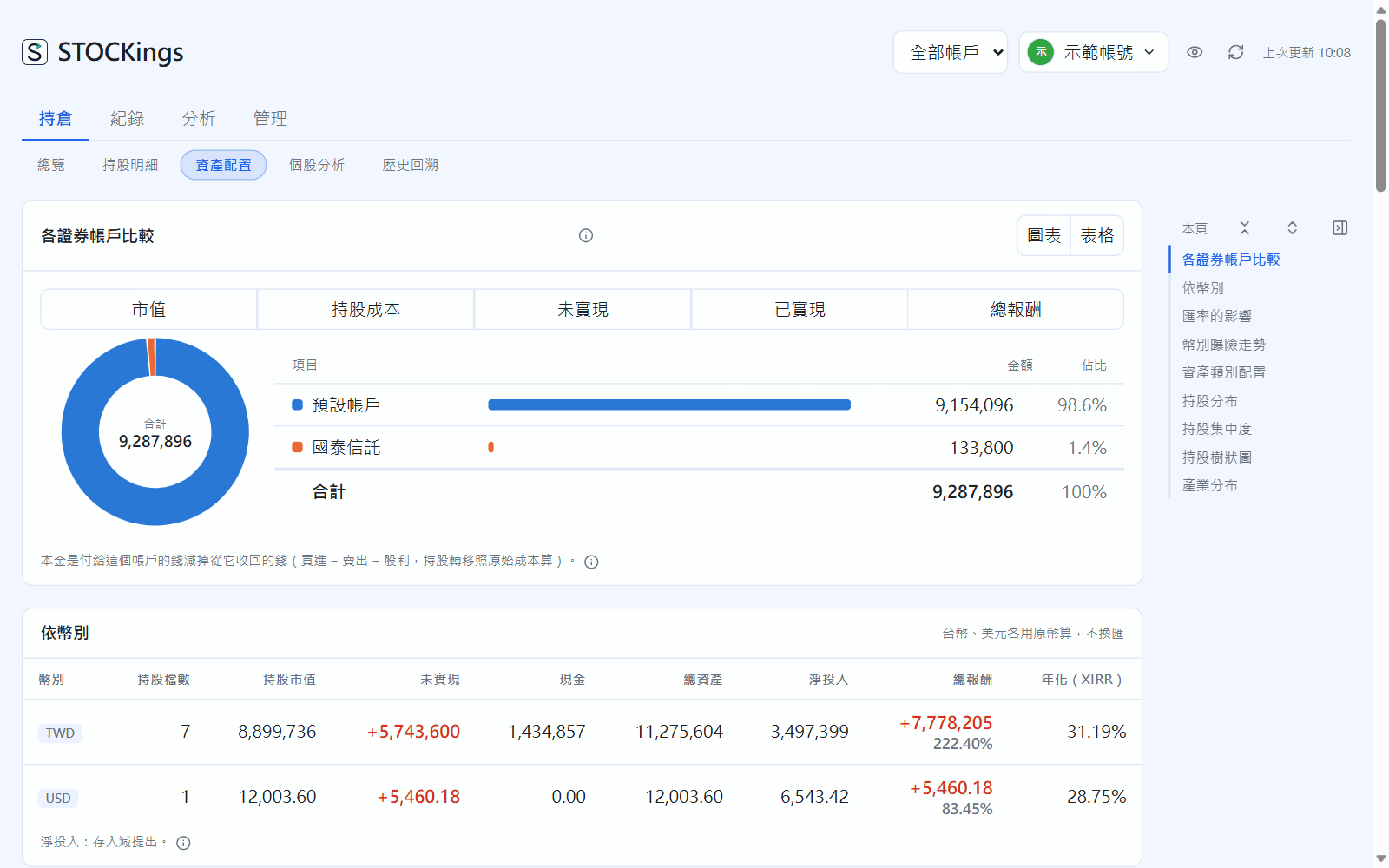
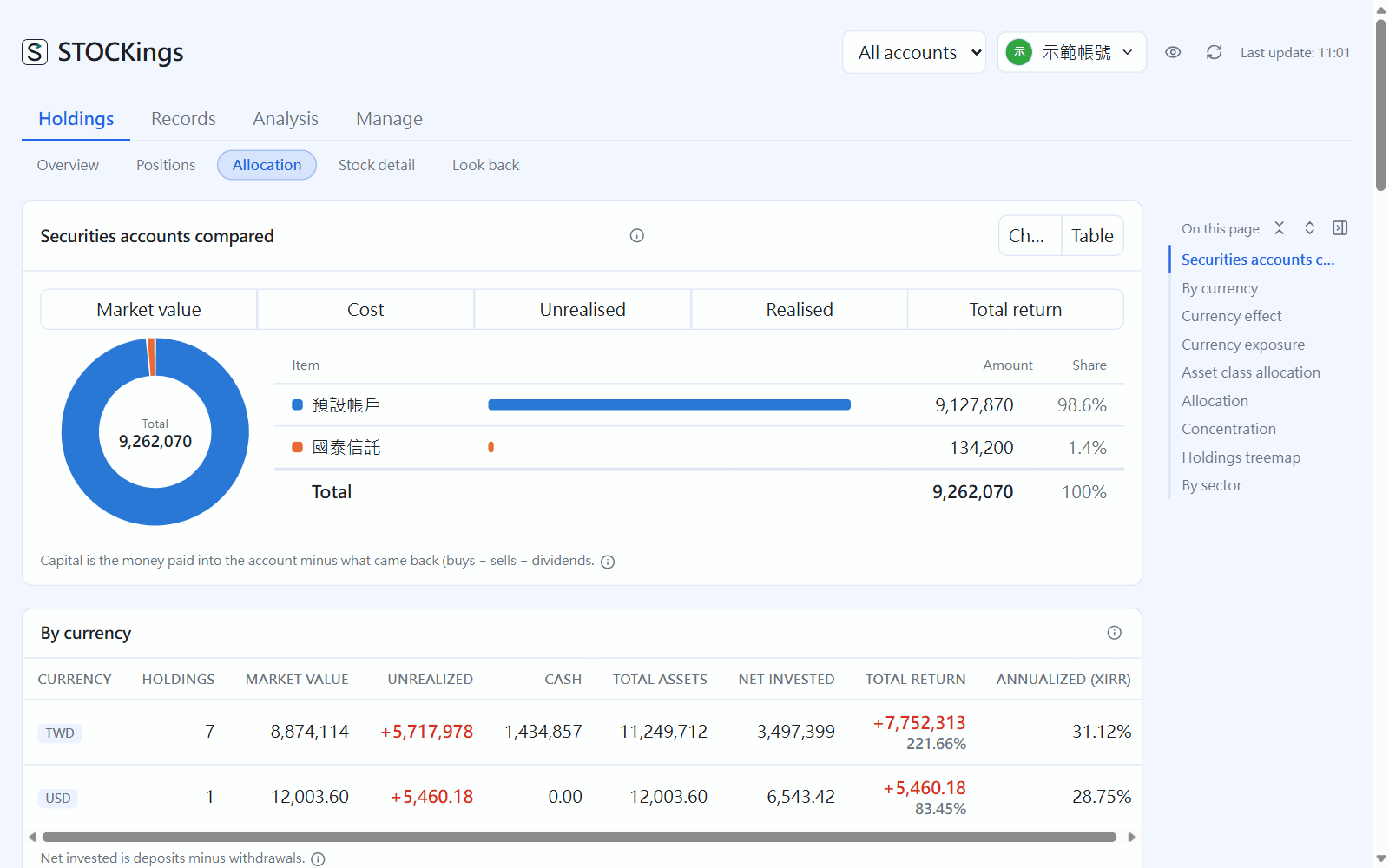
From top to bottom: a comparison of securities accounts (the chart switches between market value, cost, unrealized, realized and total return; switch to a table at the top right), a breakdown by currency, the effect of exchange rates, currency exposure, asset class allocation, holdings allocation, concentration, the holdings treemap and the industry breakdown.
Allocation
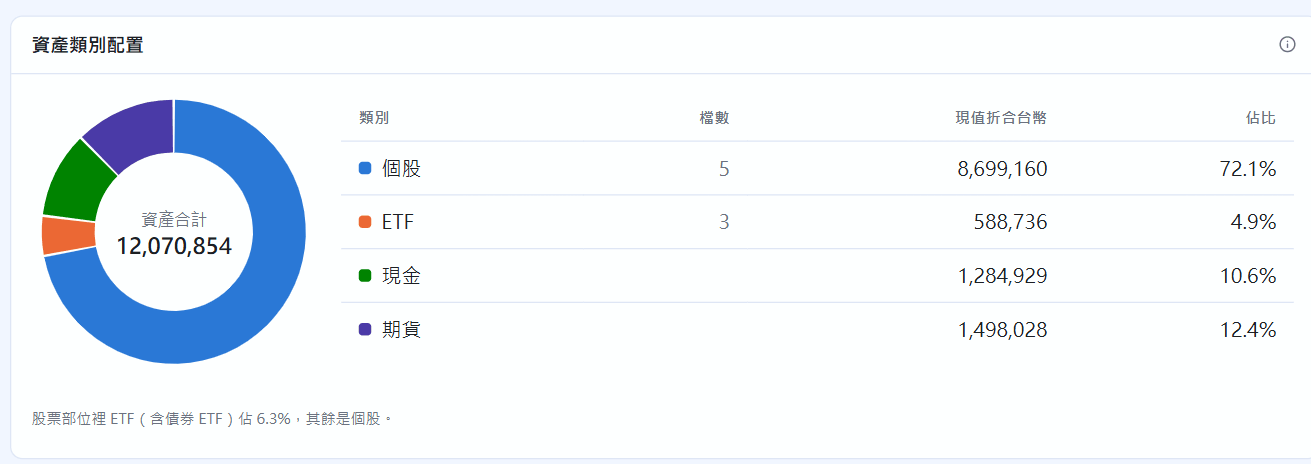
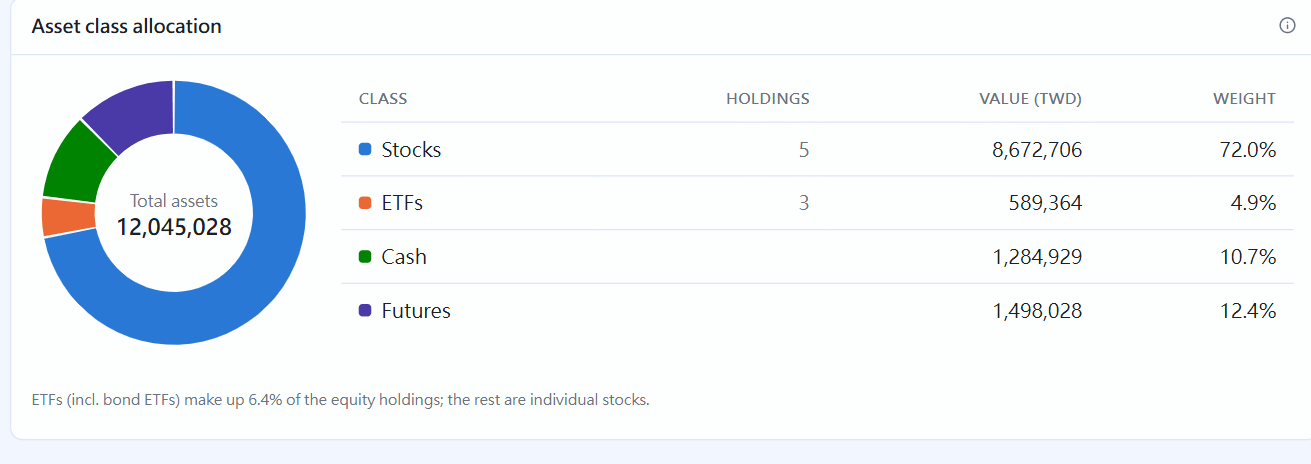
Asset class allocation splits total assets into stocks, ETFs, bond ETFs, funds, bonds, cash and futures, so you can see where your money sits:
Asset class allocation
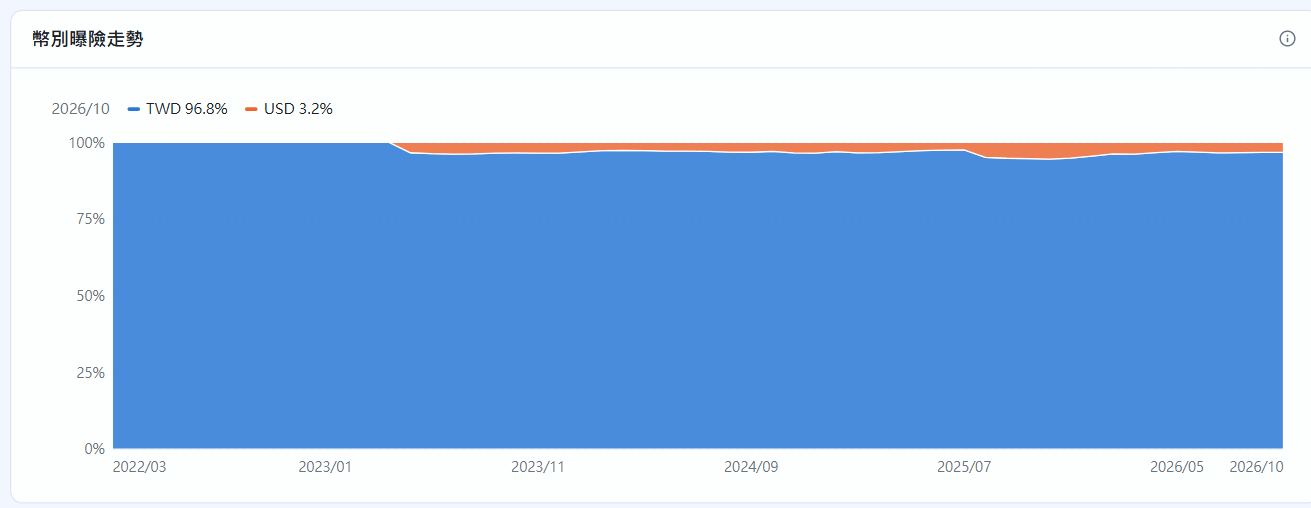
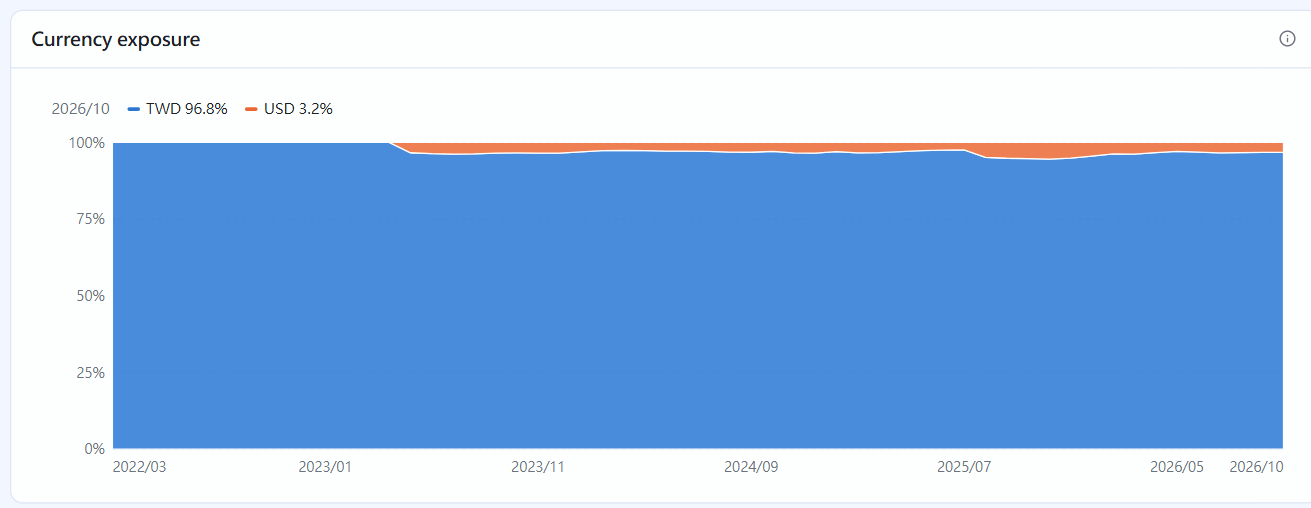
Currency exposure shows each currency's share of your assets at each month-end (holdings by their trading currency, cash by the account currency). The more you hold in foreign currency, the more exchange rates move your total assets:
Currency exposure
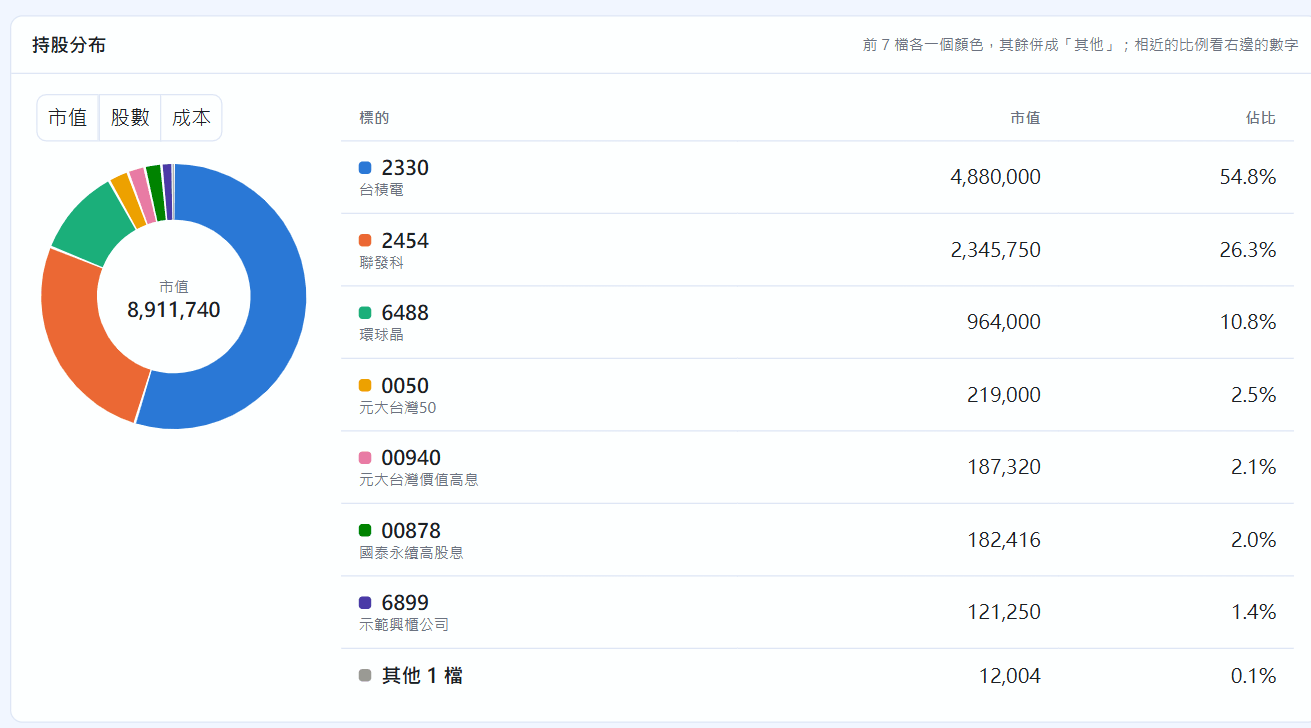
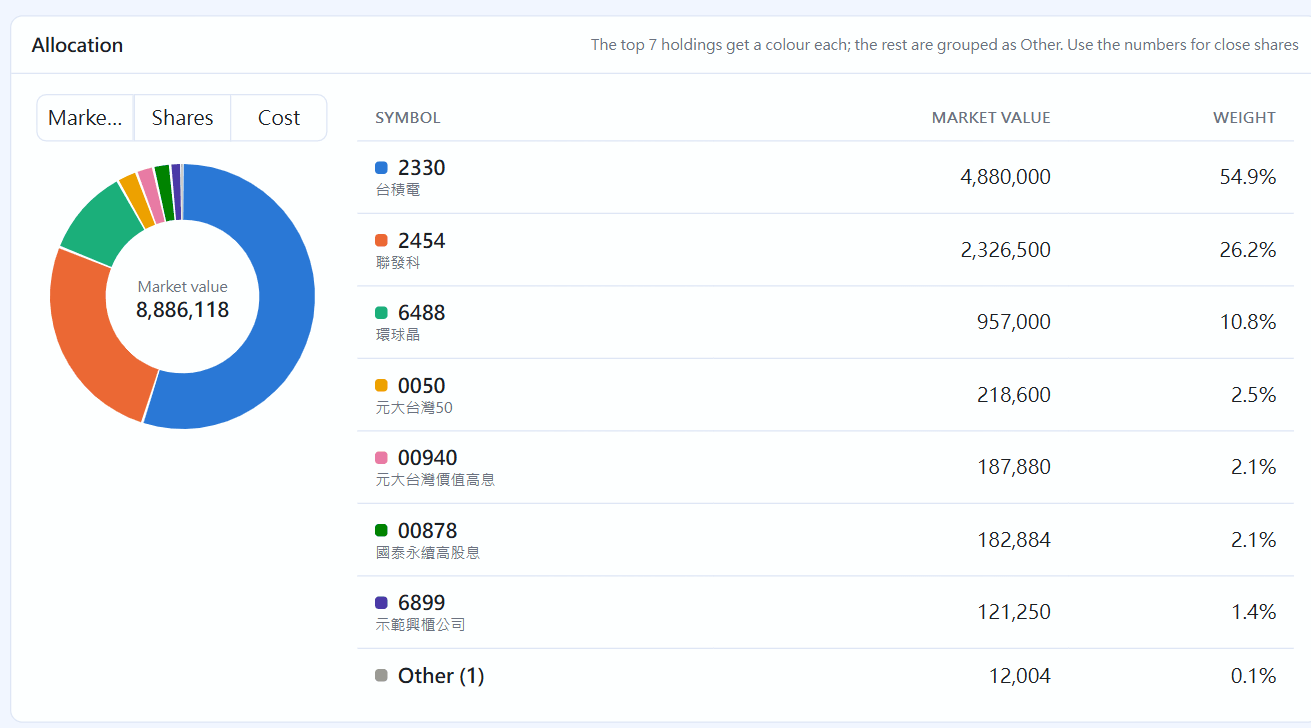
The holdings allocation chart can show market value, shares or cost. The top 7 holdings each get a colour and the rest are combined into “Other”:
Holdings allocation
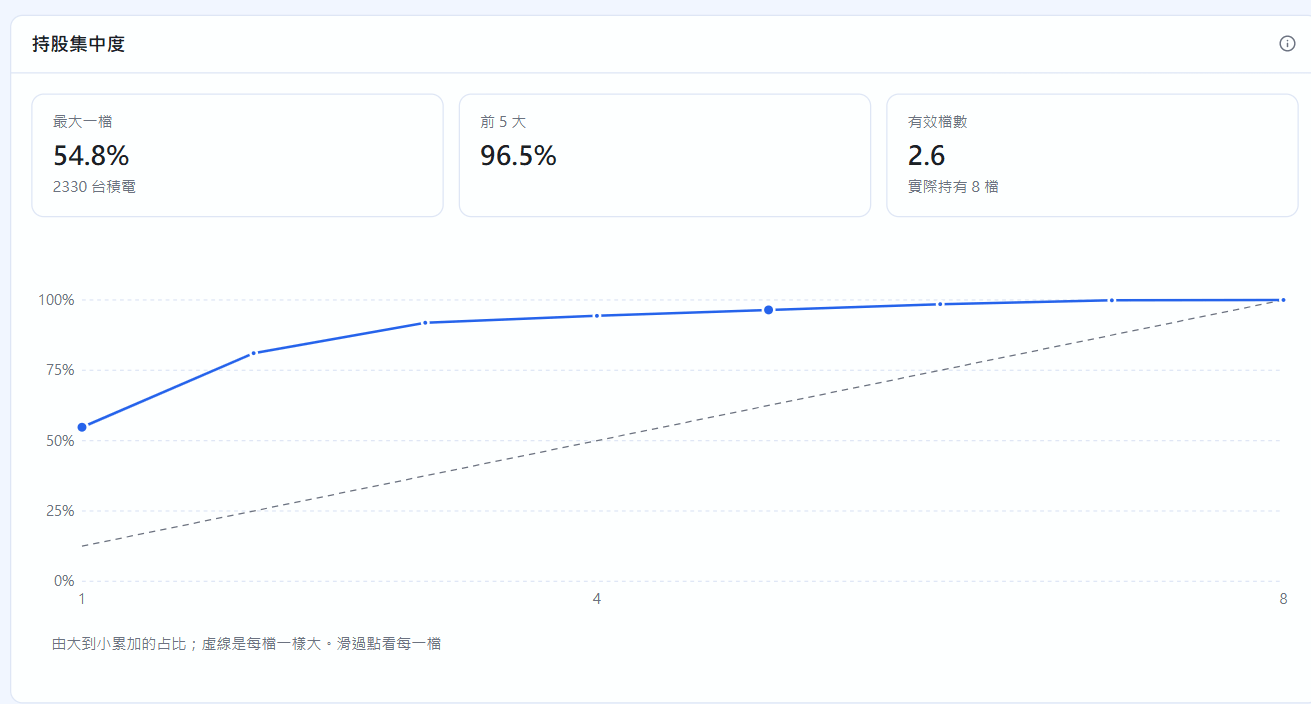
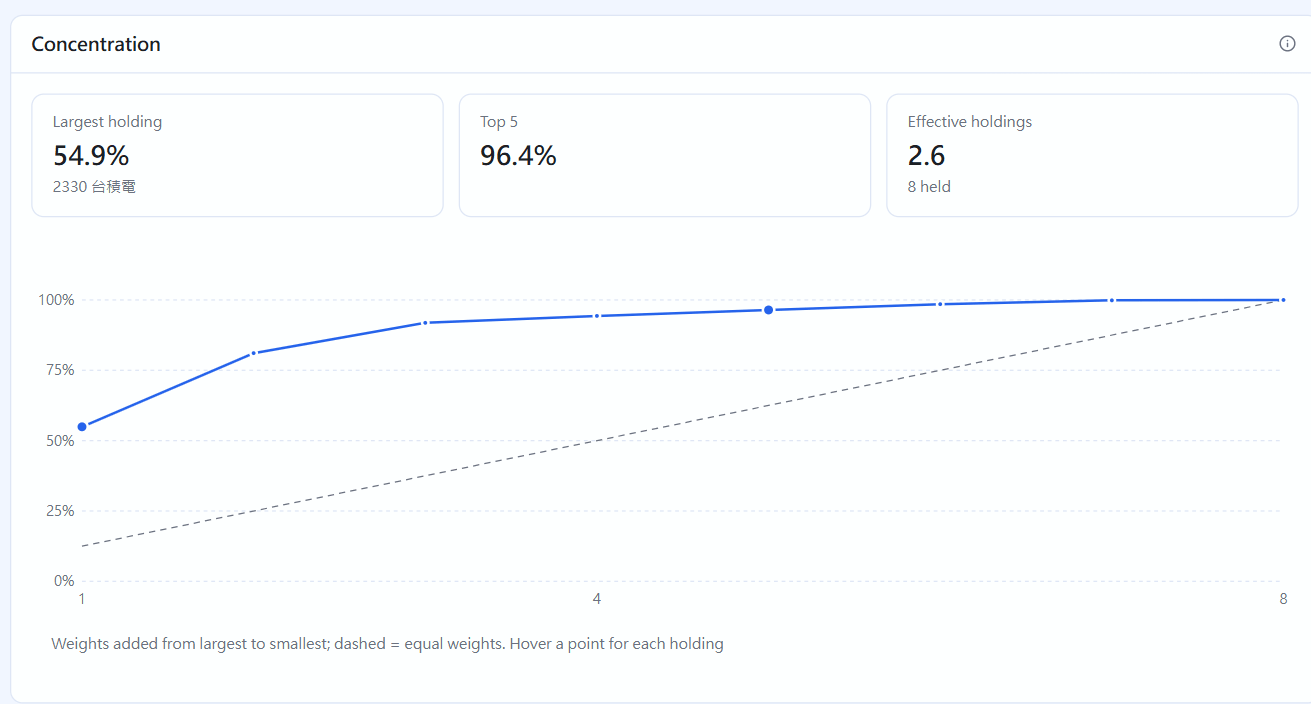
Concentration shows how much the largest holding, the top 5 and the top 10 make up. Effective holdings is “how many equal-sized holdings this is worth”; a number far below your actual count means your money is concentrated in a few holdings. Hover along the cumulative share line below to see each holding:
Concentration
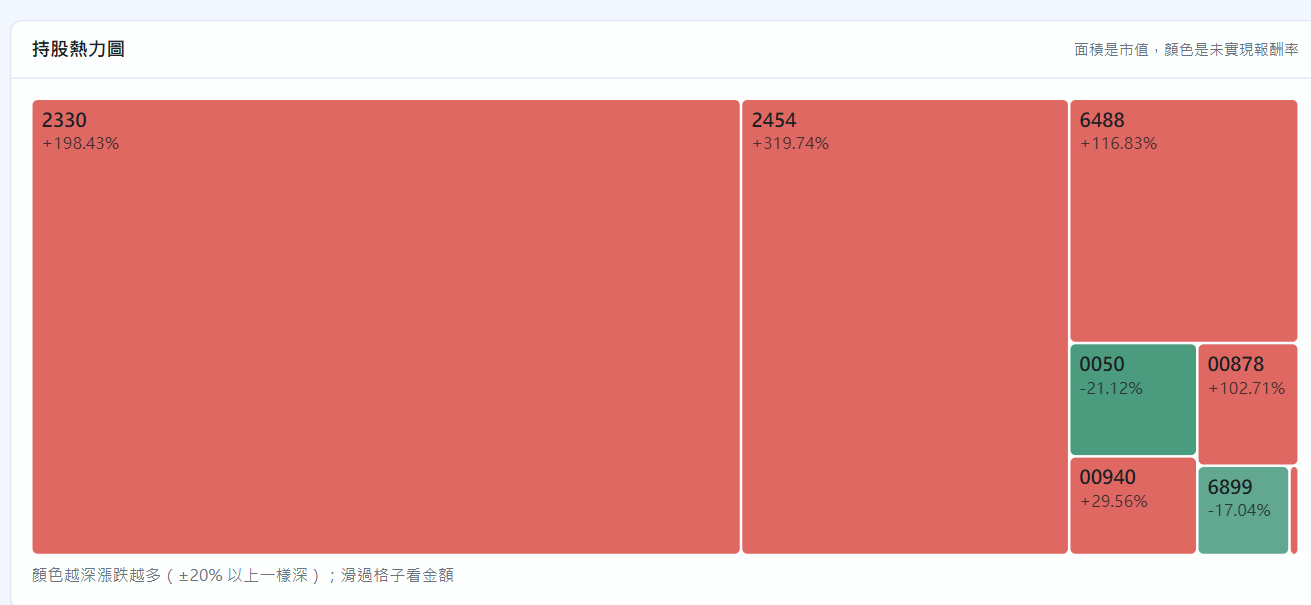
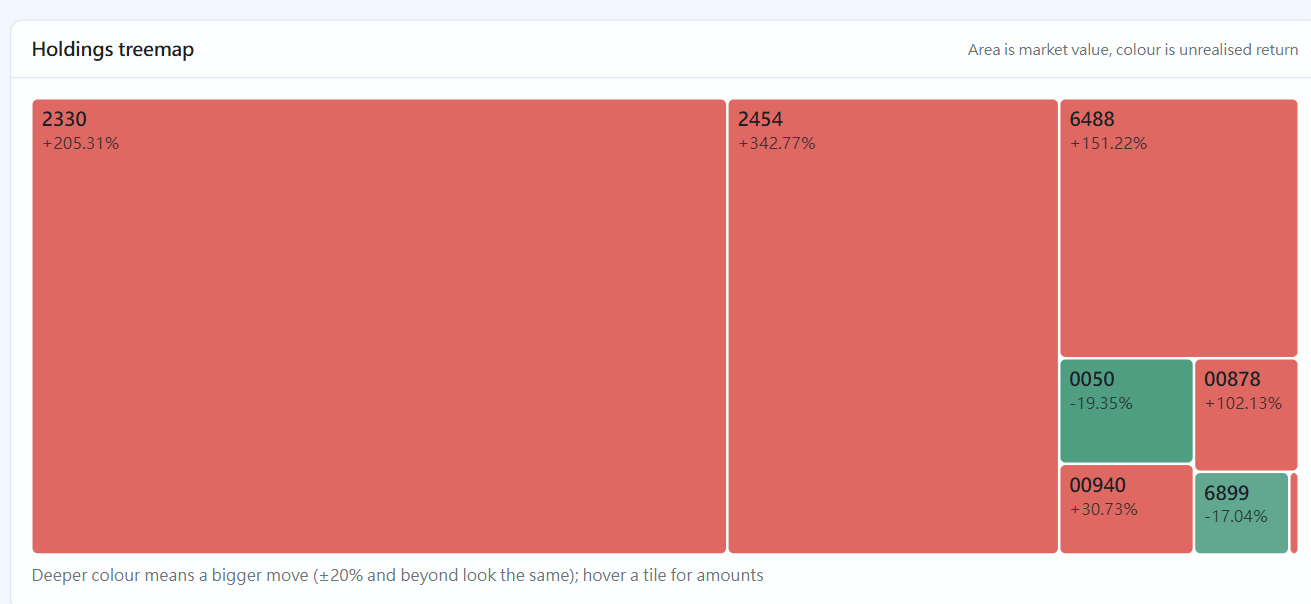
In the holdings treemap, each tile's area is its market value and its colour is its unrealized return, so you can spot the biggest holdings and the losers at a glance:
Holdings treemap
Stock detail
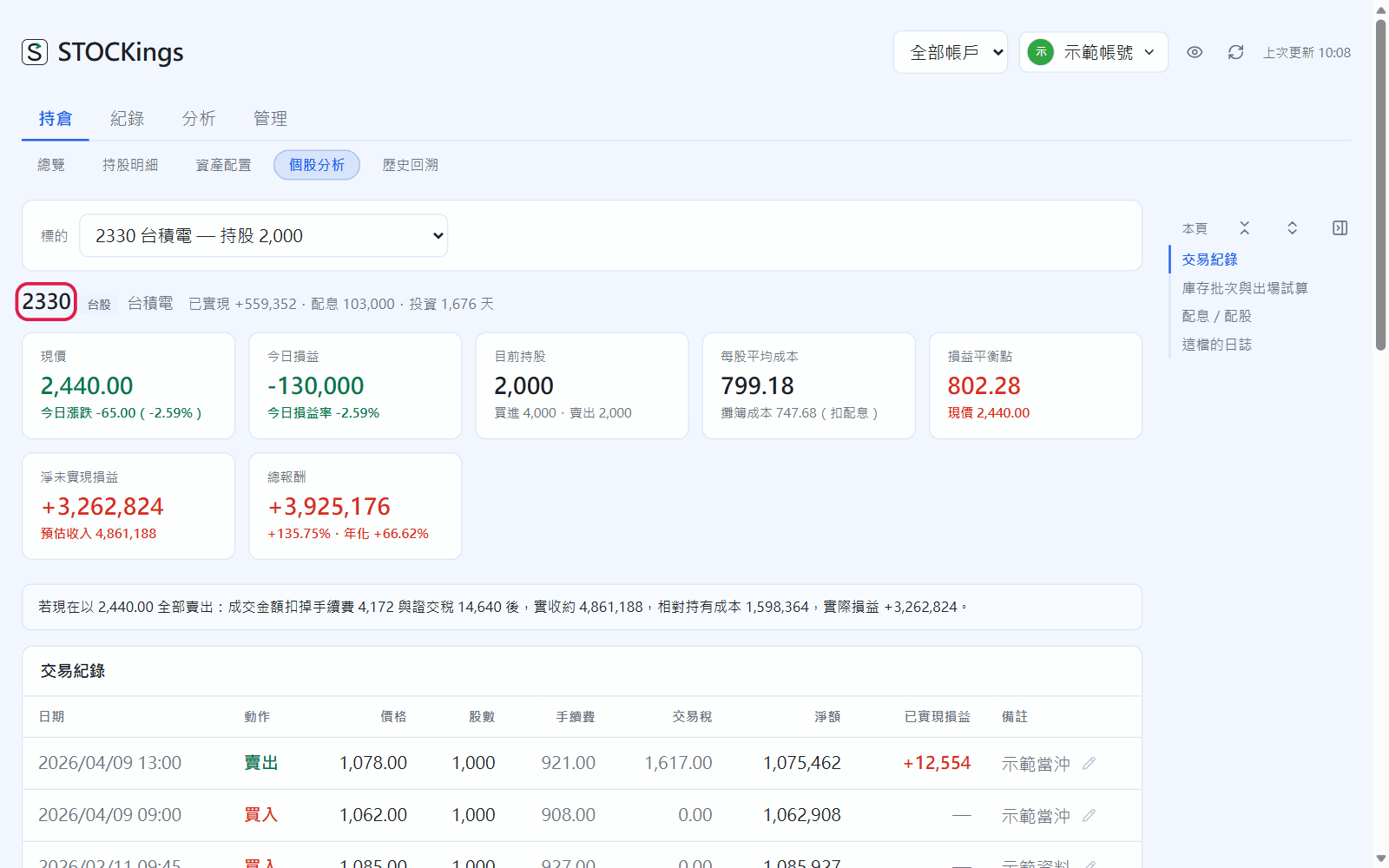
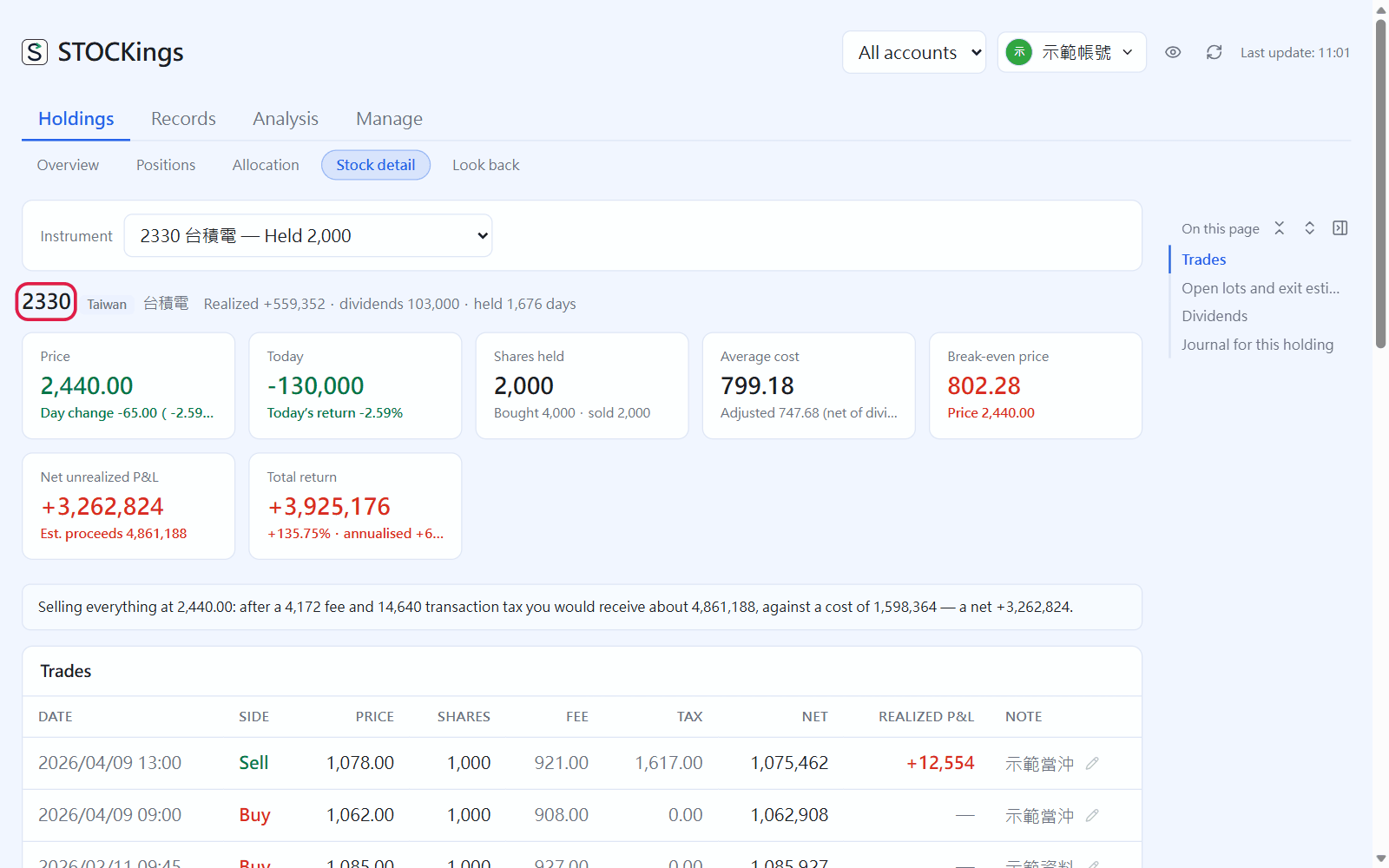
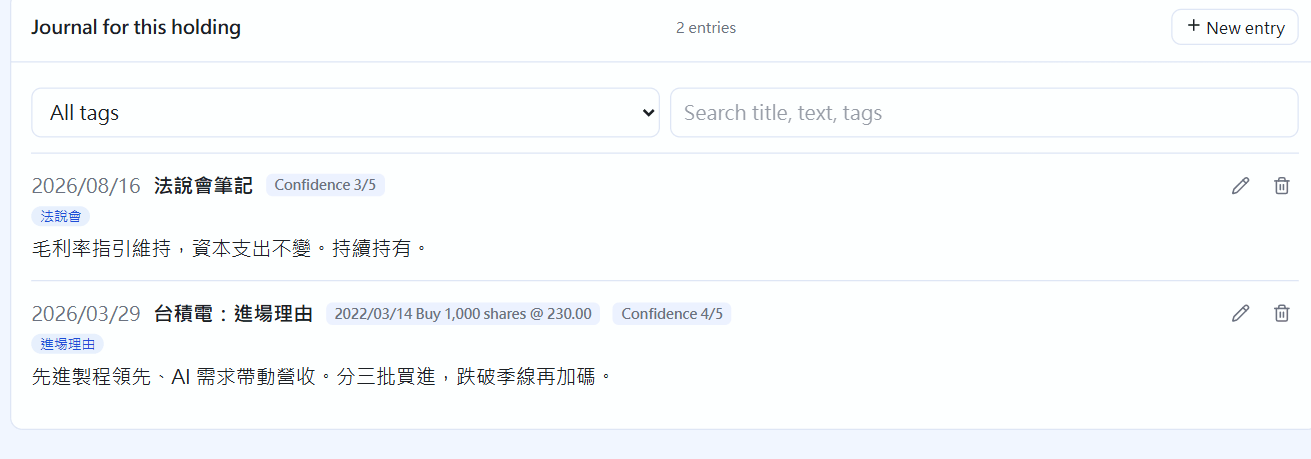
Switch instruments at the top to see one holding: current price and today's change, today's P&L for this holding, cost, break-even price, every trade, tax lots and an exit calculator, dividends, and at the bottom this holding's journal entries (you can write one right here too). You can edit the note here directly. Click the symbol in the title (red box) to open this instrument in technical analysis (chapter 18; not for funds and bonds).
Stock detail; click the symbol in the red box to open technical analysisJournal for this holding
Look back
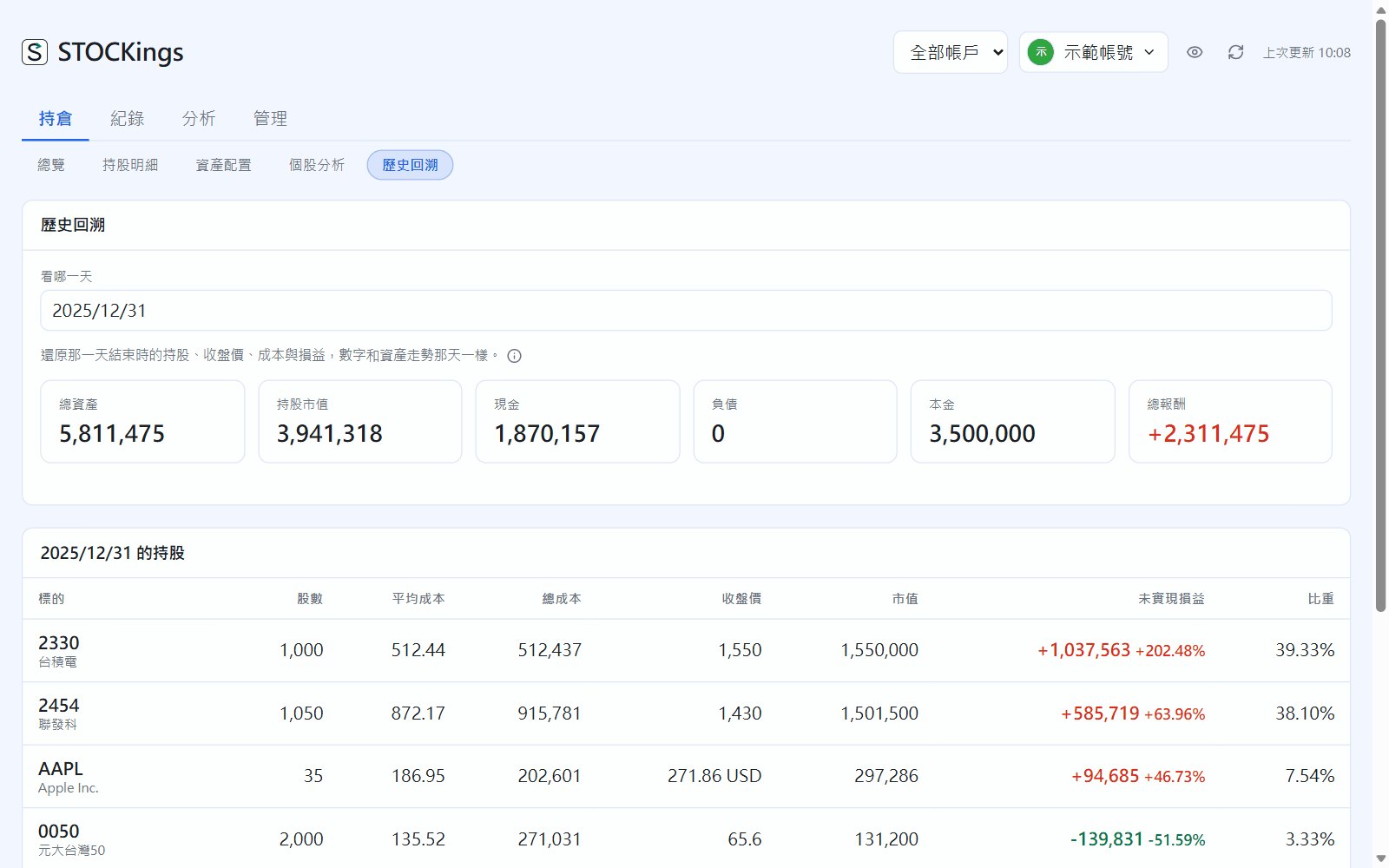
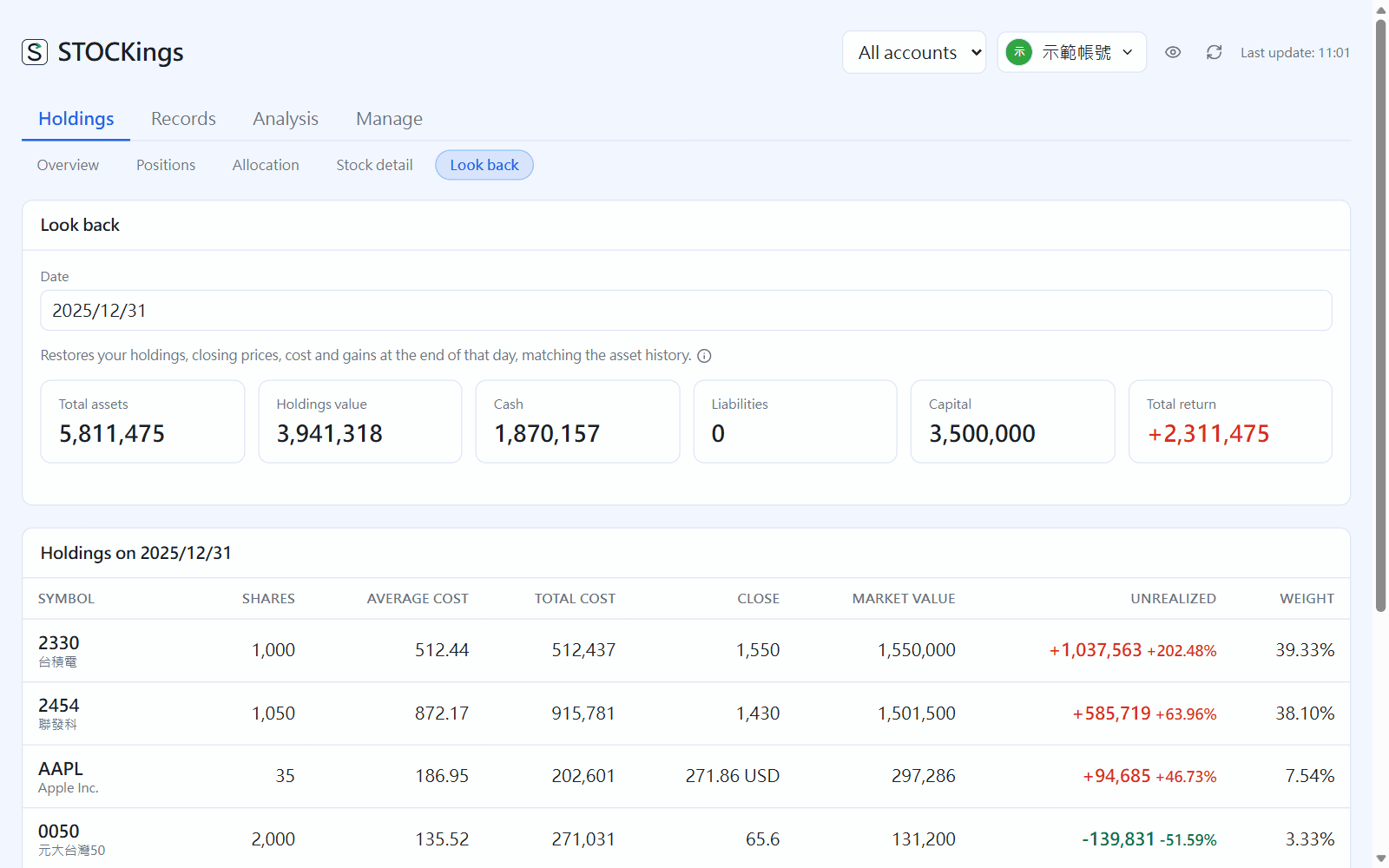
Pick a past date to see, as of the end of that day, total assets, cash, liabilities, capital, and each holding's shares, cost, closing price and market value. Cost is replayed first-in, first-out up to that day. It is view-only and never changes your records.
 STOCKings