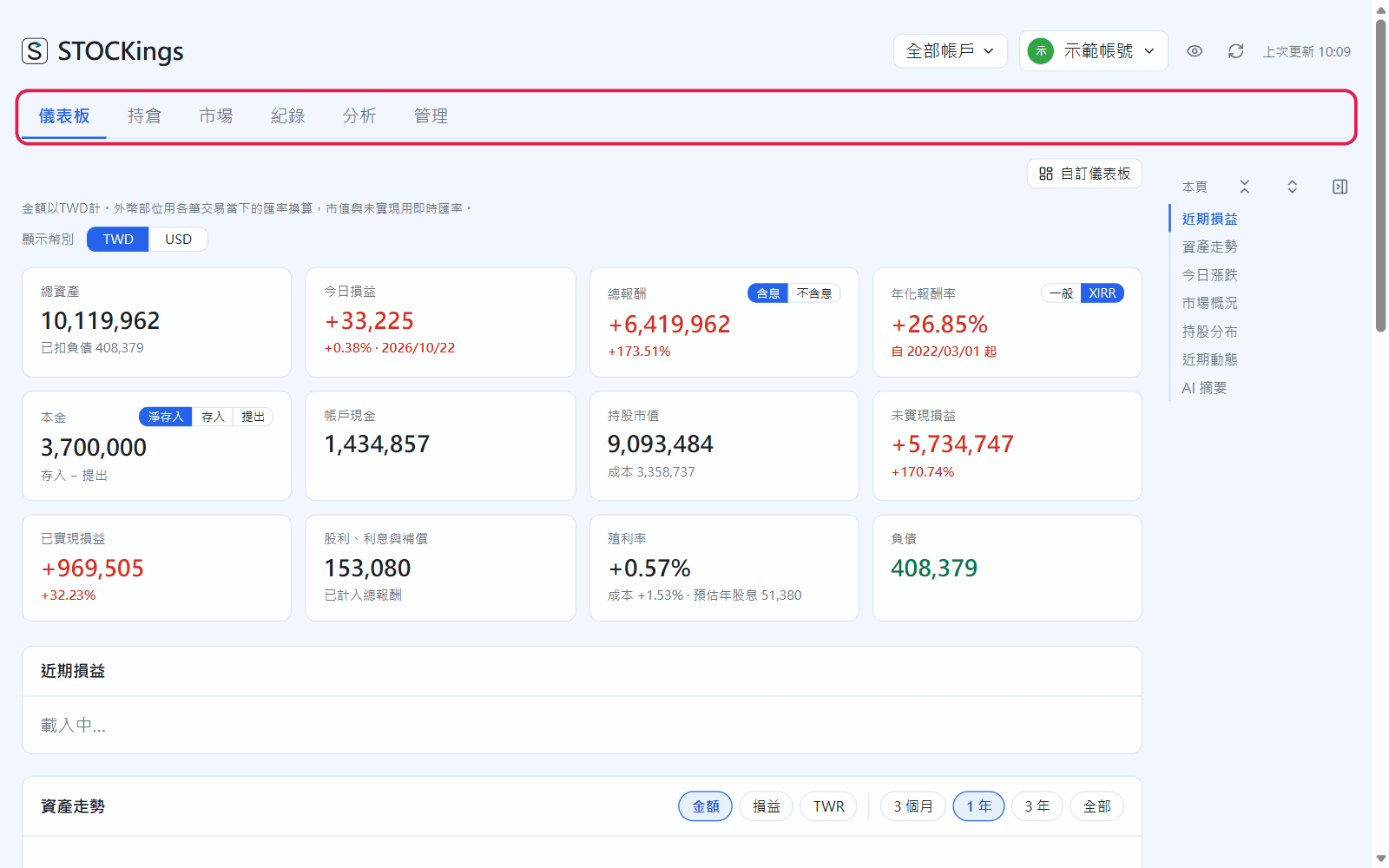
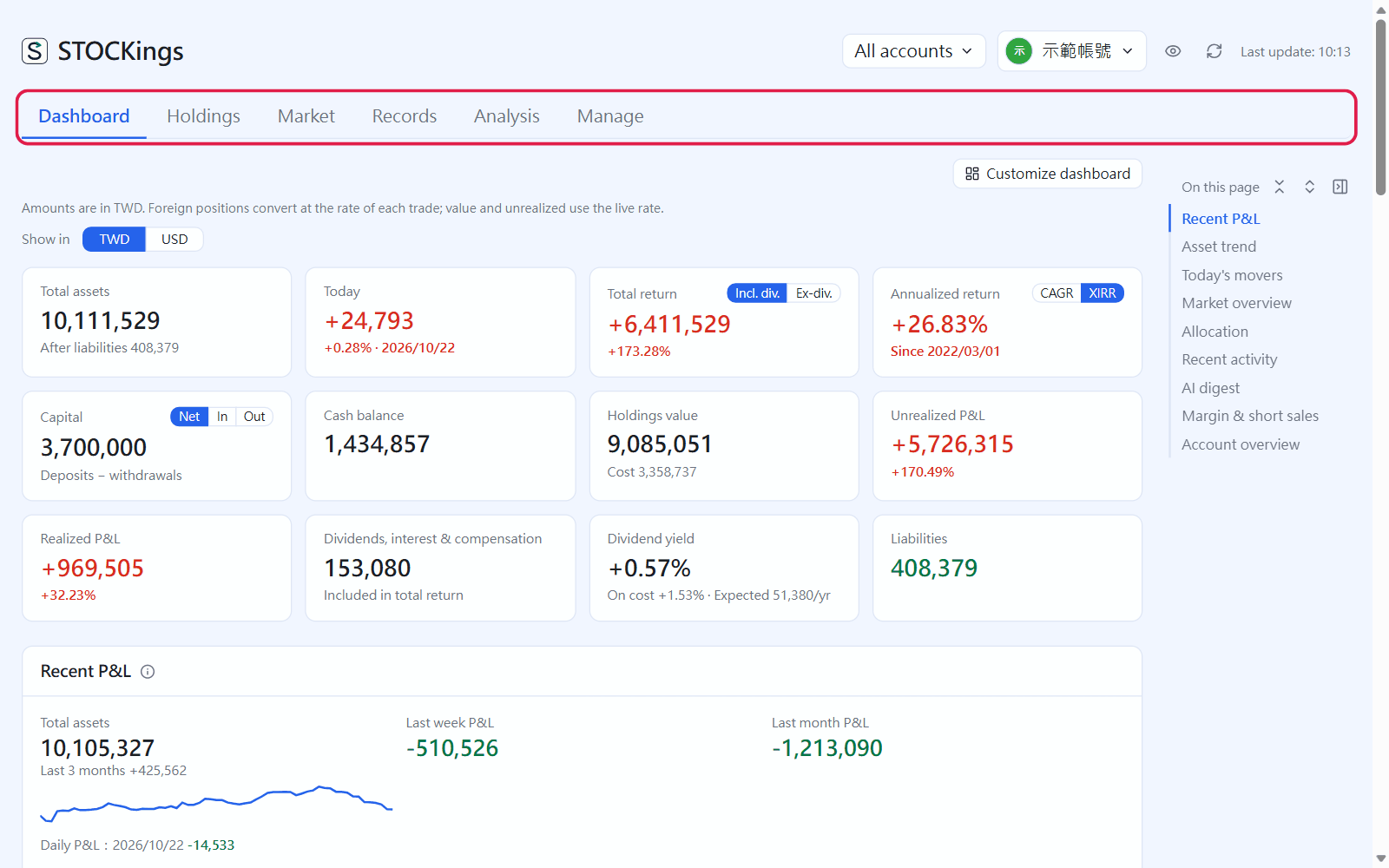
Pick a group in the top row; its pages are in the row below. On wide screens the “On this page” list on the right jumps to a section when clicked (sections can be collapsed, see the end of this chapter)
Trades, Dividends, Regular investing, Cash ledger, Lending, Pledge loans, Futures & options, IPO subscriptions, Employee grants, Journal: where you enter data
Analysis
Allocation, By year, Returns, Tax summary
Manage
Instruments, Accounts (securities and cash), Import / Export, Data check, Account, Settings
At the top right, from left to right: All accounts (show just one securities account, chapter 4), the account menu, the eye (hide amounts), the circular arrow (refresh quotes) and “Last update: 13:42” (when quotes were actually fetched).
Privacy mode: hide amounts
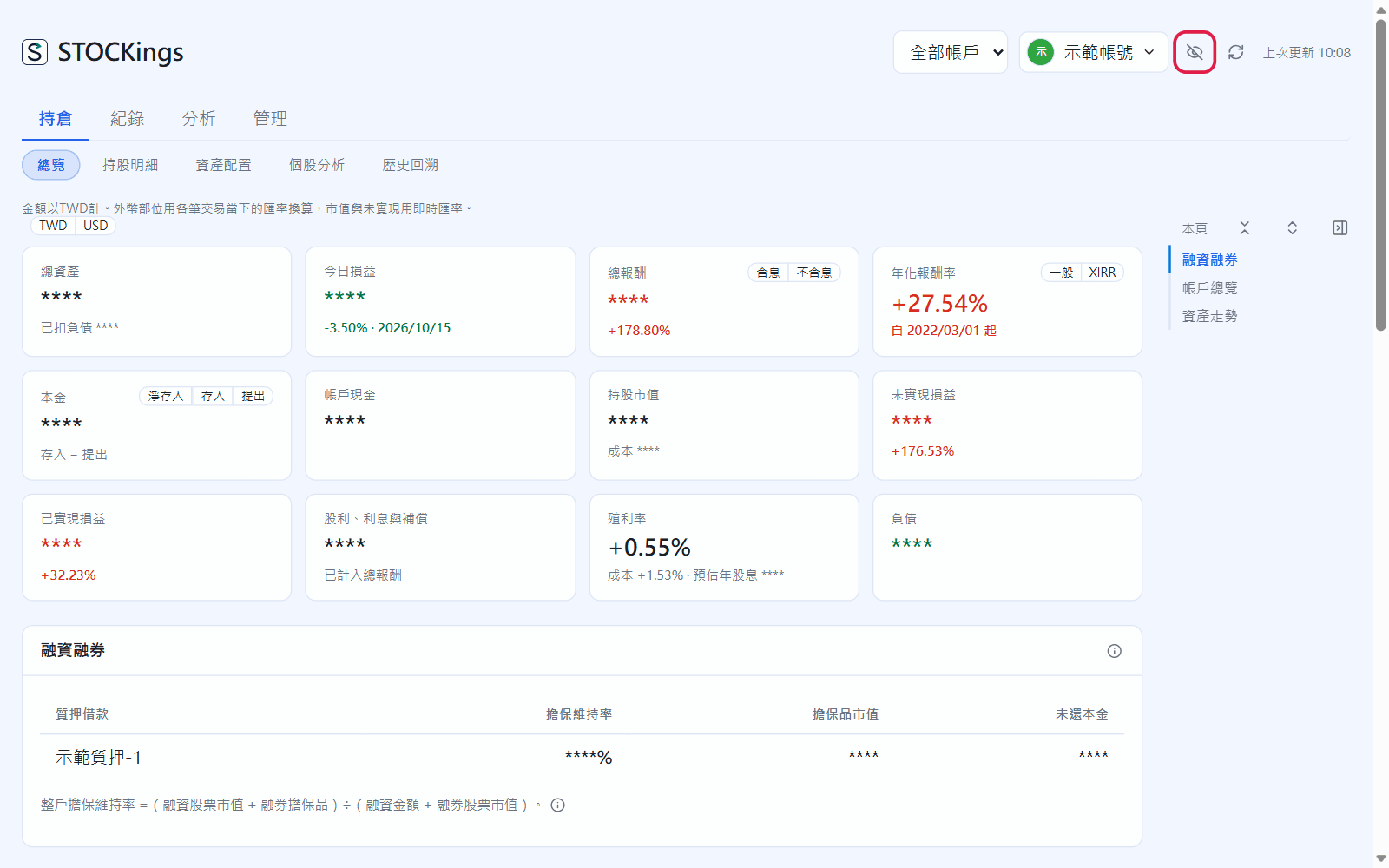
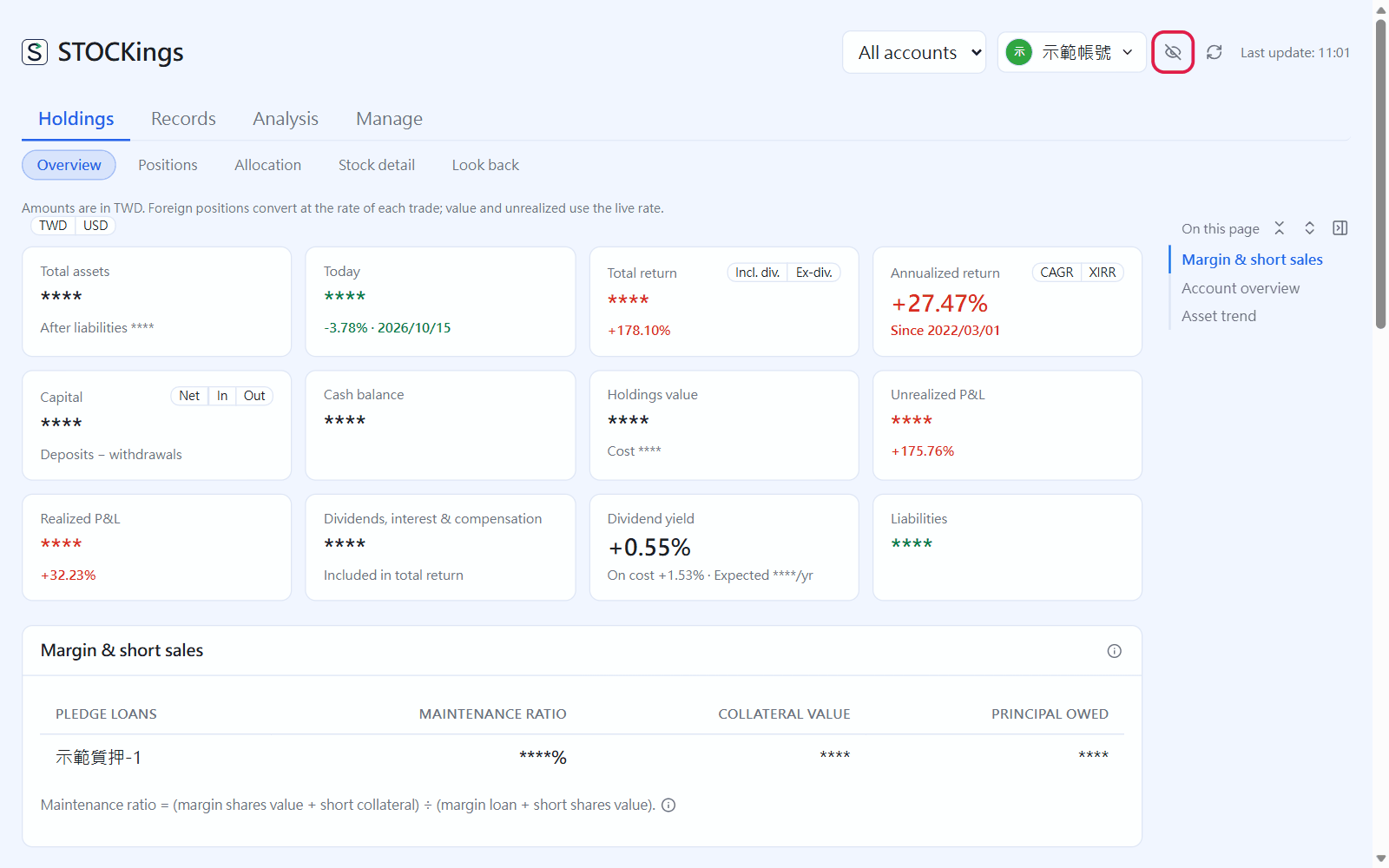
Before sharing your screen or taking a screenshot, click the eye at the top right. Amounts and share counts turn into ****, while percentages such as returns and weights stay visible. Click again to show them. The setting is remembered next time you open the app.
After clicking the eye: all amounts hidden
Account menu and switching accounts
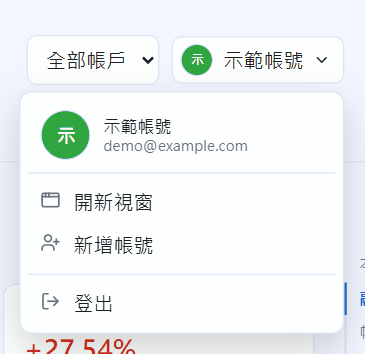
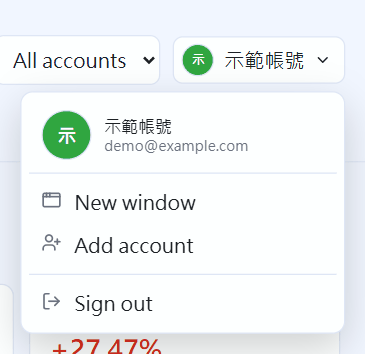
Click your name at the top right to open the account menu. From there you can switch to another remembered account (you must enter that account's password, unless it has “Remember email and password” ticked), “Add account”, or sign out.
The account menu at the top right
Hide tabs you don't use
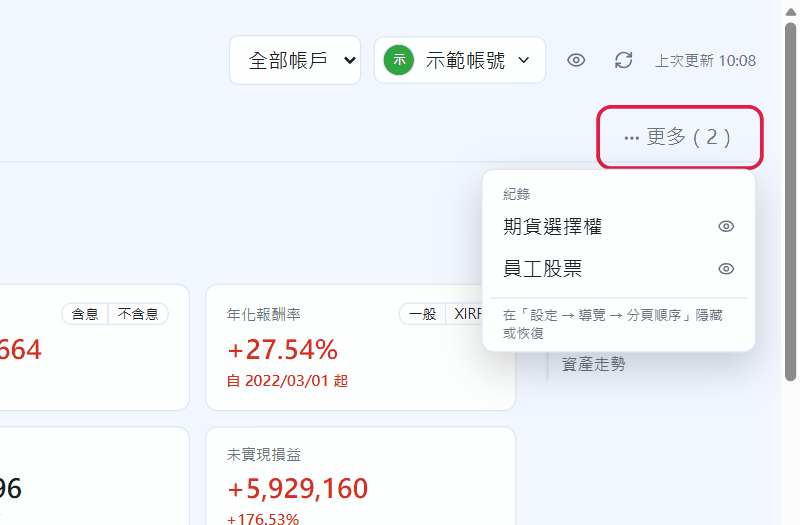
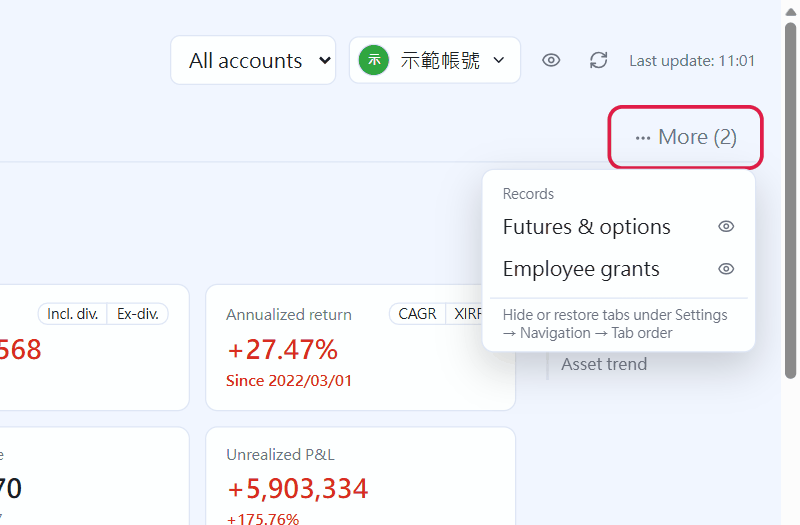
In Manage → Settings → Tab order, click the eye next to a tab to hide it (no data is deleted; chapter 24). Hidden tabs are reached through “More” at the far right of the group row; the eye next to each one shows it again.
After hiding “Futures & options” and “Employee grants”, open them from “More”
Collapse sections you don't need right now
Each page is made of several sections. Click a section's title to collapse it to a single “Title >” line; click again to expand it (Enter or Space on the title works too). Each tab remembers which sections you collapsed, so they stay that way next time.
On wide screens, the “On this page” list on the right shows the page's sections and marks the collapsed ones. Clicking one expands it, then scrolls to it.
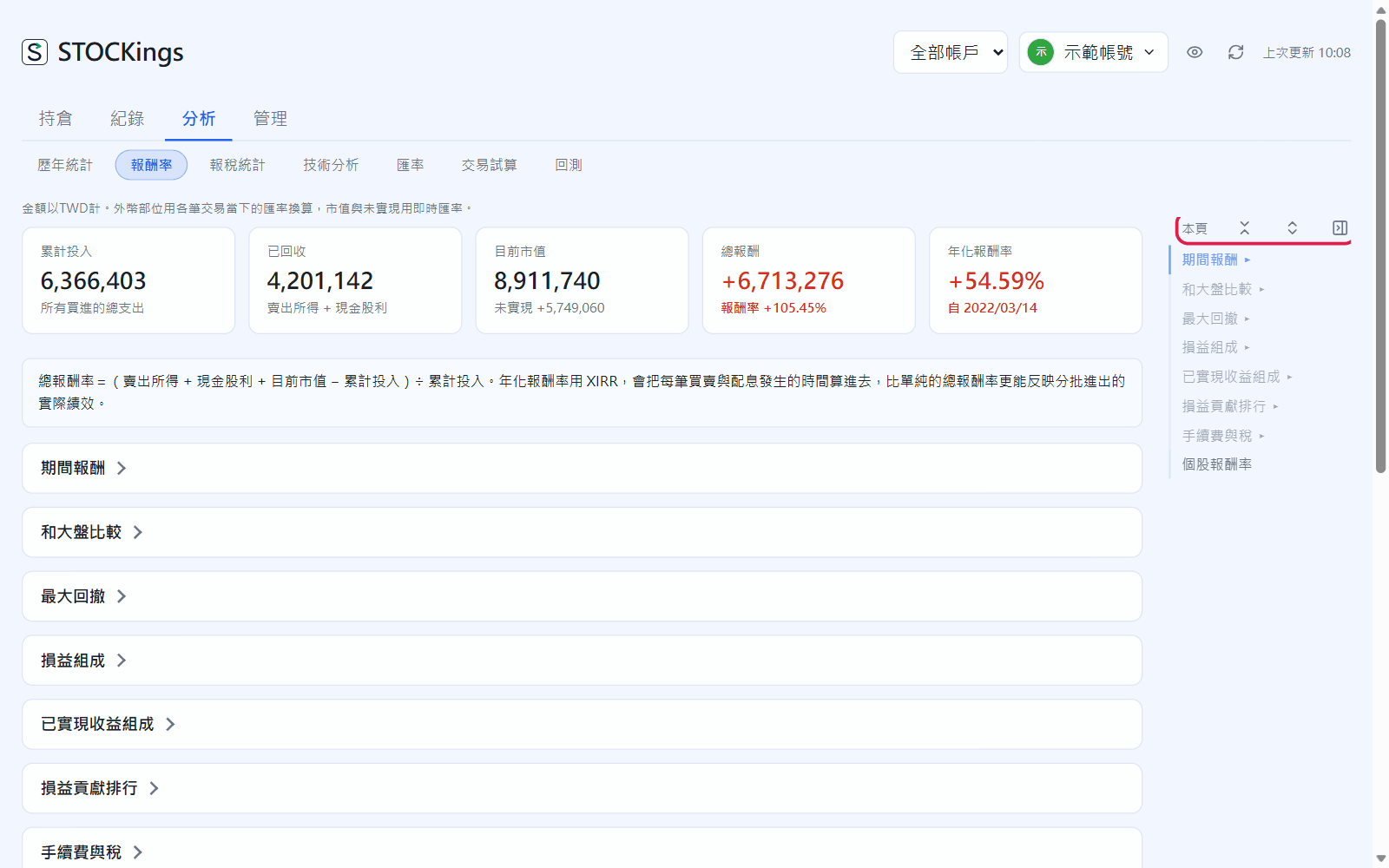
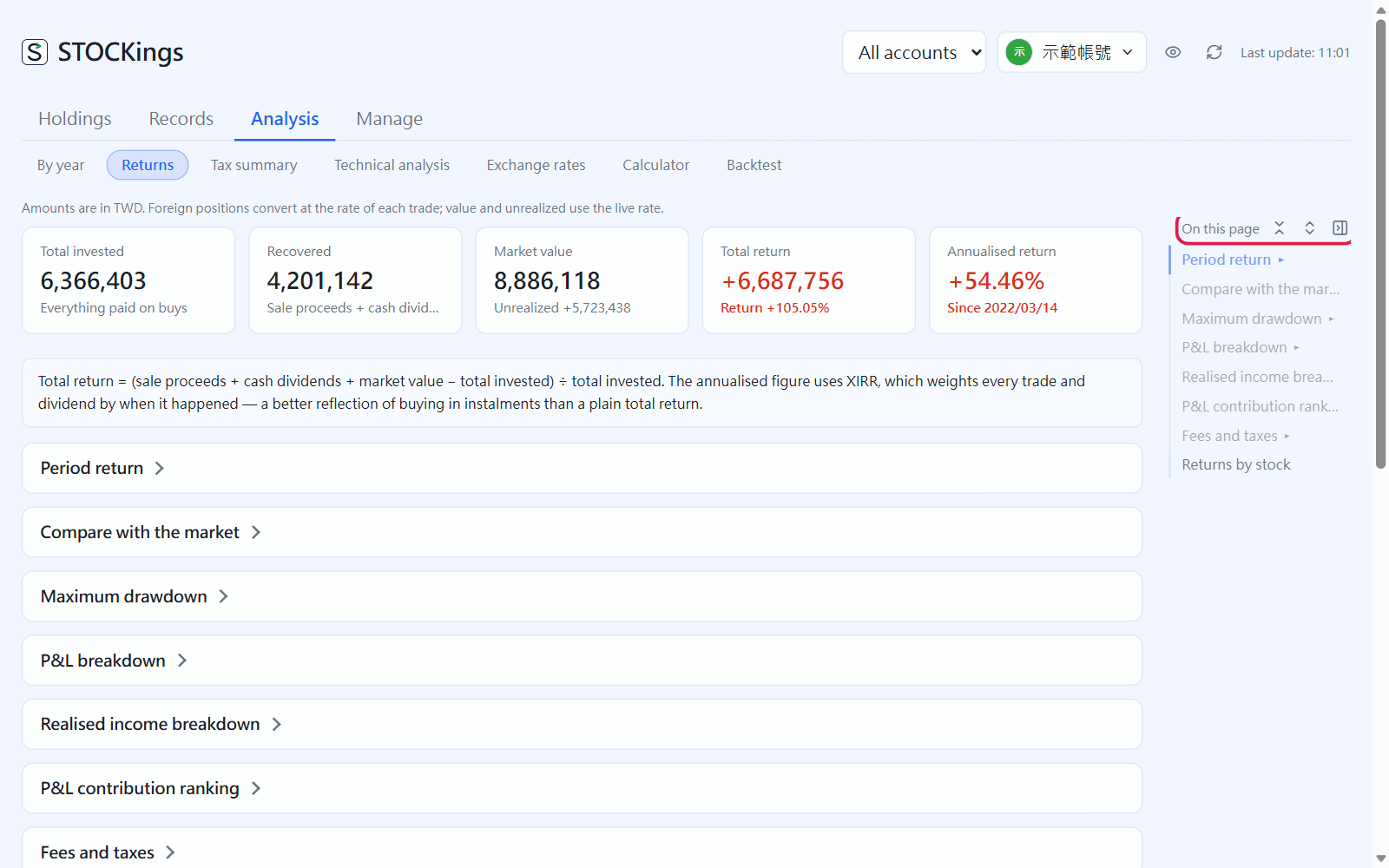
Above the list (red box), the first two buttons next to “On this page” are “Collapse all” and “Expand all”; the third tucks the list away to the side.
The Returns page after “Collapse all”: every section shows only “Title >”, the list marks the collapsed ones, and the last section, “Returns by stock”, has been opened again
 STOCKings