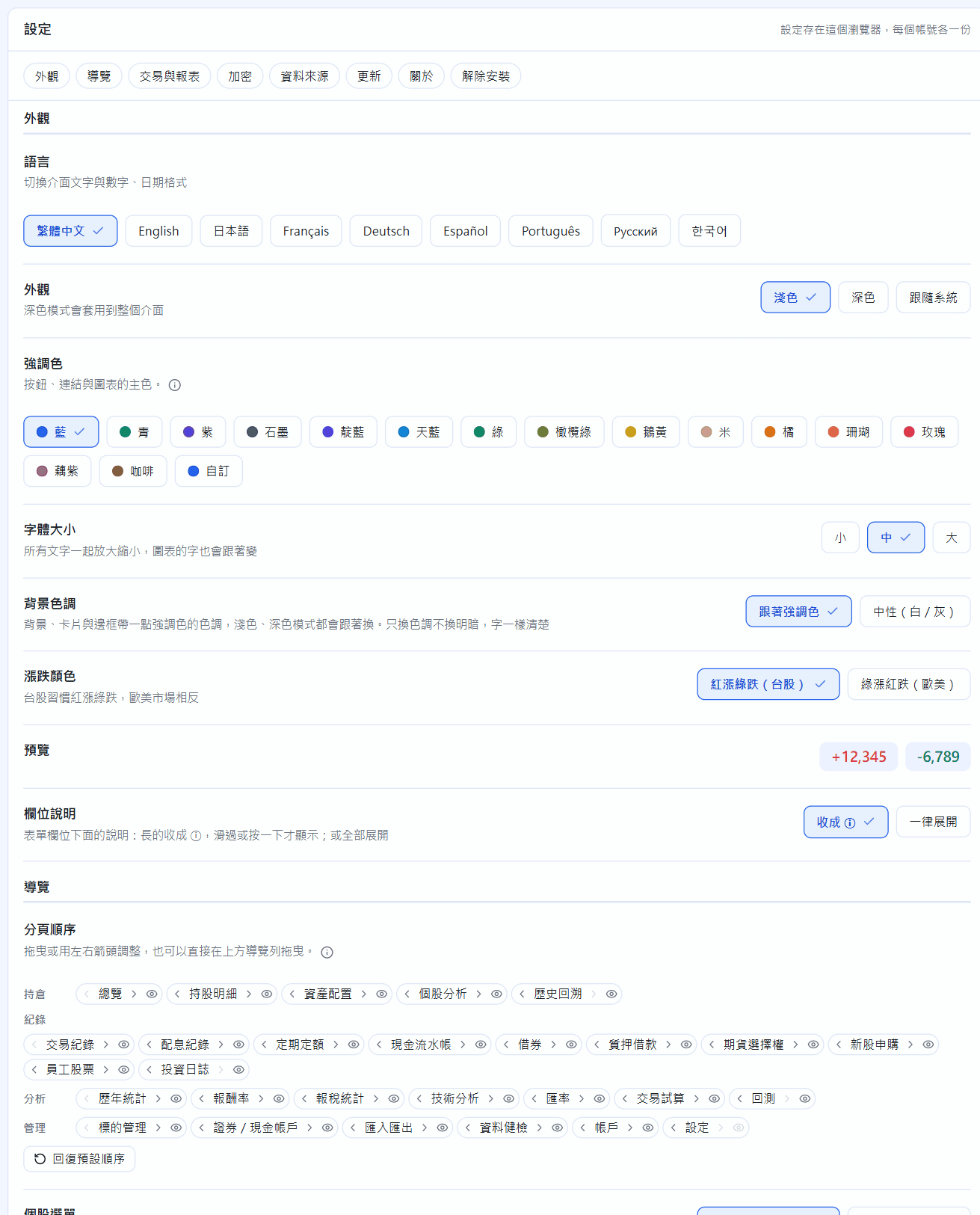
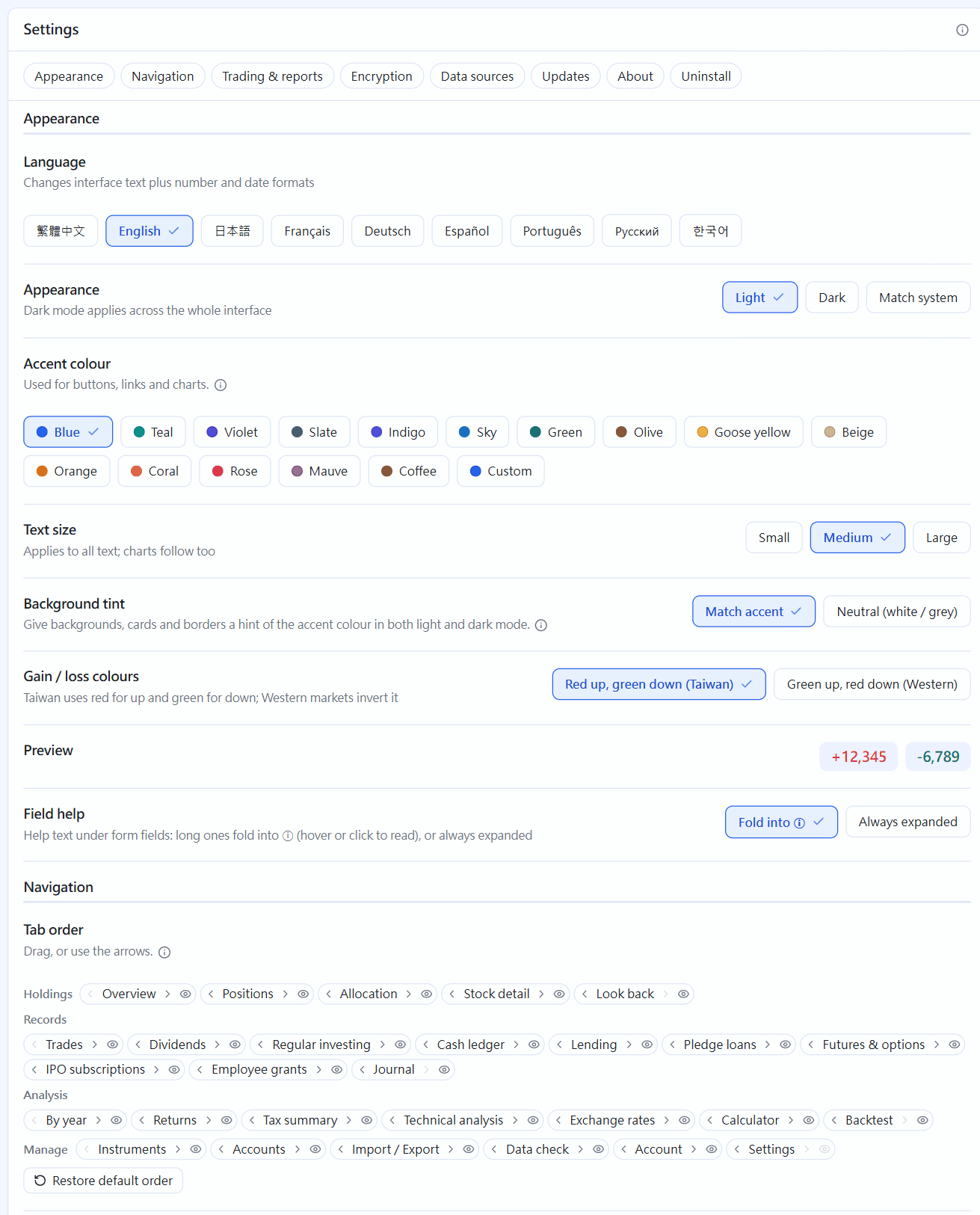
Manage → Settings, separate for each account. The top row has shortcuts to each category: Appearance, Navigation, Trading & reports, Encryption, Data sources, Updates, About, Uninstall.
Settings: language, appearance, accent colour, font size, gain / loss colours, field help, tab order
Language: nine languages, with number and date formats changing too. Appearance: Light, Dark, Match system. Accent colour: 15 choices or your own.
Gain / loss colours: red up, green down (the Taiwan convention) or green up, red down. Field help: long hints fold into ⓘ, or always show in full.
Tab order: drag or use ← → to reorder; the first visible tab is the page you see after signing in. The eye to the right of each tab hides tabs you don't use (chapter 3).
Trading & reports: default fee discount, report currency, whether the instrument picker shows shares held, and Markets (Taiwan stocks, US stocks, funds, bonds).
Corporate actions: cash dividends, stock dividends, splits, capital reductions and dividends owed on shorts can each be set to Off / Ask me / Auto-record (chapter 7).
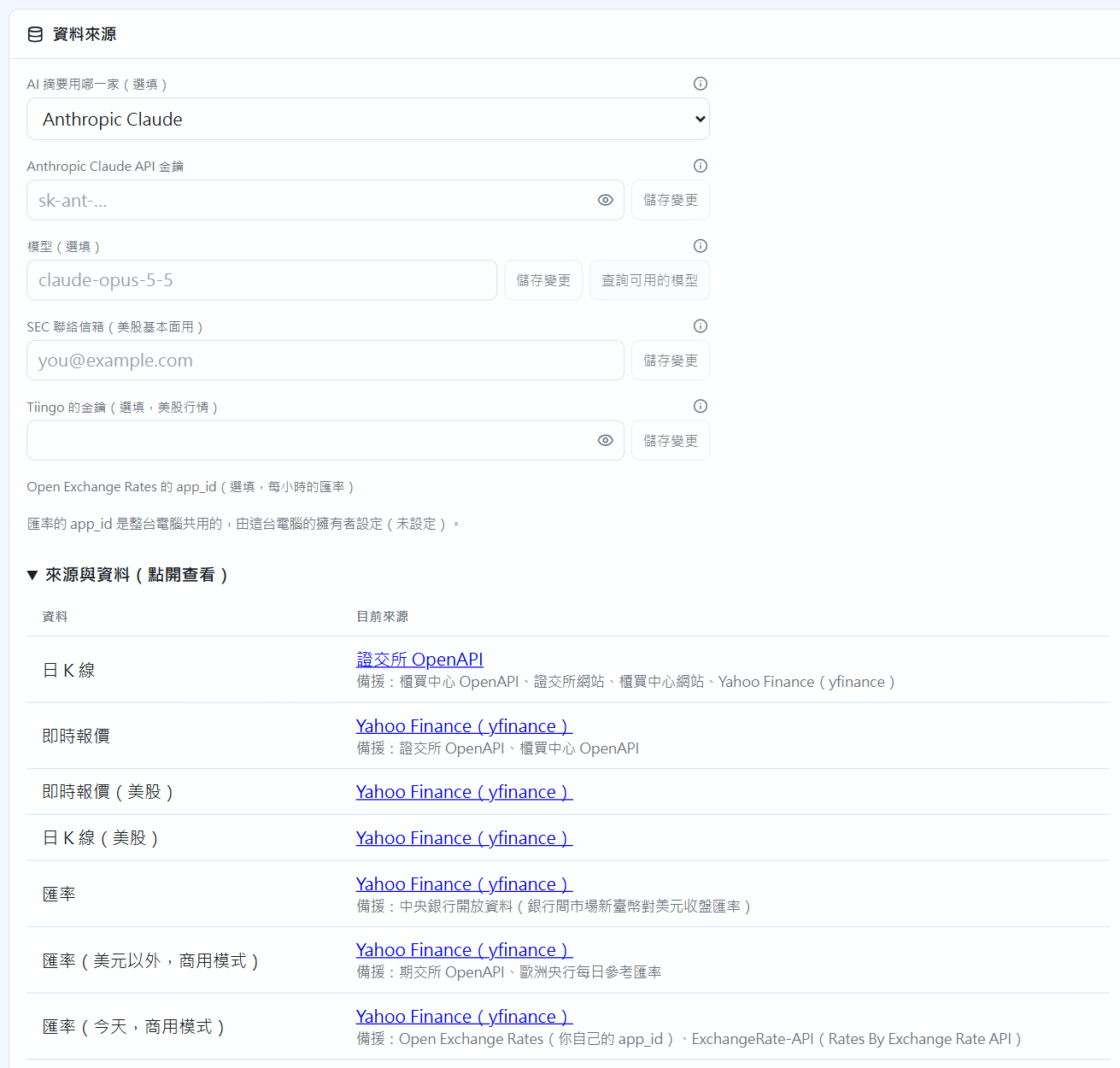
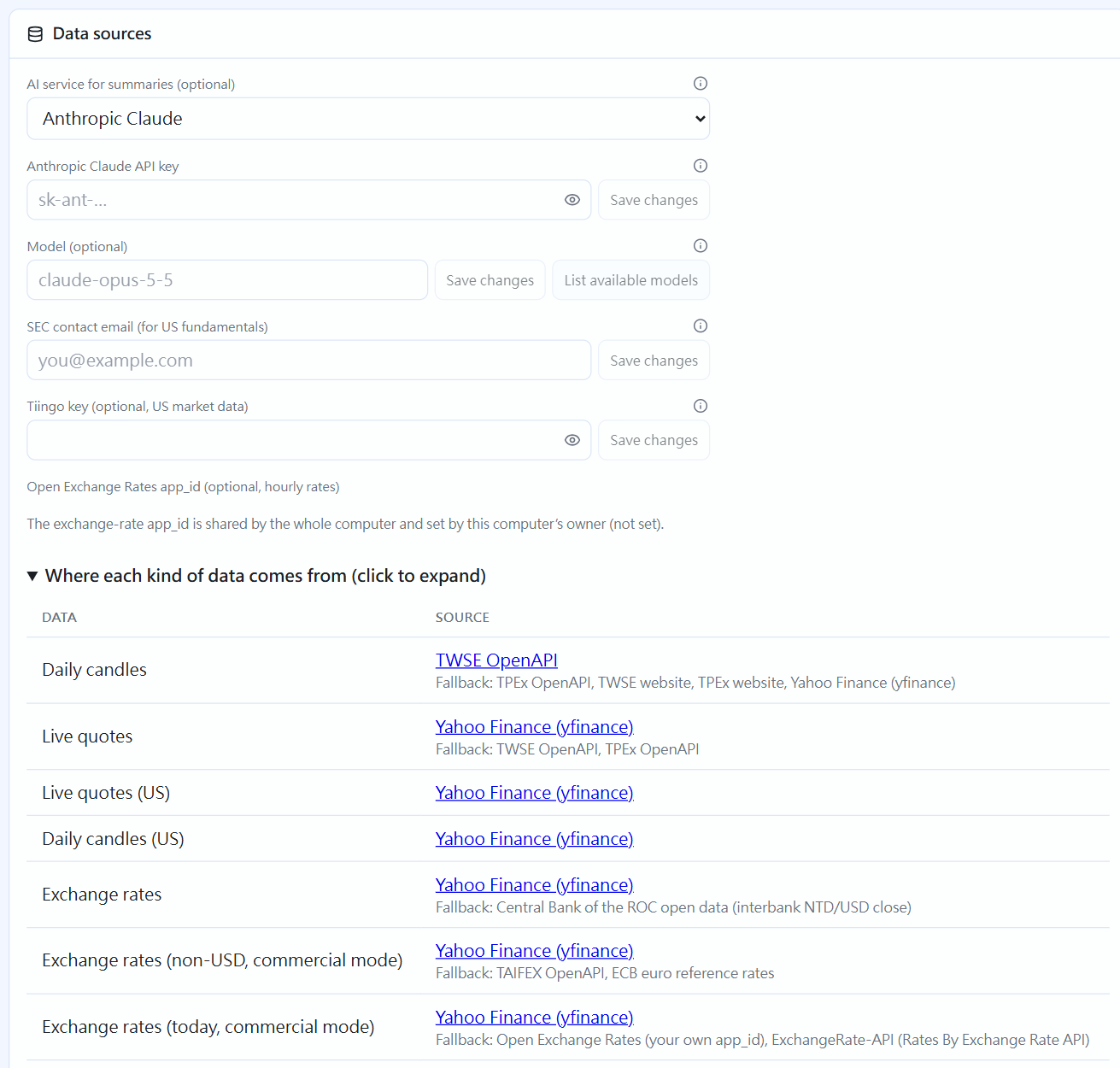
Data sources
Enter your own AI summary service, API key and model (chapter 18), the SEC contact email (US P/E and yield need financial filings from the SEC) and the Tiingo key (US market data). How to get each one and what to paste is in chapter 25. The section below, “Where each kind of data comes from (collapsed by default; click to expand), lists where each kind of data comes from.
Data sources
Checking for updates
By default the app checks at most once a day (sending only the current version number) and shows a notice at the top of the screen when a new version is out. Only the owner can change this setting. With the Windows installer, click “Download and install”; it reopens by itself when done, and your data is not affected. With the portable edition, download the new zip and move the data folder over from the old folder.
Checking for updates
Uninstalling
Uninstall is at the bottom of the Settings page: enter your sign-in password and choose “Remove the program, keep my data” (the default) or “Remove everything” (deletes every account's data on this computer, can't be undone, owner only). Once you confirm, STOCKings closes right away. With the Windows installer, you can also uninstall from “Settings → Apps → Installed apps” in Windows; your data stays. If you want to keep a record, export everything first.
 STOCKings