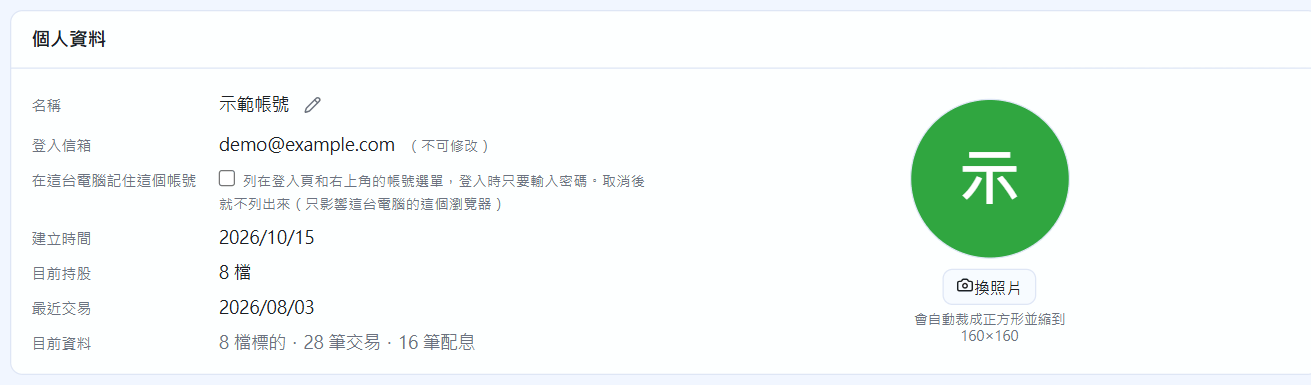
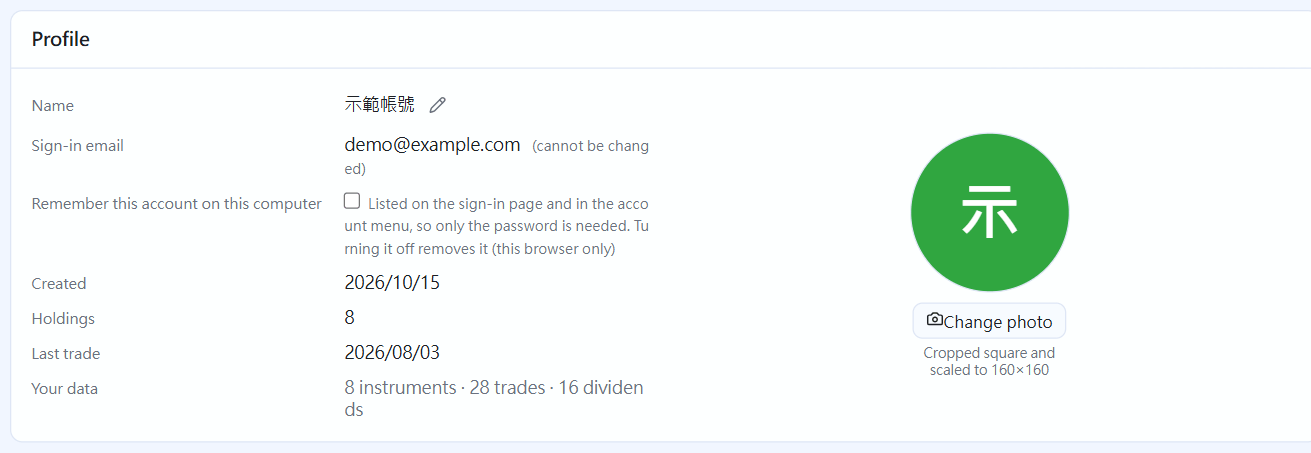
Click the pencil to change your name. The email can't be changed (it is your sign-in). On the right, “Change photo” sets your profile picture (stored in your own database). Tick “Remember this account on this computer” to choose whether the sign-in page lists it.
Profile
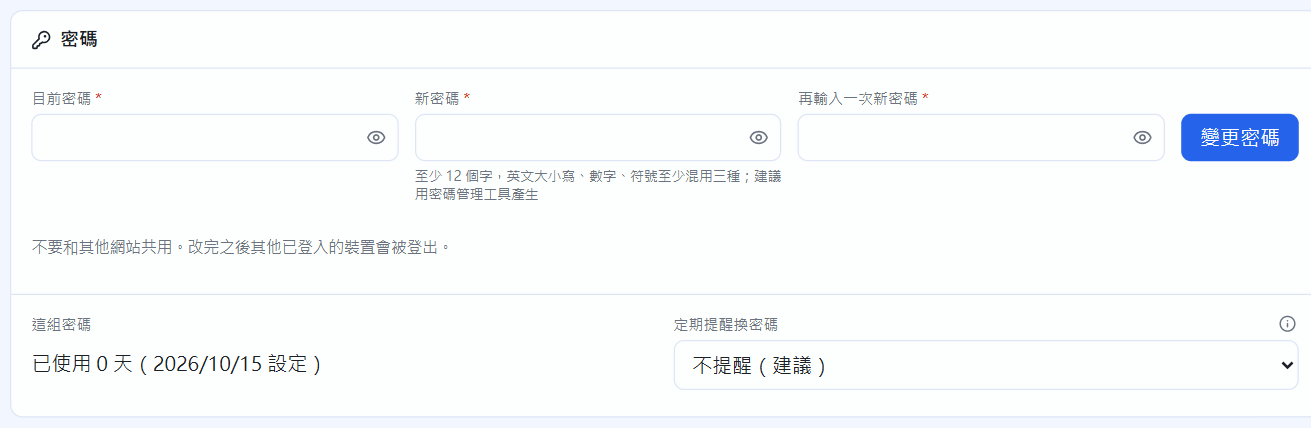
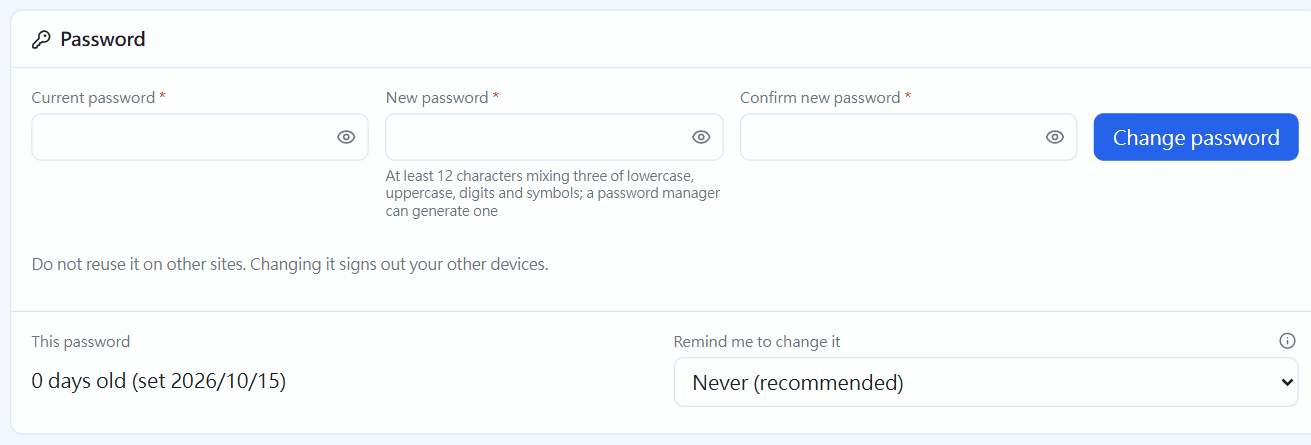
To change your password, enter the current password and the new one twice, then click “Change password”. Sign-ins on other devices are signed out. Below, you can see how many days this password has been in use and choose whether to get regular reminders (off by default).
Password
Two-step verification
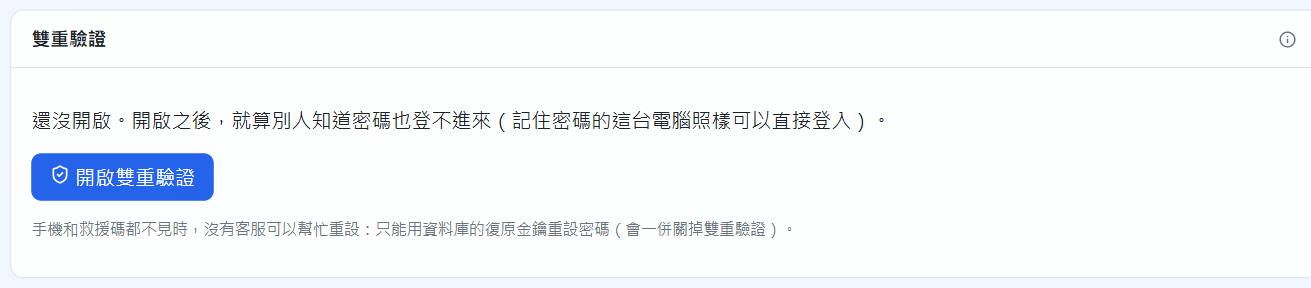
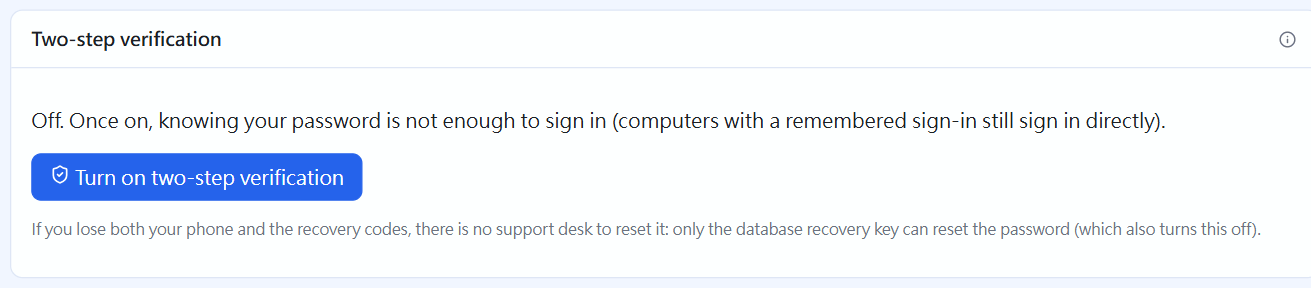
Click “Turn on two-step verification”. Install an authenticator app on your phone (Google Authenticator, Microsoft Authenticator, 1Password, Bitwarden).
Scan the QR code on screen with the app, enter the 6-digit code from the app and click “Confirm and turn on”.
You are given 10 recovery codes, shown only once: download them or write them down and keep them safe. Each one works once when your phone isn't with you.
Two-step verification
Passkeys: sign in without a password
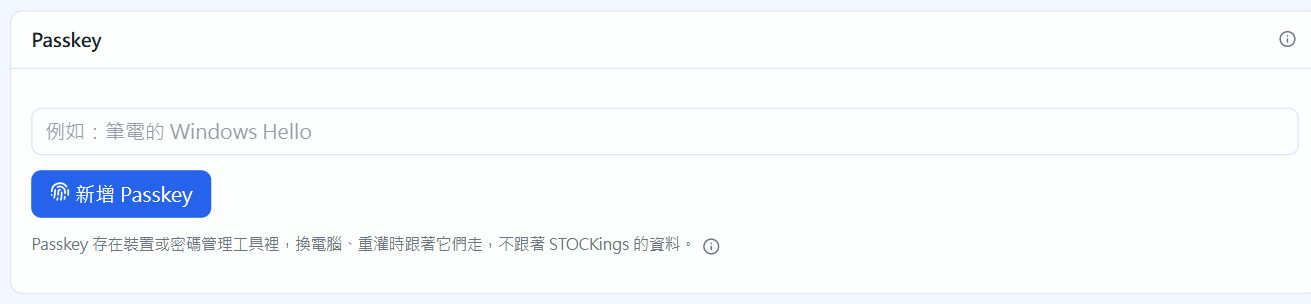
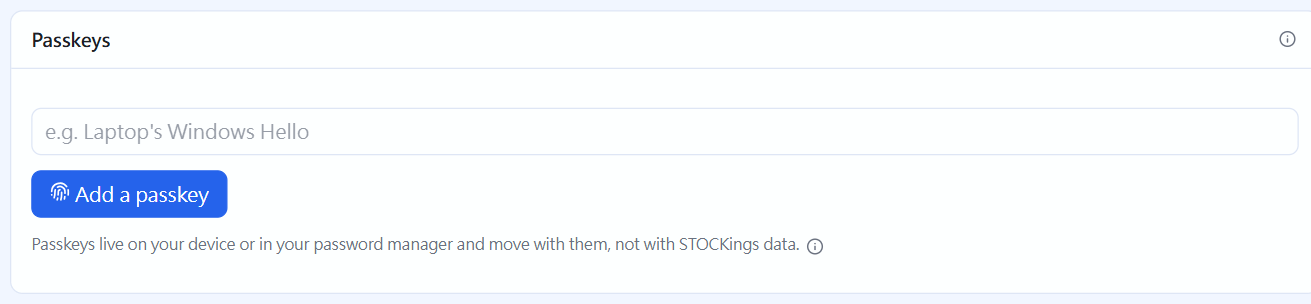
Give it a name (for example “Laptop Windows Hello”), click “Add a passkey” and confirm in the system window (Windows Hello, your phone or a password manager). From then on, click “Sign in with a passkey” on the sign-in page. The address must be localhost; keep your password as a fallback.
Passkeys
Computers that remember your password lists the computers where “Remember email and password” is ticked. You can revoke them one by one or all at once; changing your password revokes them all automatically.
Owner
The owner is the first account created, and manages what is shared by the whole computer: the recovery key, update checks, whole-computer backups, the exchange-rate app_id, and “Remove everything” when uninstalling. You can hand ownership to another account here (you enter your own password again). The demo account can never be the owner.
Owner: hand over to another account
Demo account and deleting your account
“Create demo account” adds an account with made-up data, demo@example.com (password demo1234). Switch to it from the account menu, and when you are done, just delete it from inside that account.
Demo account
Delete this account deletes all of this account's data and can't be undone: you must enter your password and tick “I understand this cannot be undone” before the button works.
 STOCKings