Cloud backup, at the bottom of Manage → Import / Export, backs up your own data to your own Google Drive. Each account sets it up separately. Backups are encrypted on this computer with your backup password before upload, so neither Google nor we can see the contents.
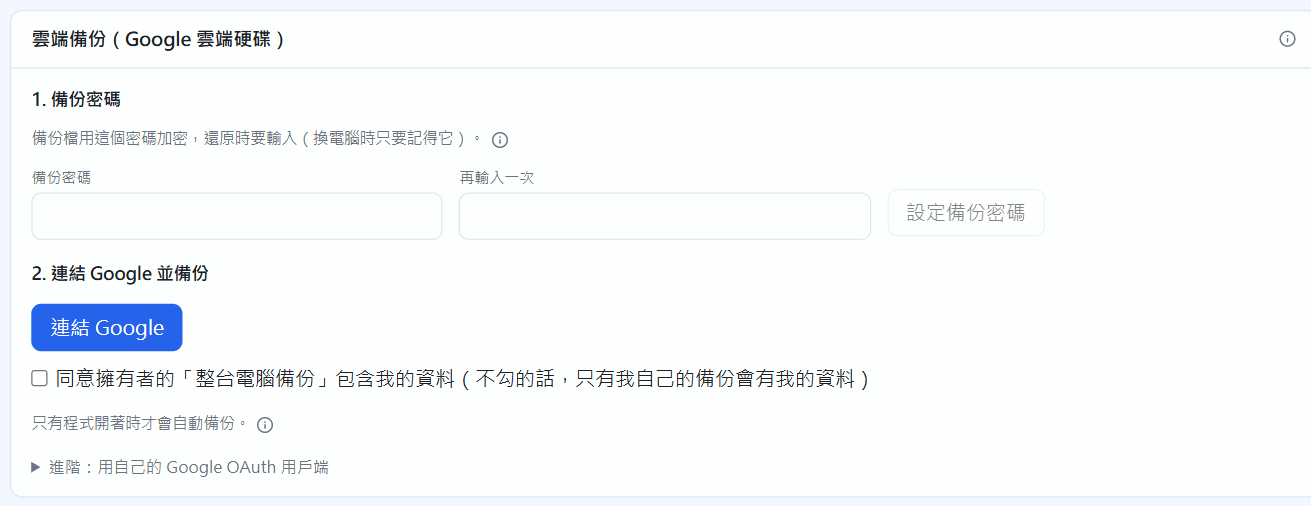
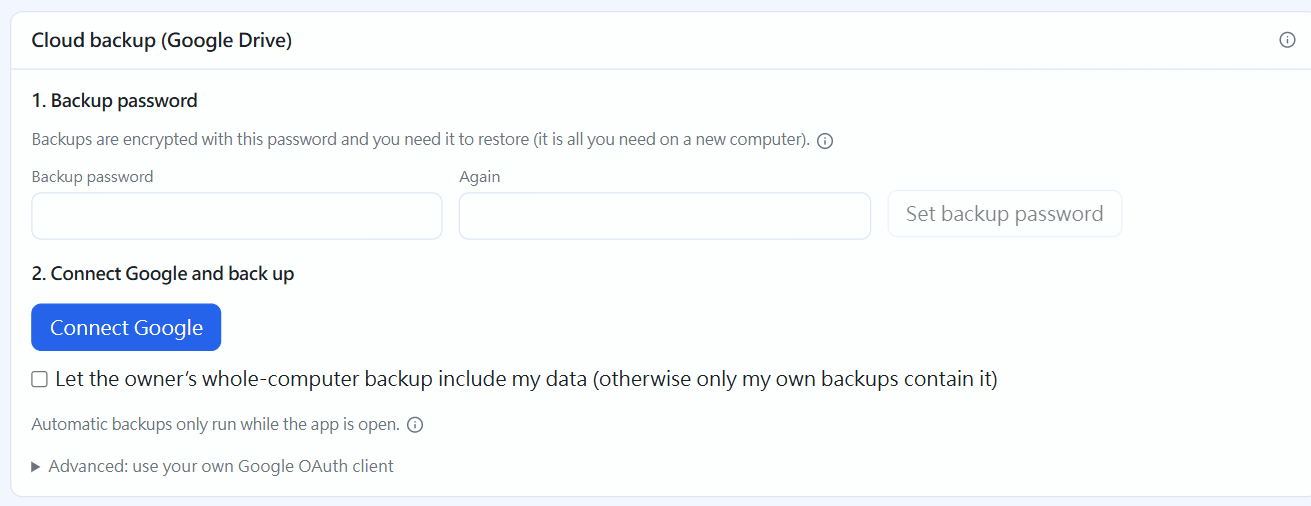
Cloud backup: before setup
First-time setup
Choose a backup password (at least 8 characters), enter it twice and click “Set backup password”. You need it to restore, and if you forget it, the backup cannot be recovered.
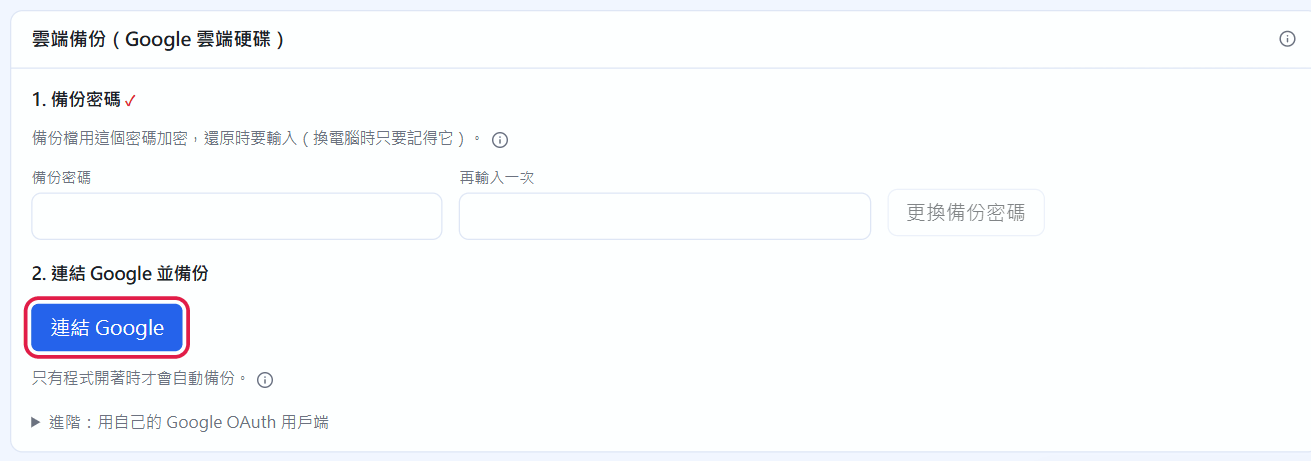
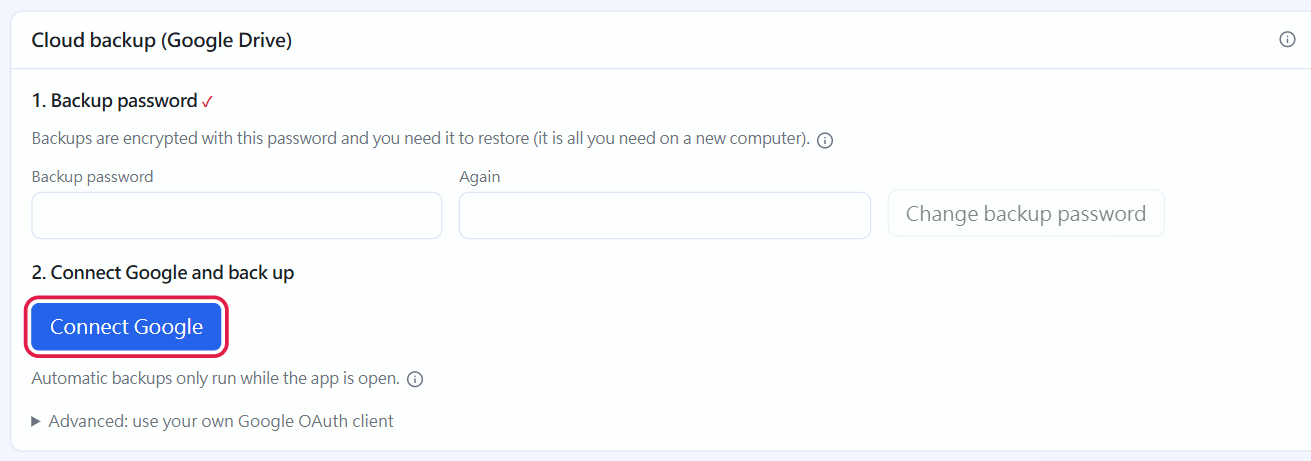
Click “Connect Google”. Your default browser opens Google's page (if not, click “Didn’t see it? Open again”). Sign in to your Google account and follow the screens, clicking “Continue” to allow STOCKings to access only the files it creates. Until the app passes Google's review, Google warns that “this app isn't verified”; choose “Continue”.
Back in STOCKings, the screen shows you are connected automatically.
After setting the backup password, click “Connect Google” (Google's consent screen is in your browser, so it isn't shown here)
The app can only see the “STOCKings Backups” folder it creates, not anything else in your Drive, and nothing goes through our servers. If your download has no built-in Google client, expand “Advanced: use your own Google OAuth client” and follow the online instructions to create one.
Backing up
Click “Back up now” (it can take tens of seconds with lots of data), or set Automatic backup to daily or weekly (backups only run while the app is open; 10 copies are kept by default). The last backup time and any failure reason are shown in the same place.
Restoring
Click “Backups in the cloud” to list your backups (“Type” says “My data” or “Whole computer”).
Pick one, click “Restore” and enter that backup's password.
“My data” takes effect right away (the screen reloads); other accounts are not affected.
Restoring on a new computer: install the app, create an account with the same email, set the backup password and connect the same Google account. “Backups in the cloud” then lists your earlier backups.
Whole-computer backup (owner)
The owner's cloud backup has an extra Whole computer option: it backs up the owner's own data plus every account that has agreed to it, so on a new computer you can rebuild all those accounts (including sign-in passwords) in one go. Other accounts are included only if they tick “Let the owner’s whole-computer backup include my data” in their own cloud backup (the checkbox in this chapter's first screenshot). It is off by default. When restoring a whole-computer backup, accounts this computer doesn't have are rebuilt from the backup (including sign-in passwords); other people's existing accounts are not overwritten.
 STOCKings