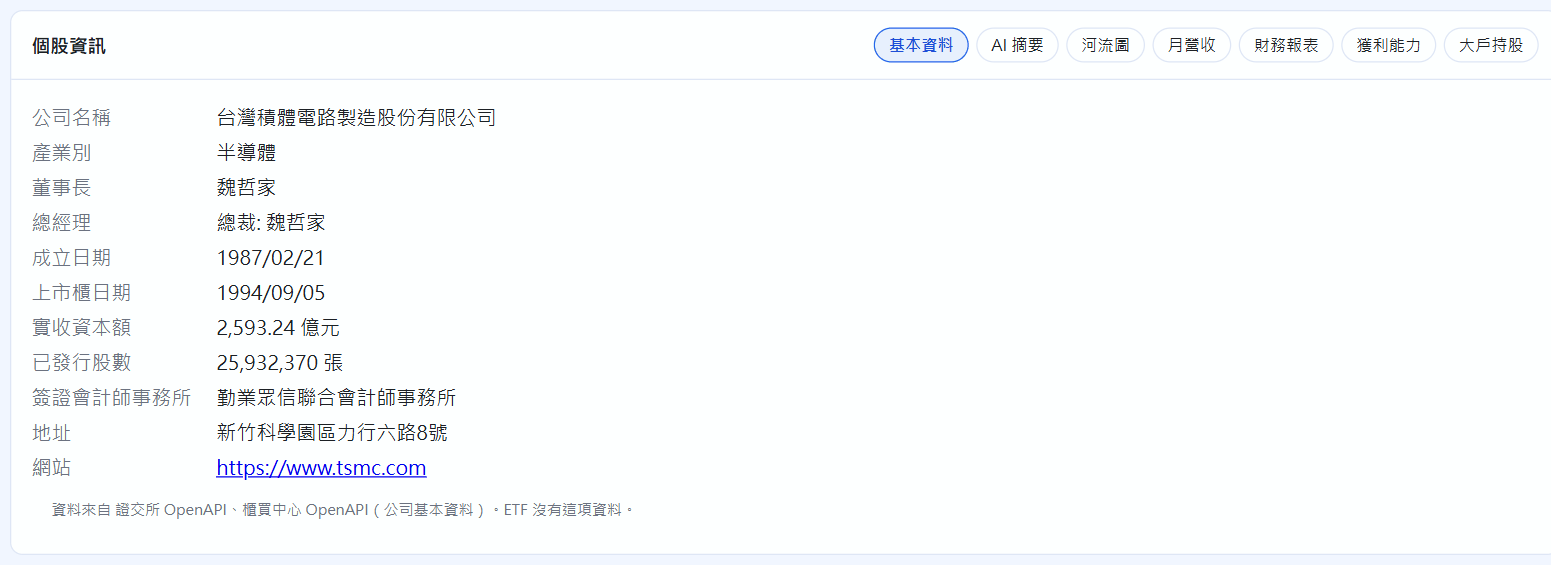
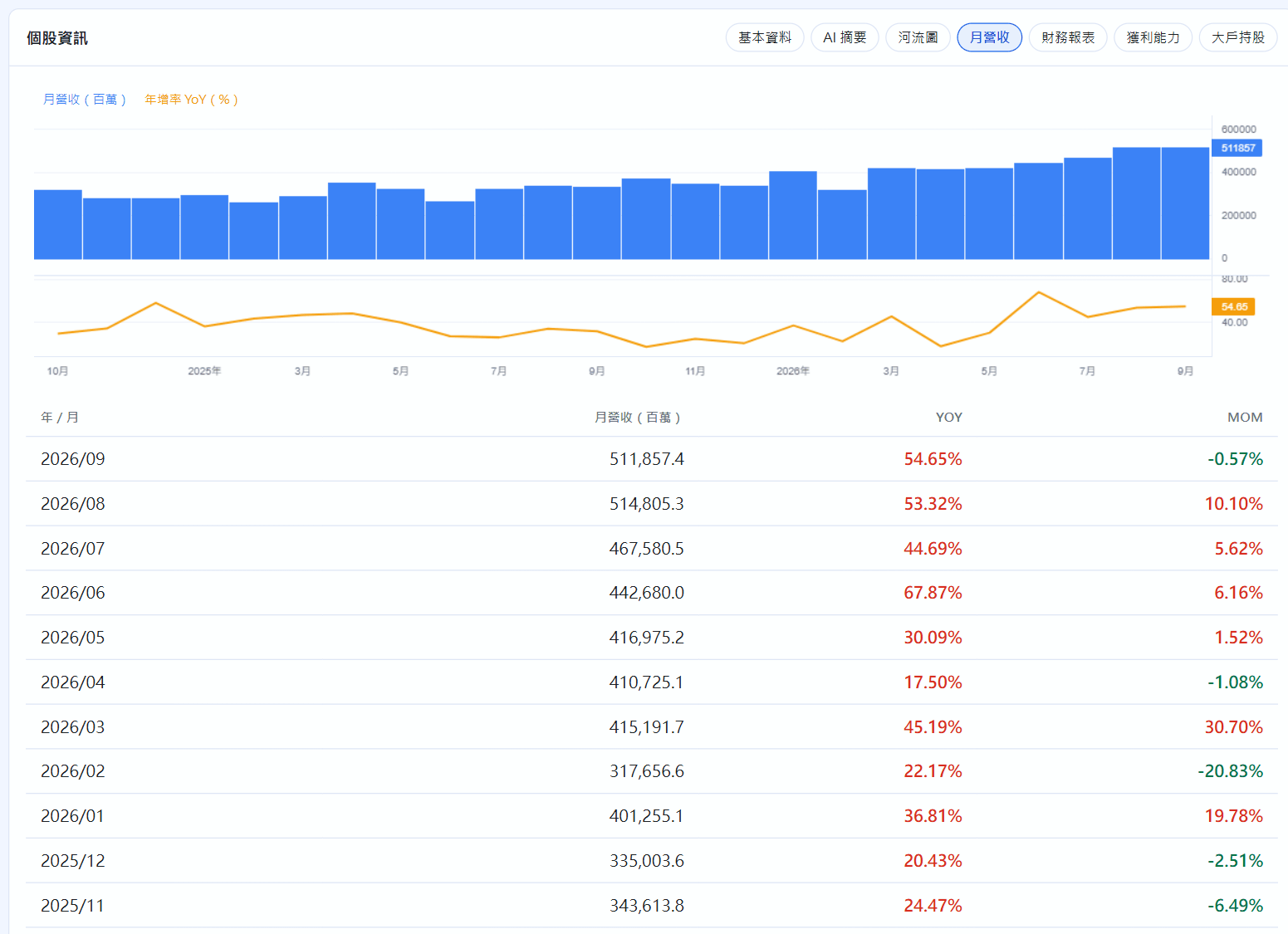
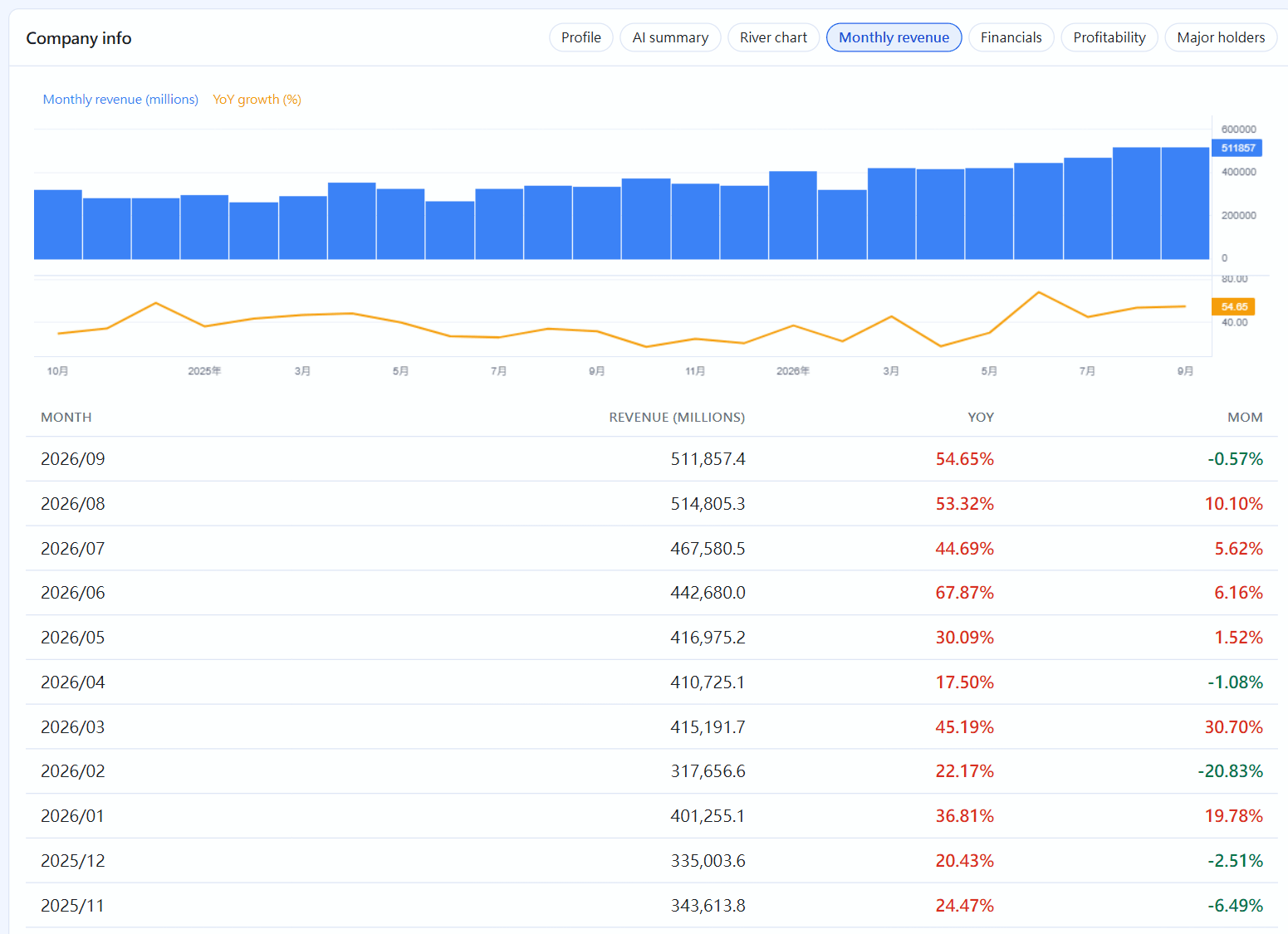
K 線圖下方的個股資訊有基本資料、AI 摘要、河流圖、月營收、財務報表、獲利能力、大戶持股(台股;資料要連網抓)。
個股資訊
AI 摘要把這檔近期的數字(漲跌、均線、KD、本益比、月營收、法人買賣超⋯⋯)整理成一段描述,只描述、不預測、不給買賣建議。要 AI 寫成段落,到 設定 → 資料來源 選一家(Anthropic Claude、OpenAI、Google Gemini)填你自己的 API 金鑰(申請方法見第 25 章),或用自己電腦上的模型(Ollama、LM Studio);不填會直接條列重點。送給 AI 的只有公開市場資料。
AI 摘要月營收
Chapter 18
Technical analysis and company info
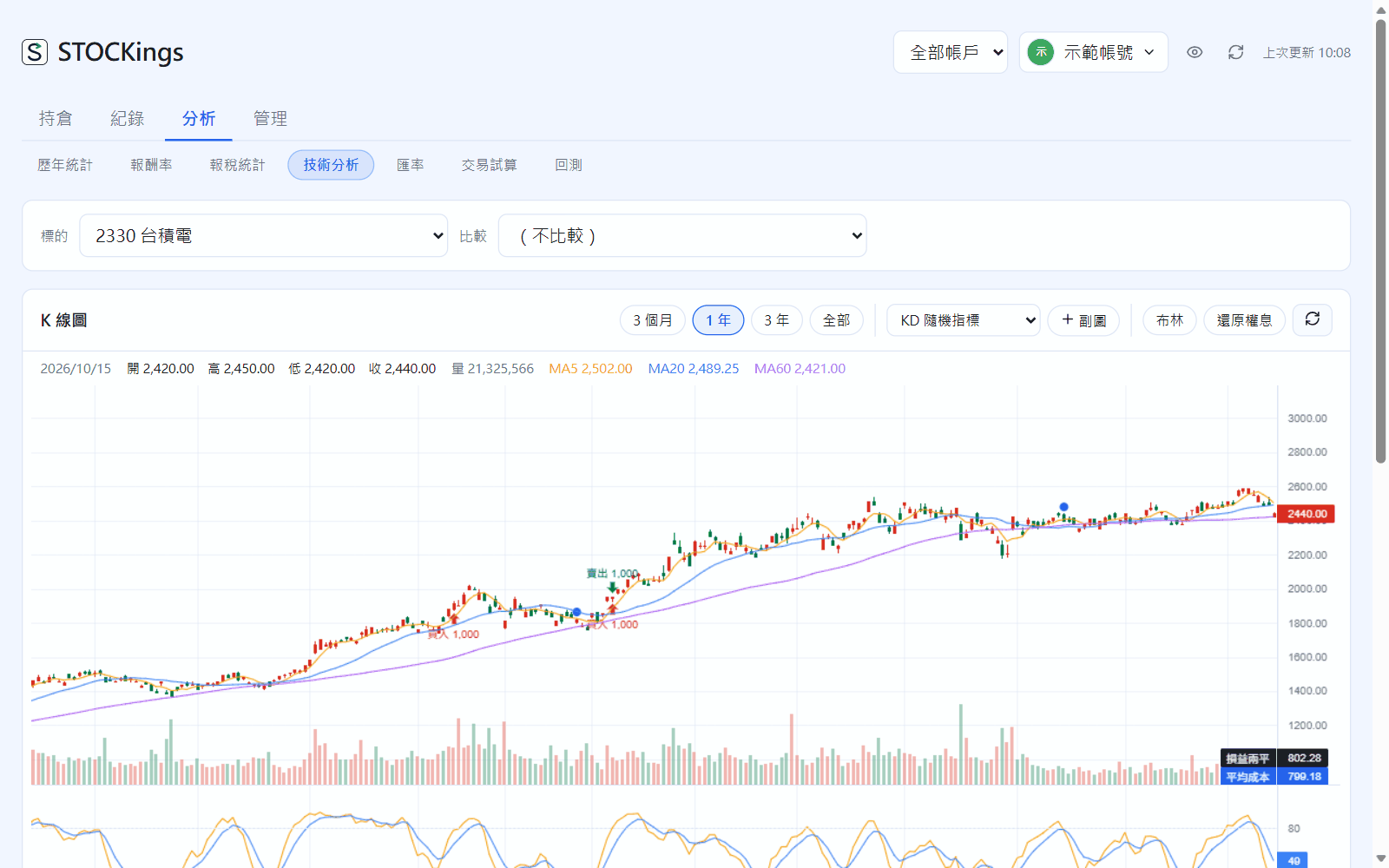
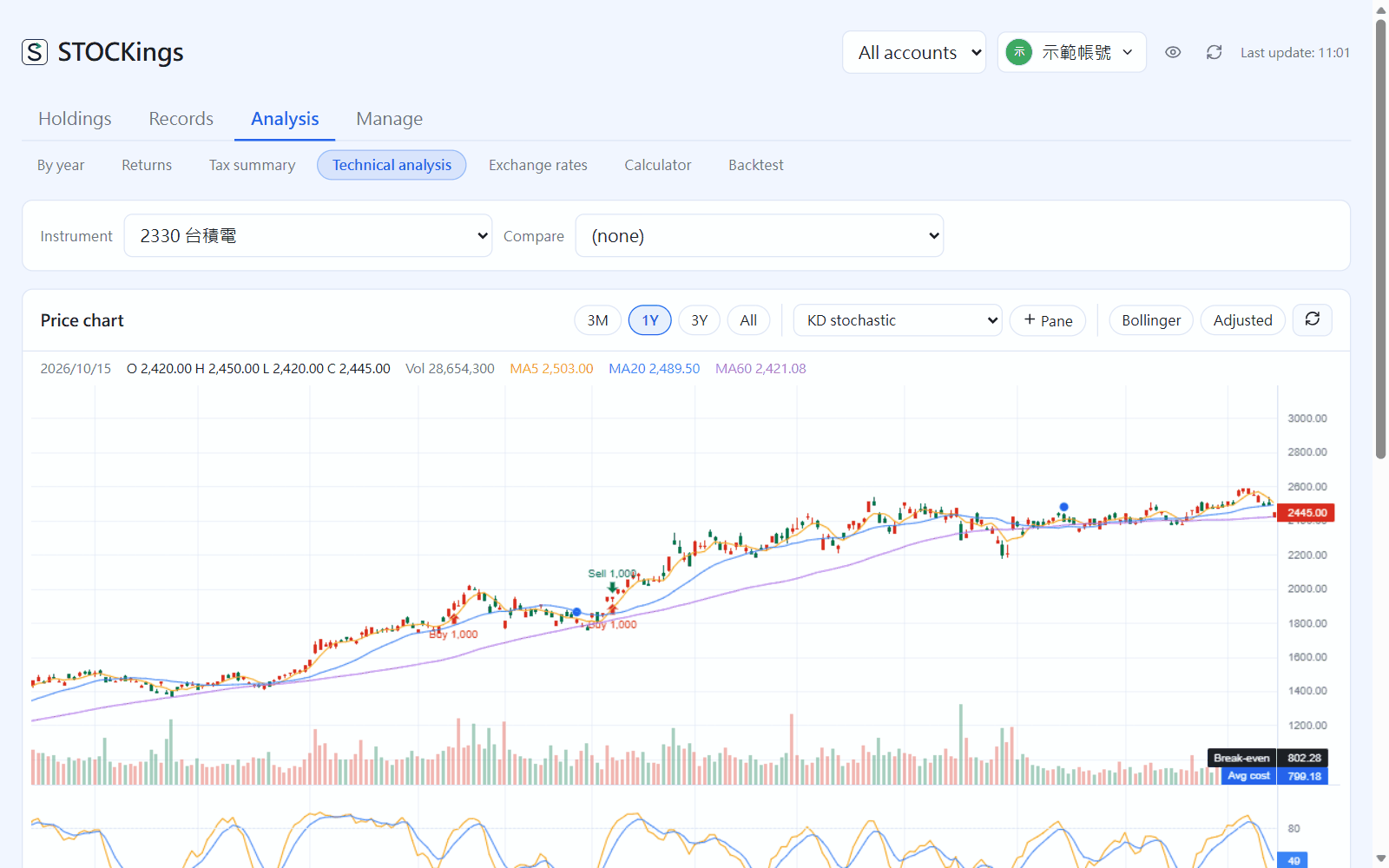
Go to Market → Technical analysis and pick an instrument at the top (any instrument works, even with no trades).
Candlestick chart: red arrows are your buys, green your sells, the dashed line is your average cost, and dots above candles mark days you wrote a journal entry
The range at the top right sets how much you see at once. Drag left for older data; use the scroll wheel to zoom.
Each drop-down is a lower pane (KD, MACD, RSI, bias, P/E, yield, institutional investors, margin and short sales, ETF premium / discount…). Click “+ Pane” to open another, up to 4.
“Bollinger” overlays Bollinger Bands; “Adjusted” adds dividends and stock dividends back so you can see the long-term trend.
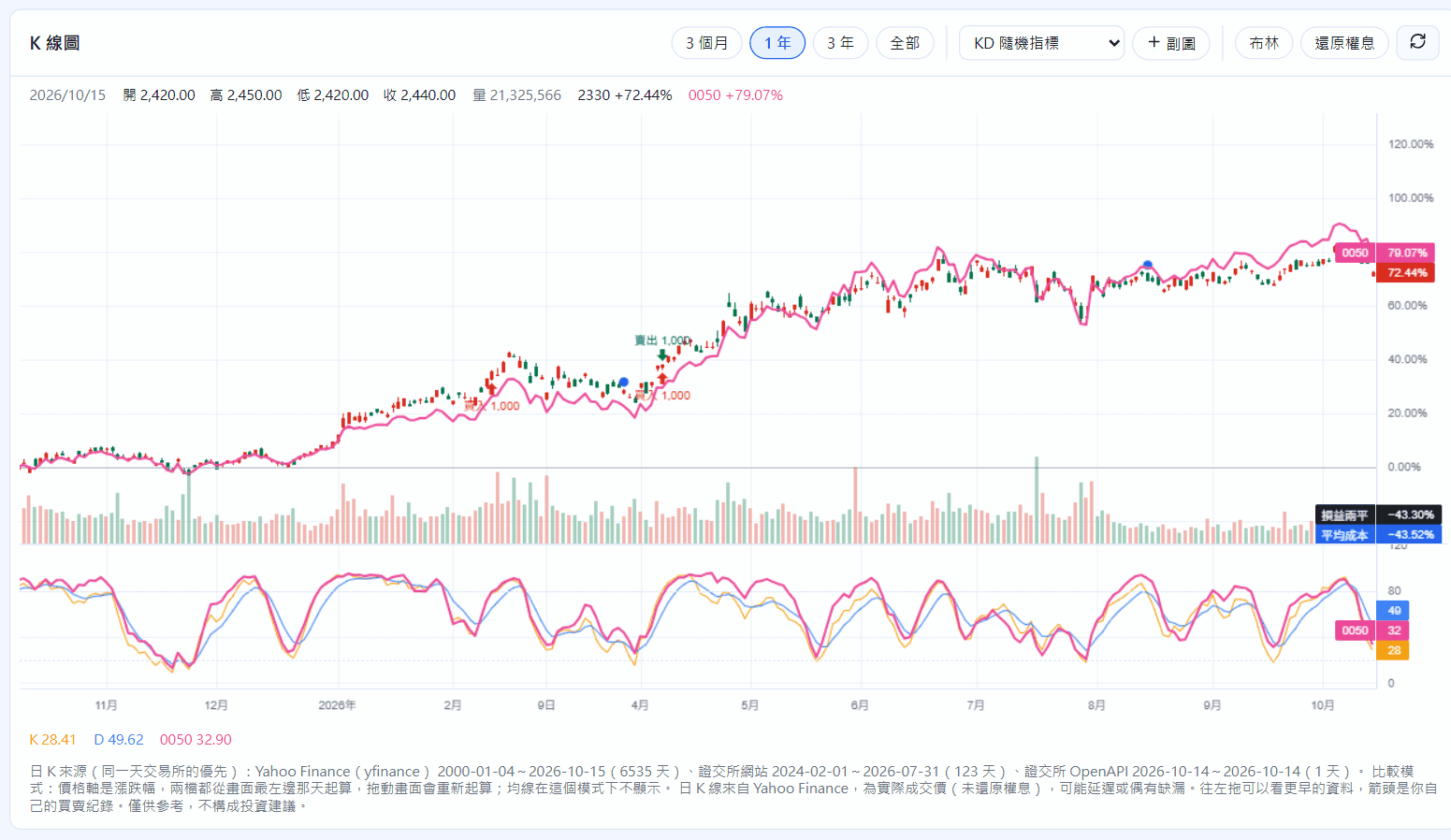
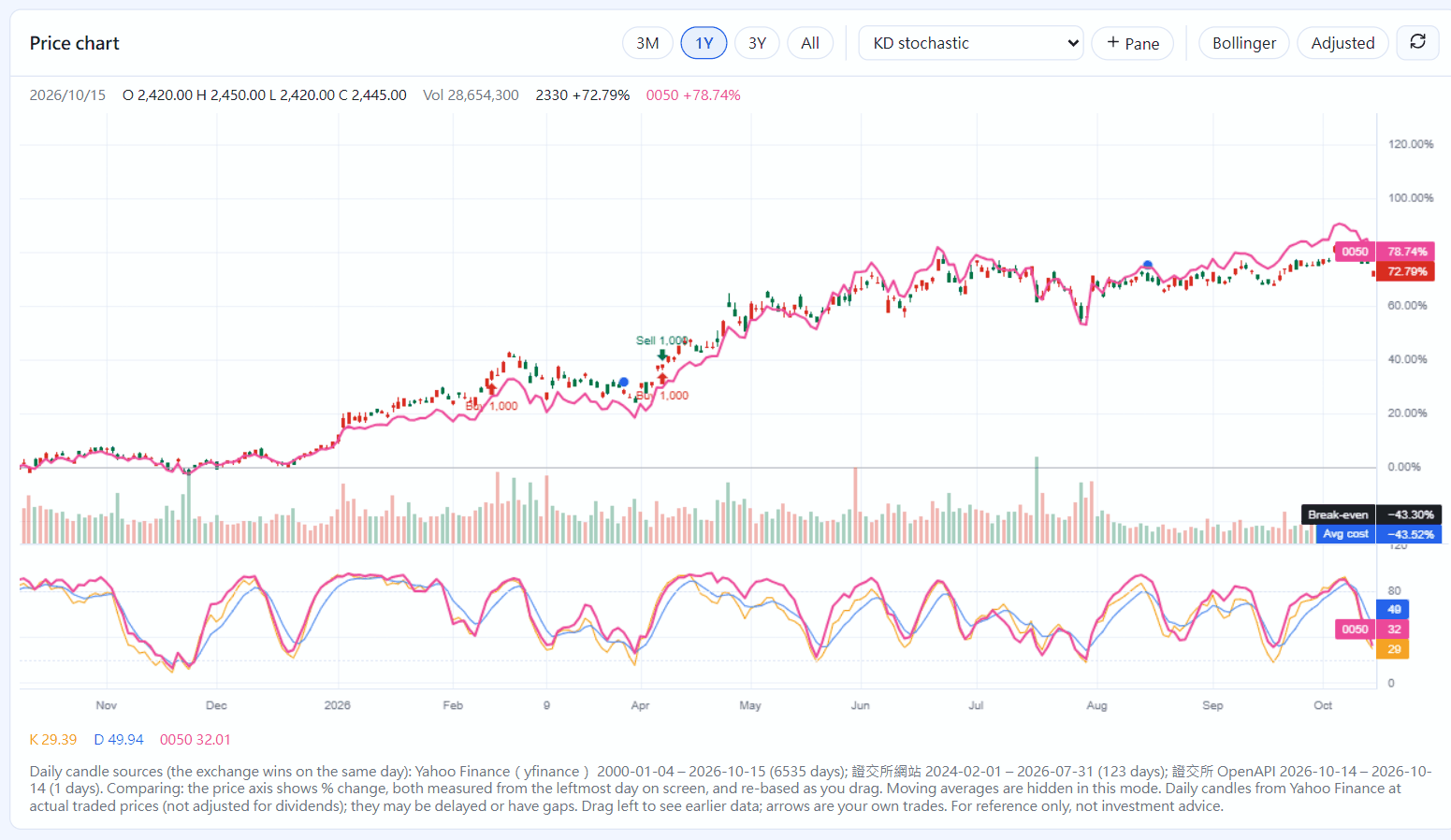
Pick a second instrument in “Compare” at the top, and the price axis switches to percentage change with both on one chart:
Comparing two instruments
Company info and AI summary
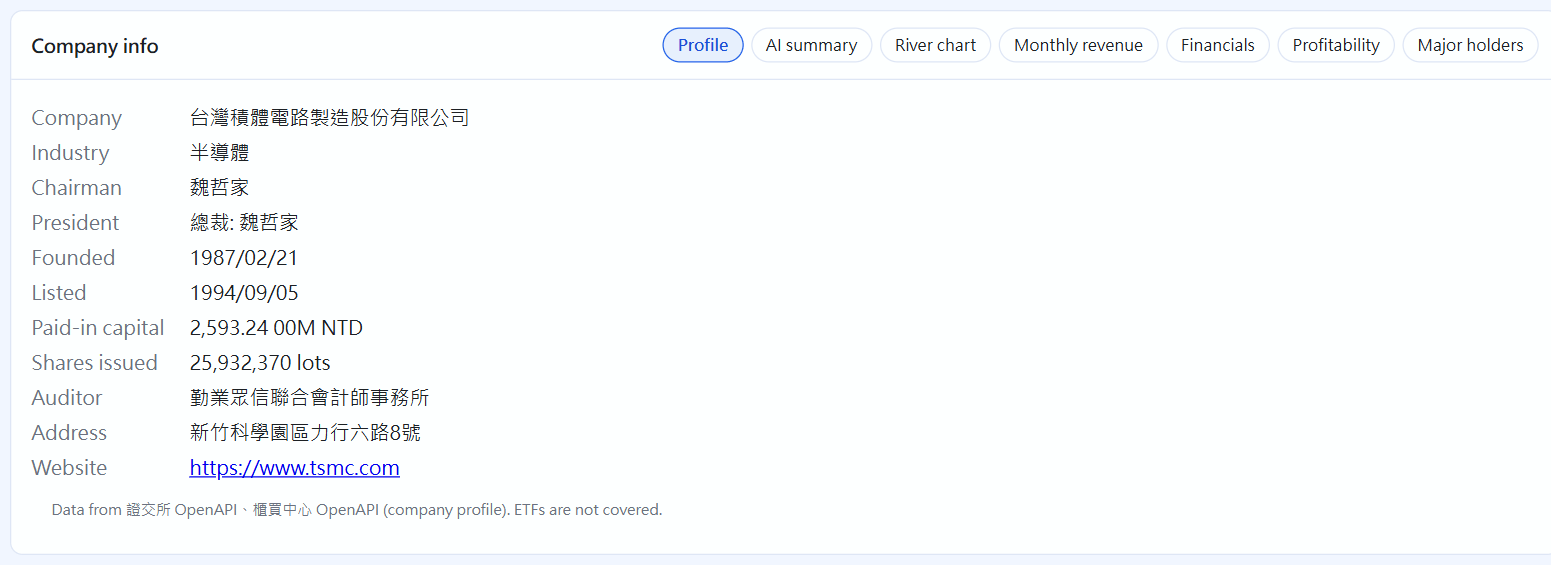
Company info below the chart has Profile, AI summary, River chart, Monthly revenue, Financials, Profitability and Major holders (Taiwan stocks; data is fetched online).
Company info
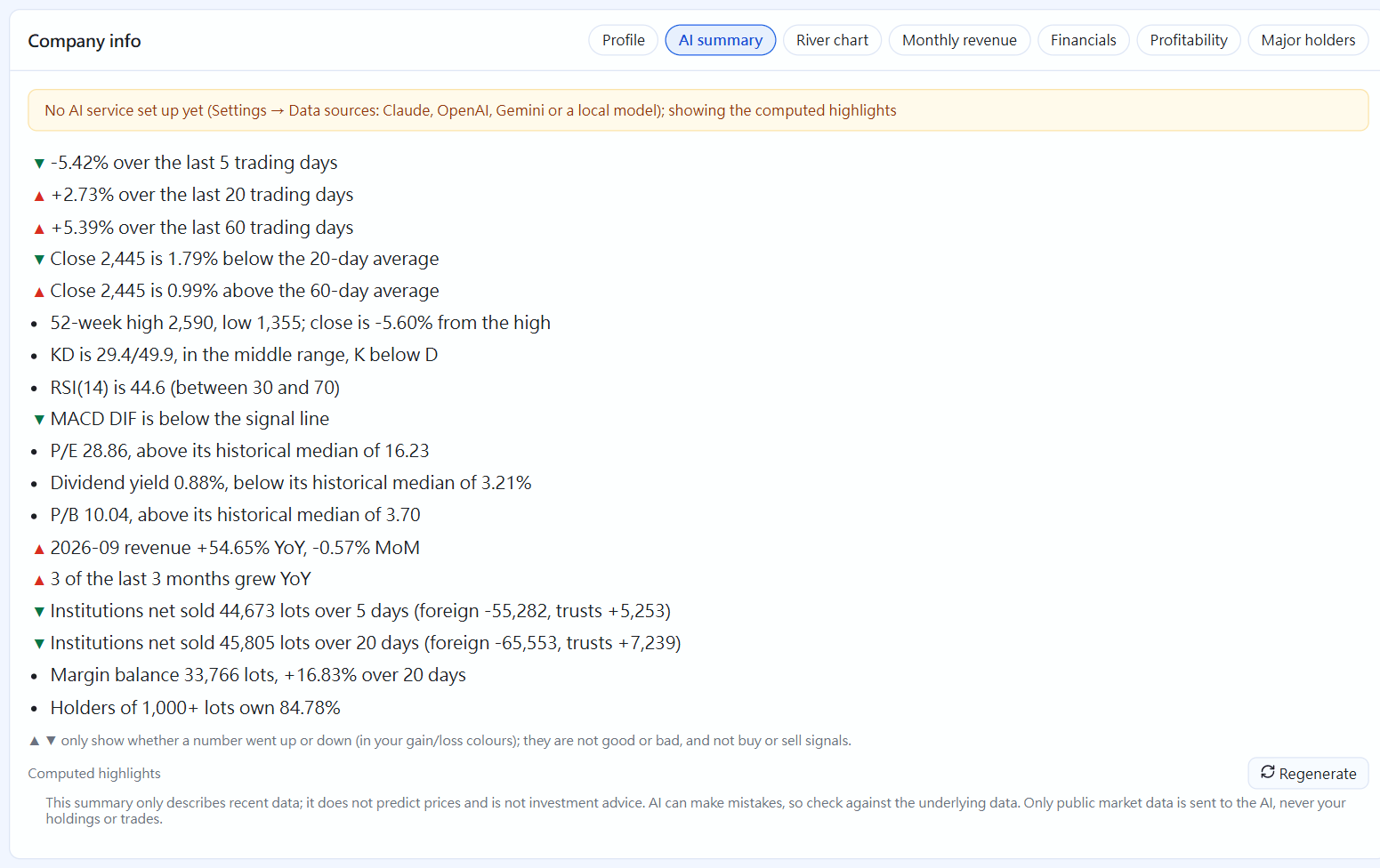
The AI summary turns this instrument's recent figures (price change, moving averages, KD, P/E, monthly revenue, institutional net buying…) into a short description. It only describes; it never predicts or gives buy or sell advice. To have AI write it as a paragraph, go to Settings → Data sources, choose a provider (Anthropic Claude, OpenAI, Google Gemini) and enter your own API key (how to get one: chapter 25), or use a model on your own computer (Ollama, LM Studio). Without one, you get the key points as a list. Only public market data is sent to the AI.
 STOCKings